

Roles and your team
Owners and operators, what each can do, and how the owner invites, cancels invites for or removes the people who help run your community on Milvao.
Two roles share the Milvao dashboard. The owner is the person responsible for the community on Milvao, usually whoever signed up for the pilot. Operators help run it day to day. Milvao staff create the workspace and invite the owner, and the owner invites operators.
What each role can do
| Owner | Operator | |
|---|---|---|
| See Overview, Requests, Introductions and Members | ✓ | ✓ |
| Create and edit groups, create and revoke join links, archive groups | ✓ | ✓ |
| Verify and remove members from groups | ✓ | ✓ |
| Add, rename and archive skills and cities | ✓ | ✓ |
| Work on requests and introductions | ✓ | ✓ |
| Change the community name, time zone and bot language | ✓ | View only |
| Choose how matches are made | ✓ | View only |
| See the team list | ✓ | ✓ |
| Invite operators, cancel invites and remove operators | ✓ |
Members' phone numbers show masked, with the last 4 digits, for everyone on your team. Only the owner can export full numbers, with a reason that is recorded in the activity log. See Who sees what.
Invite an operator
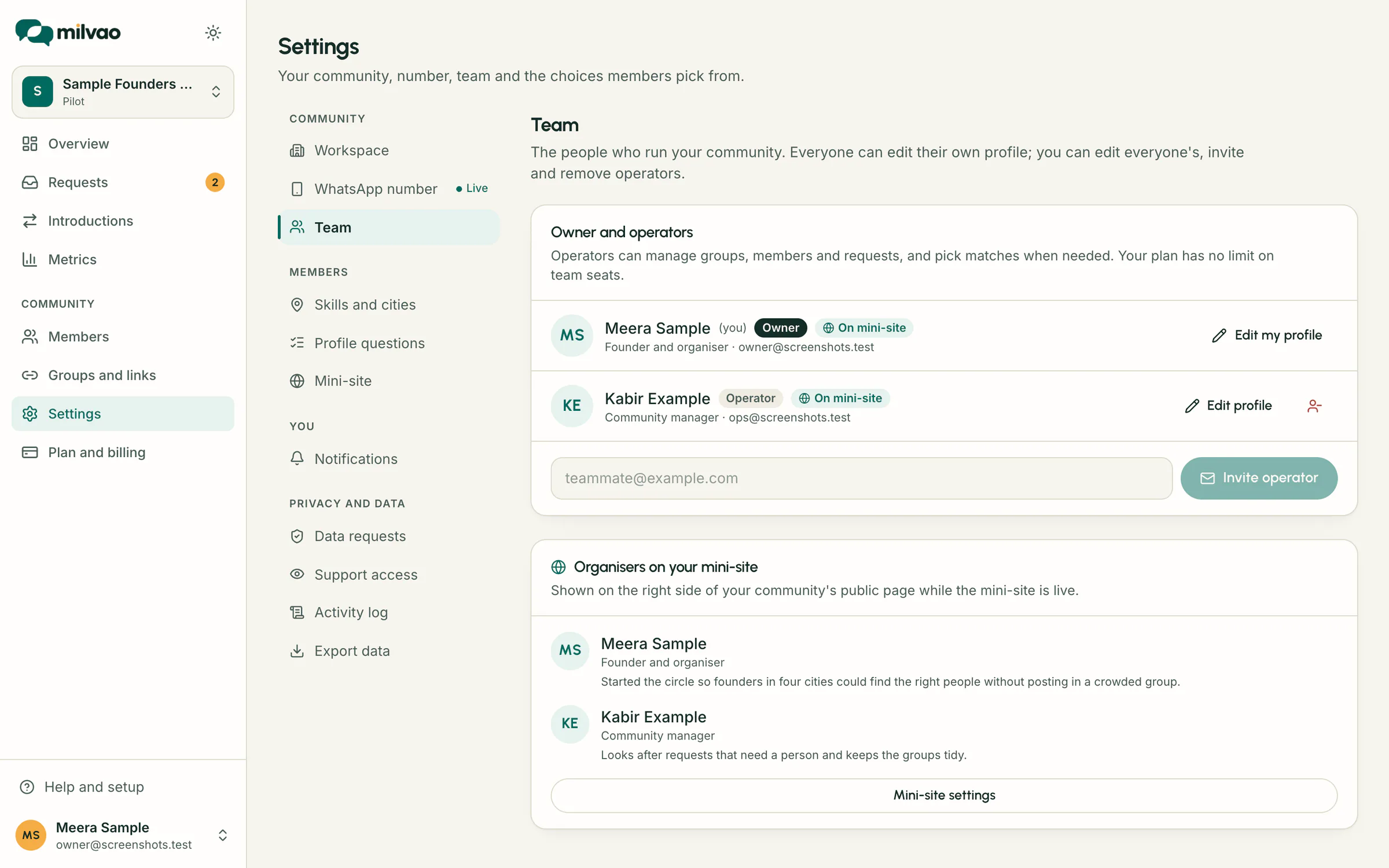
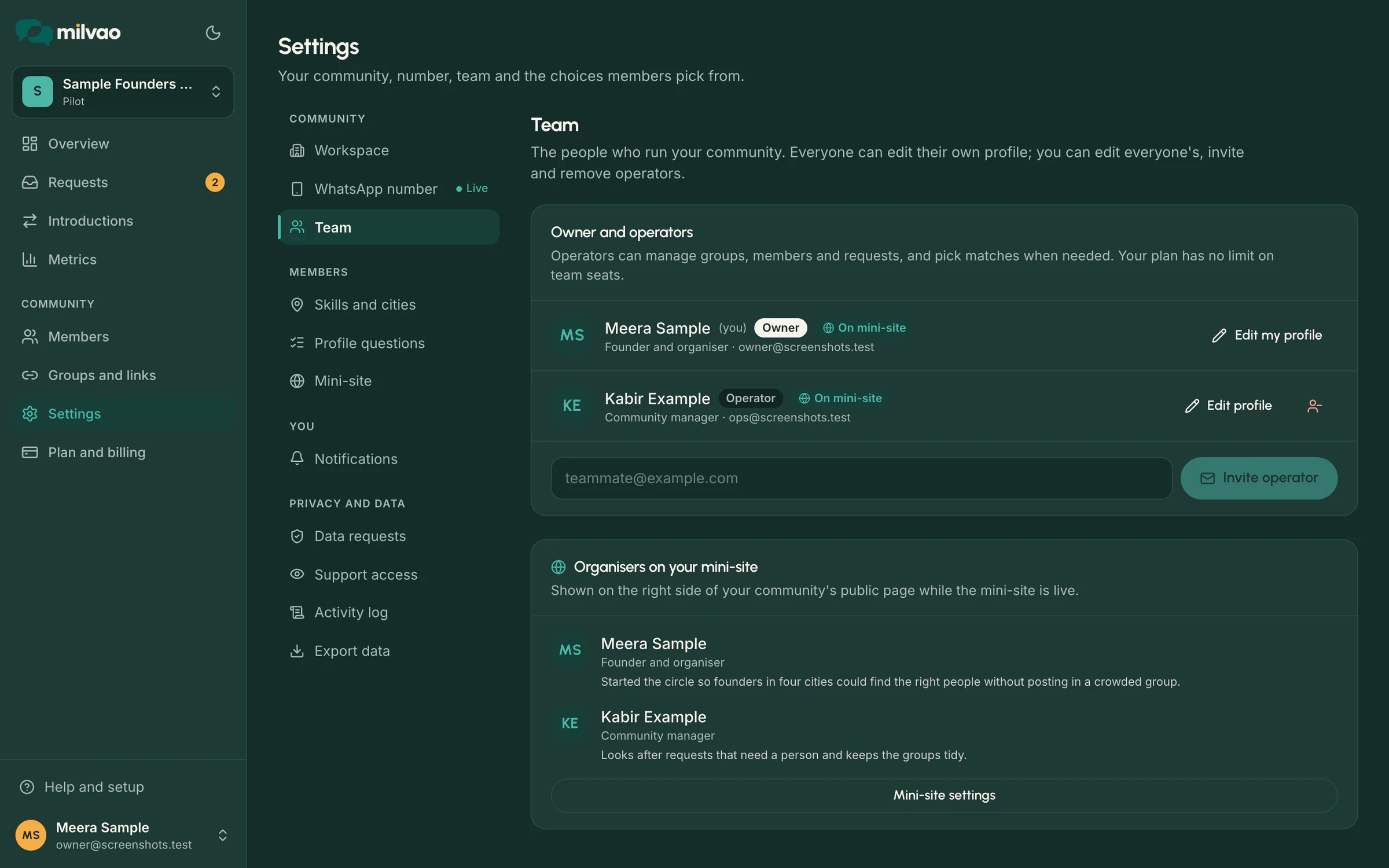
- Open Settings → Team.
- Enter their email address and click Invite operator.
- You see "Invite sent to [email]." They get an email with the subject You're invited to [community name] on Milvao.
Until they accept, they're listed with Invite pending, the date you invited them and the date the link stops working. The link works for 7 days and only once. See Accept your invite for what they do next.
- Inviting the same email again replaces the pending invite. The old link stops working.
- "This person is already on your team." means they've already accepted.
- An invite that expires disappears from the list. Invite them again if you still want them.
Cancel an invite
Click the cross next to the pending invite and confirm with Revoke invite. The link in their email stops working. You can invite them again later.
Remove an operator
- In Settings → Team, click the remove button next to their name.
- Confirm with Remove operator.
They lose access to your community straight away. Everything they did stays in the history, and their Milvao account still works for any other communities they help run.
Owners can't be removed from the dashboard, and you can't remove yourself. To change the owner, reply to your onboarding email or write to hello@milvao.com.
Team profiles
Everyone on the team has a profile for this community: the name shown, a role or title (for example "Founder and organiser"), a short bio, a photo, LinkedIn and website links and an optional public contact email. You can edit your own profile; the owner can edit everyone's.
- Open Settings → Team.
- Click Edit my profile next to your name (the owner sees Edit profile next to everyone).
- Click Add photo to upload a JPEG, PNG or WebP picture up to 4 MB. It's cropped to a square, and location and camera details are removed.
- Fill in the fields you want and click Save profile. You see "Profile saved."
| Field | Limits |
|---|---|
| Name shown | 2 to 60 characters. Empty: your account name |
| Role or title | Up to 80 characters |
| Short bio | Up to 600 characters |
A linkedin.com profile or company address starting with https:// | |
| Website | A full https:// address |
| Public contact email | Optional. Your sign-in email is never shown |
Show organisers on your mini-site
Switch on Show in Organisers on the mini-site in a profile to list that person in the Organisers section on the right side of your community's public page, with their photo, name, title, bio and links. It appears only while your mini-site is live (see Mini-site and directory). Profiles are off the mini-site until someone switches them on.
The Organisers on your mini-site panel on the Team page shows who is listed. People who are on the mini-site have an On mini-site label next to their name.
Seats
The Starter plan includes 2 seats and the Growth plan 5, owner included. The pilot doesn't limit seats, and Milvao trains whoever will run the dashboard. Need more than 5 seats? Write to hello@milvao.com. See Plan and billing.
Frequently asked questions
Can an operator invite other people?
No. Operators can see the team list, but only the owner can invite or remove anyone.
Can a community have two owners?
Yes, if Milvao staff set it up that way. Owners can only invite operators from the dashboard.
Someone left our team. What should I do?
Remove them in Settings → Team on the same day. Their access ends straight away.
Something unclear or missing? Tell us