

How requests work
A member writes what they need, Milvao turns it into a brief they confirm, then finds the right member to ask. Here is each step and what you see.
- Member writes to your community's number. For example: "Looking for a 1,500 sq ft office to rent in Mohali." (In India, Hinglish works too.) Only members with a finished profile can ask; others get their profile link.
- Milvao writes a brief within seconds: service, city, details and a one-line summary, using your skills and cities. Phone numbers, emails and links are removed before the text goes to the AI, and the AI sees only your skill and city names, never your member list. If the service or a needed city is unclear, it asks the member one question.
- Member confirms, edits or cancels with buttons. Nothing goes to anyone before they confirm.
- Member chooses about their number. A separate question asks whether their number may be shared, for this request only, if someone agrees to help. Without it there can't be an introduction, so a member who says no can still share or cancel.
- Matching. Depends on your matching mode.
- Introduction. See Introductions and contact sharing.
When a request comes to your team
Milvao doesn't guess. These requests go to the Needs you tab on the Requests page, with the reason:
| Reason | What happened | What to do |
|---|---|---|
| Couldn't read the request | The AI failed twice, or its answer didn't fit the brief format | Read the original message and write the brief yourself |
| Still unclear after one question | The member's answer didn't settle the service or city, or they edited it three times | Write the brief, or message the member |
| Waiting for the member to reconfirm | You changed the service, city or summary after they confirmed | Nothing. Matching continues after they tap Confirm |
| Community paused | Your community was suspended when the request arrived | Contact Milvao support |
When you write or fix a brief for a request the member hasn't confirmed yet, Milvao sends it to them to confirm, then asks the number question as usual. If they had already confirmed, a change to the service, city or summary asks them to confirm again, and no new offers go out until they do. Changes to details only (such as size or budget) don't need a new confirmation. If someone else changed the request while you were editing, you're asked to reload first.
The Requests page is a table of every request, newest first, with who asked (number masked), the one-line summary and its state. The tabs above the table (Needs you, In progress, Introduced, Closed and All) show a count each; sort by clicking a column heading and move between pages with the page numbers under the table. The page opens on Needs you when something is waiting for your team, and the Requests link in the menu shows how many. The badge in the page header shows your matching mode. What to do with each request is in Reviewing requests.
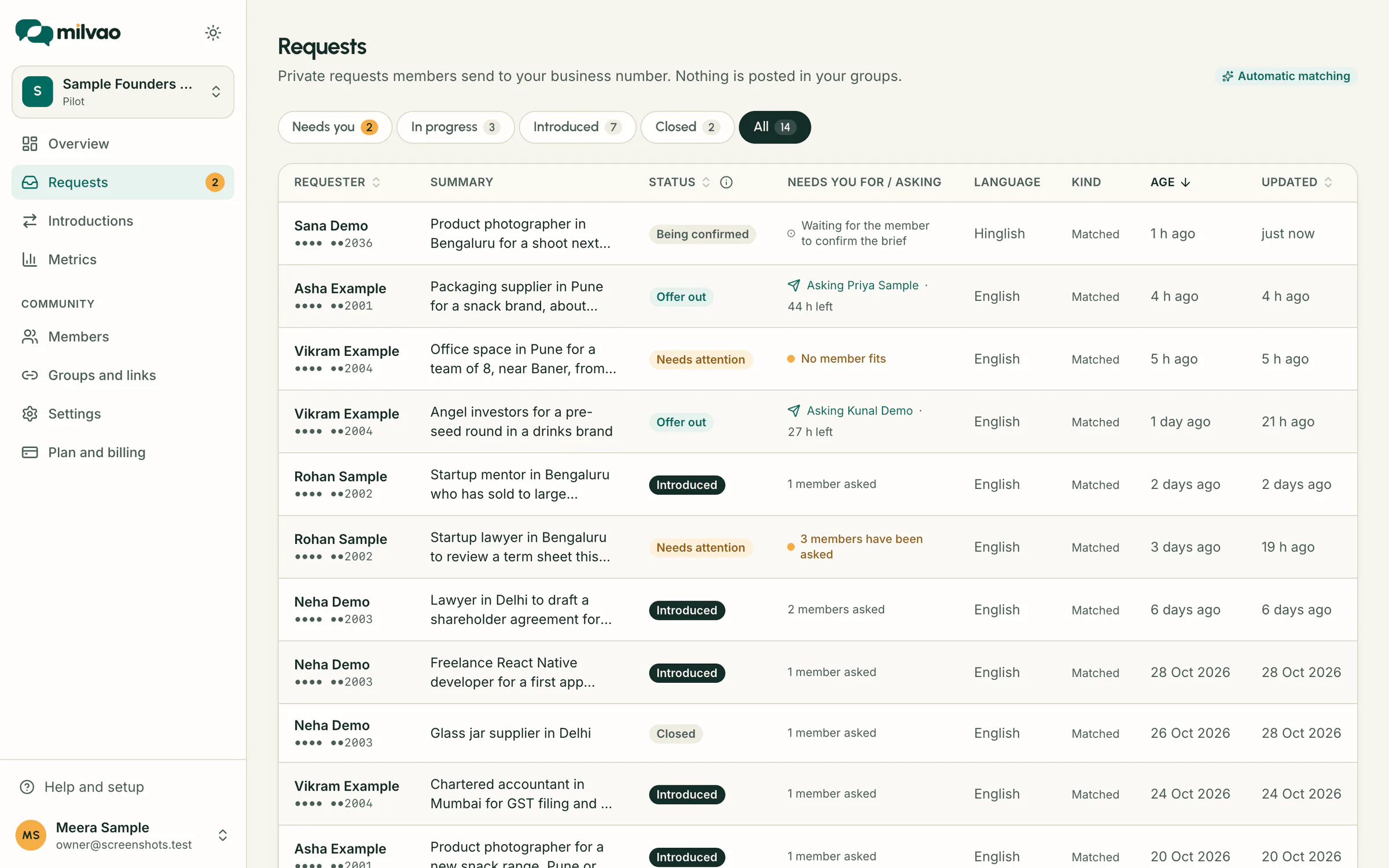
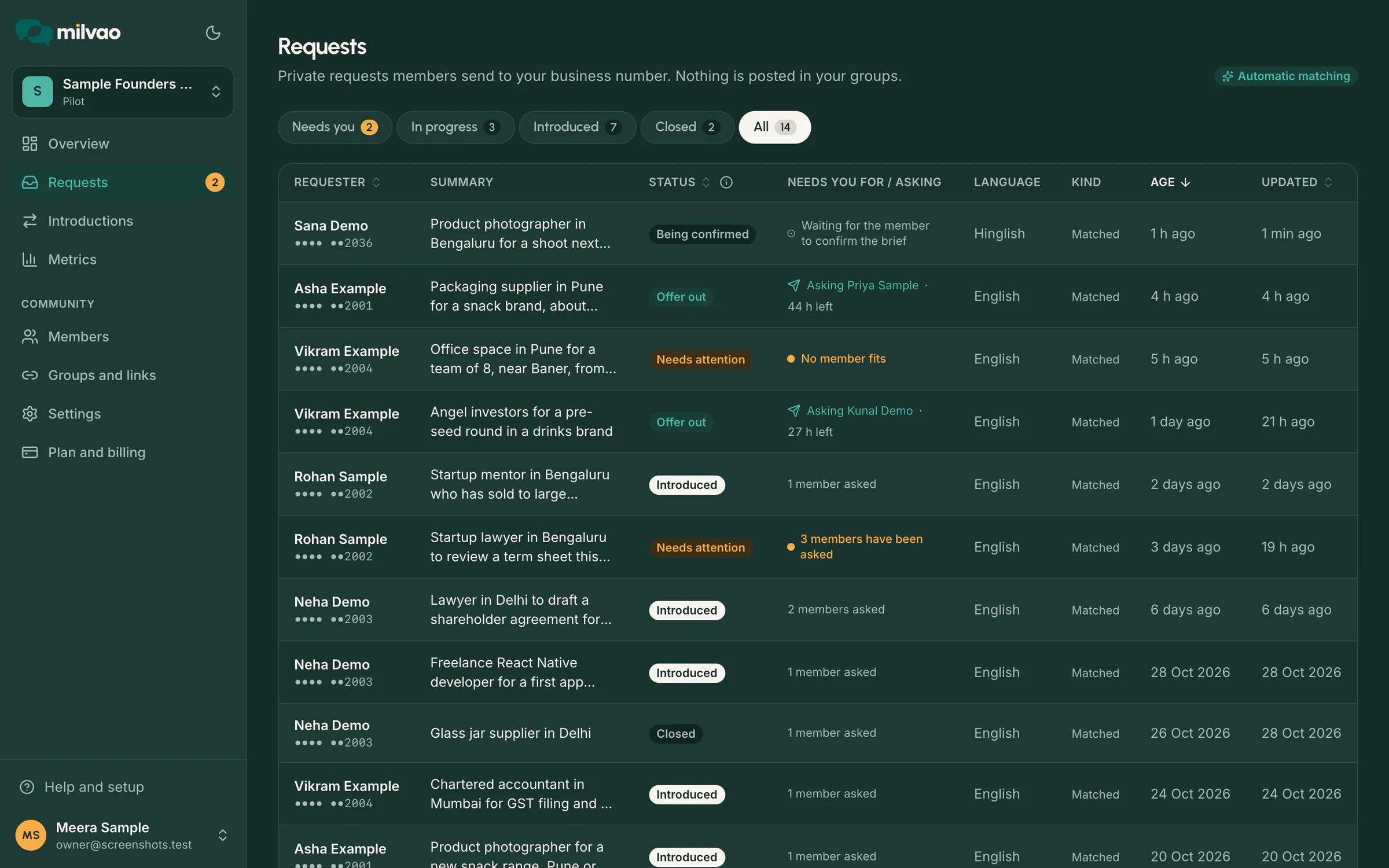
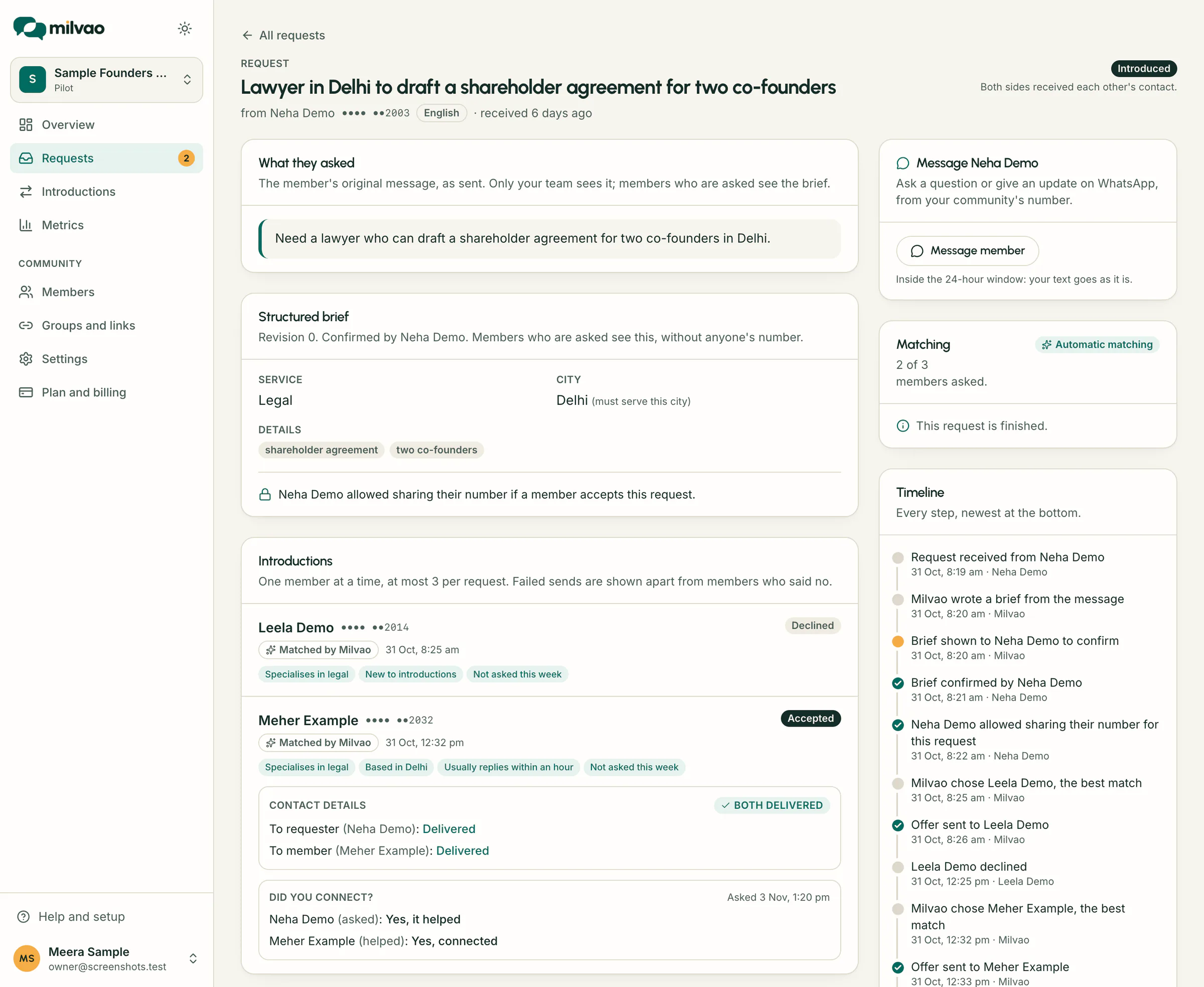
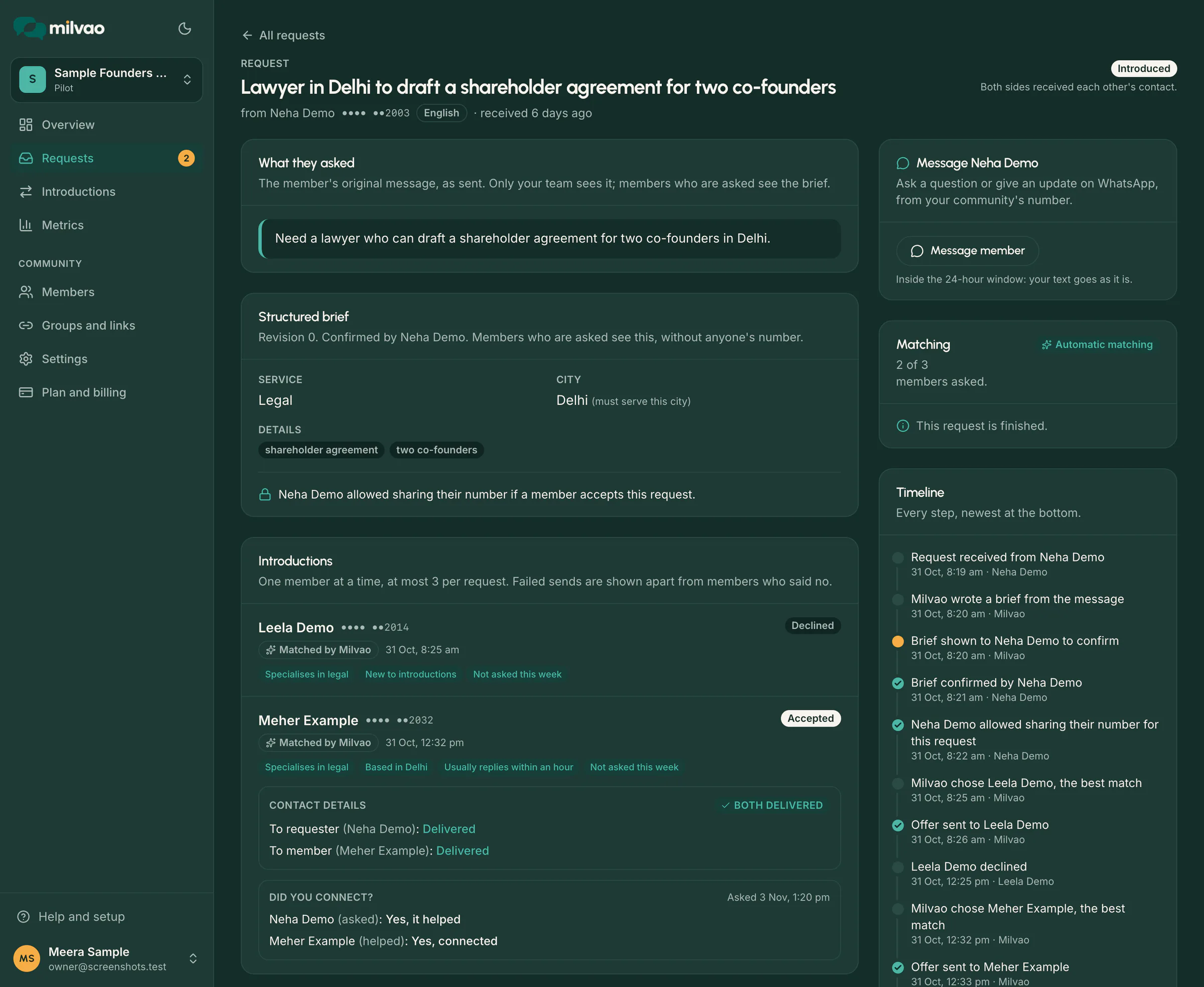
Click a request to see:
- What they asked: the member's original message.
- Structured brief: service, city, details, any question Milvao asked, and whether the member allowed sharing their number for this request.
- Introductions: each member asked, marked Matched by Milvao or Chosen by and the operator's name, with the reasons for the match and the offer's state.
- Timeline: every step, including failed sends, shown separately from members who said no.
| Badge on a request | Meaning |
|---|---|
| Needs attention (in the Needs you tab) | Needs your team: approval mode, unclear brief, no match, or 3 members said no |
| Being confirmed | Member is still confirming the brief on WhatsApp |
| Offer out | A member has been asked and Milvao is waiting for their answer |
| Introduced | Both contacts were sent |
| Closed | Closed with a reason |
Something unclear or missing? Tell us