

The member directory
See everyone who joined through your links, filter by group, city, skill and profile status, and check who can receive introduction requests.
Members is your community's directory. Everyone who sent a JOIN message from one of your links appears here once, newest first, with their groups, profile status and whether they can receive introduction requests. Owners and operators see the same directory.
Search and filters
At the top of Members:
| Filter | Options |
|---|---|
| Search by name | Type part of a name and click Search. Capital letters don't matter |
| Group | All groups, or one group. Removed members aren't included. Archived groups show "(archived)" |
| City (lives in or serves) | All cities, or members based in the city or serving it |
| Skill | All skills, or members who offer that skill. Archived skills show "(archived)" |
| Profile | Active and incomplete (the default), Active, Incomplete or Deleted |
| Offers | Everyone, Can get offers or Can't get offers |
| Profile questions | Any, or Missing required answers (with the count). Shown when you have required profile questions |
| Answer | Any answer, or one option of a choice or yes/no question, for example "Industry: Services" |
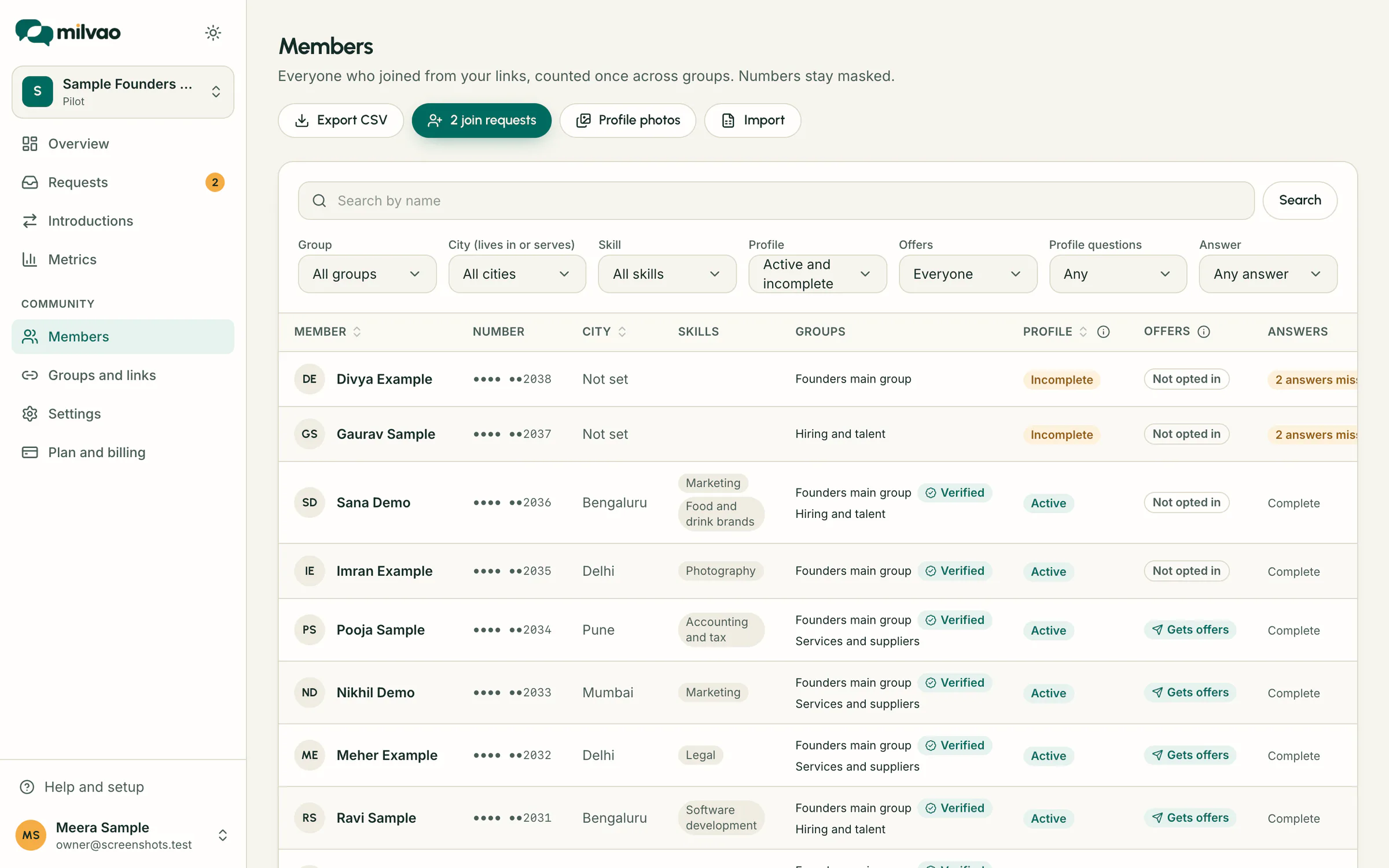
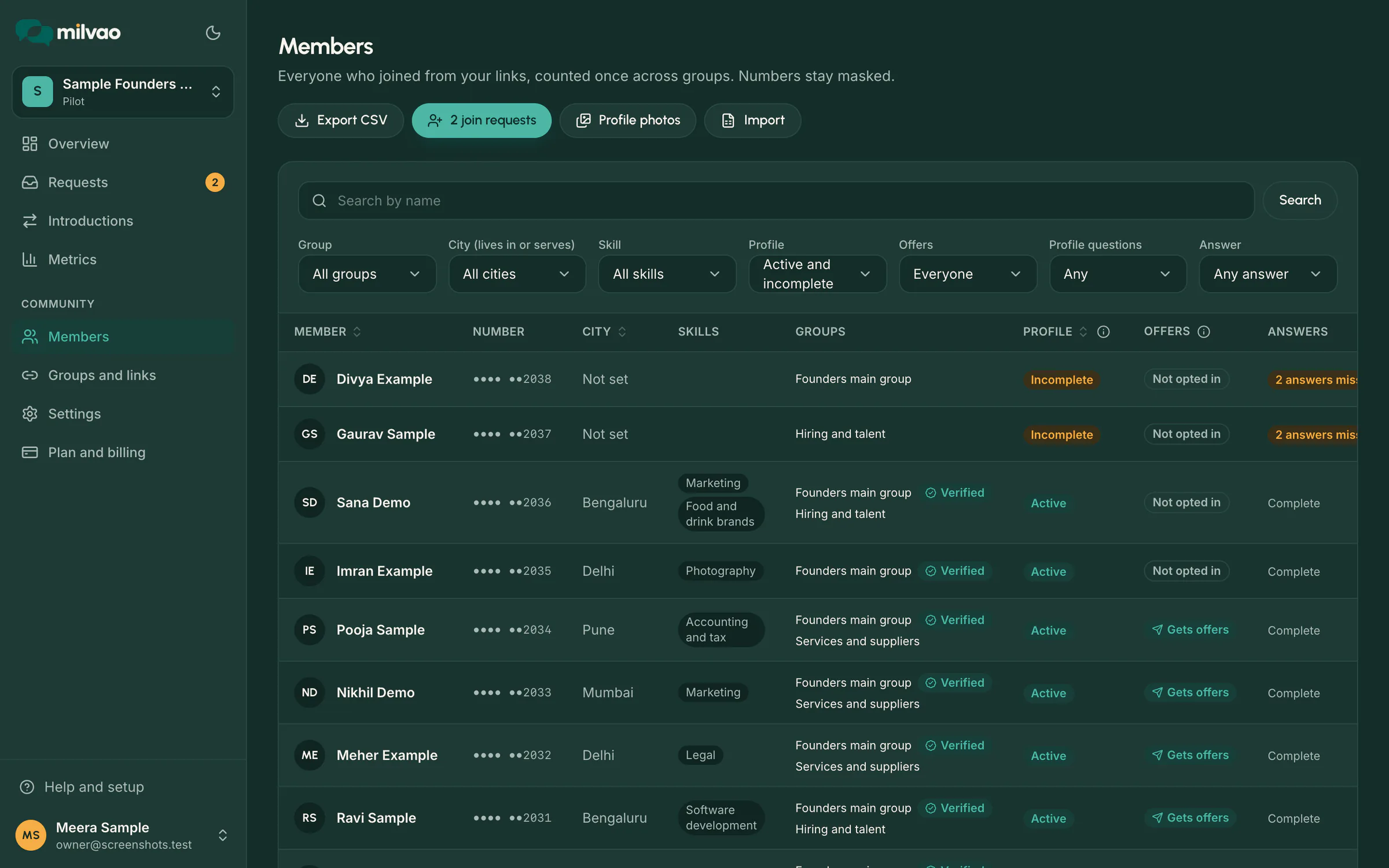
Filters combine, so you can find, say, active members in Mohali who offer Commercial leasing and can get offers. Clear filters resets them. Filters are kept in the page address, so you can bookmark a view or send it to a teammate.
The table
The table shows 25 members a page, newest first, with "Showing 26–50 of [total]" under it. Use Previous, Next or a page number to move, and Rows per page to show 50 or 100 at a time. Click a column heading with arrows (Member, City, Profile, Joined) to sort by it; click again to reverse the order. Sorting and paging keep your filters, and changing a filter takes you back to page 1. Click anywhere on a row to open the member.
| Column | What it shows |
|---|---|
| Member | Name, or "No name yet" |
| Number | The masked number, last 4 digits only |
| City | Where they're based, or "Not set" |
| Skills | What they can help with |
| Groups | Every group they joined, with a Verified or Removed badge where that applies |
| Profile | Active, Incomplete or Deleted |
| Offers | Whether they can get introduction requests (see below) |
| Answers | "[n] answers missing" when required profile questions are unanswered, else Complete. Shown only when you have required questions |
| Joined | When they first joined |
On a phone the table shows as cards with the name, number, city, first skills and profile status, with the same page numbers below.
Profile status
| Status | Meaning |
|---|---|
| Incomplete | Joined, but hasn't saved a name, city and at least one skill yet, or hasn't answered every required profile question |
| Active | Profile complete |
| Deleted | Personal details removed at the member's request. Hidden unless you filter for it |
Who can get offers
A member can get offers when their profile is active, they turned on Send me introduction requests I can help with in their profile, and they haven't replied PAUSE or STOP. The Offers column shows why someone can or can't:
| Badge | Meaning | What changes it |
|---|---|---|
| Gets offers | Can be asked about matching requests | |
| Not opted in | Hasn't turned on introduction requests | The member turns it on in their profile |
| Opted in, profile incomplete | Turned them on, but the profile isn't active yet | The member adds the missing city or skill |
| Paused | Replied PAUSE on WhatsApp | The member replies RESUME |
| Stopped | Replied STOP on WhatsApp | The member turns requests on again in their profile |
Only members can change these. Your team can't opt someone in. See Messages members can send.
Member details
Click a member to open their page. The header shows their name, masked number, profile status and offers badge, and the Edit member button (see Edit a member's details).
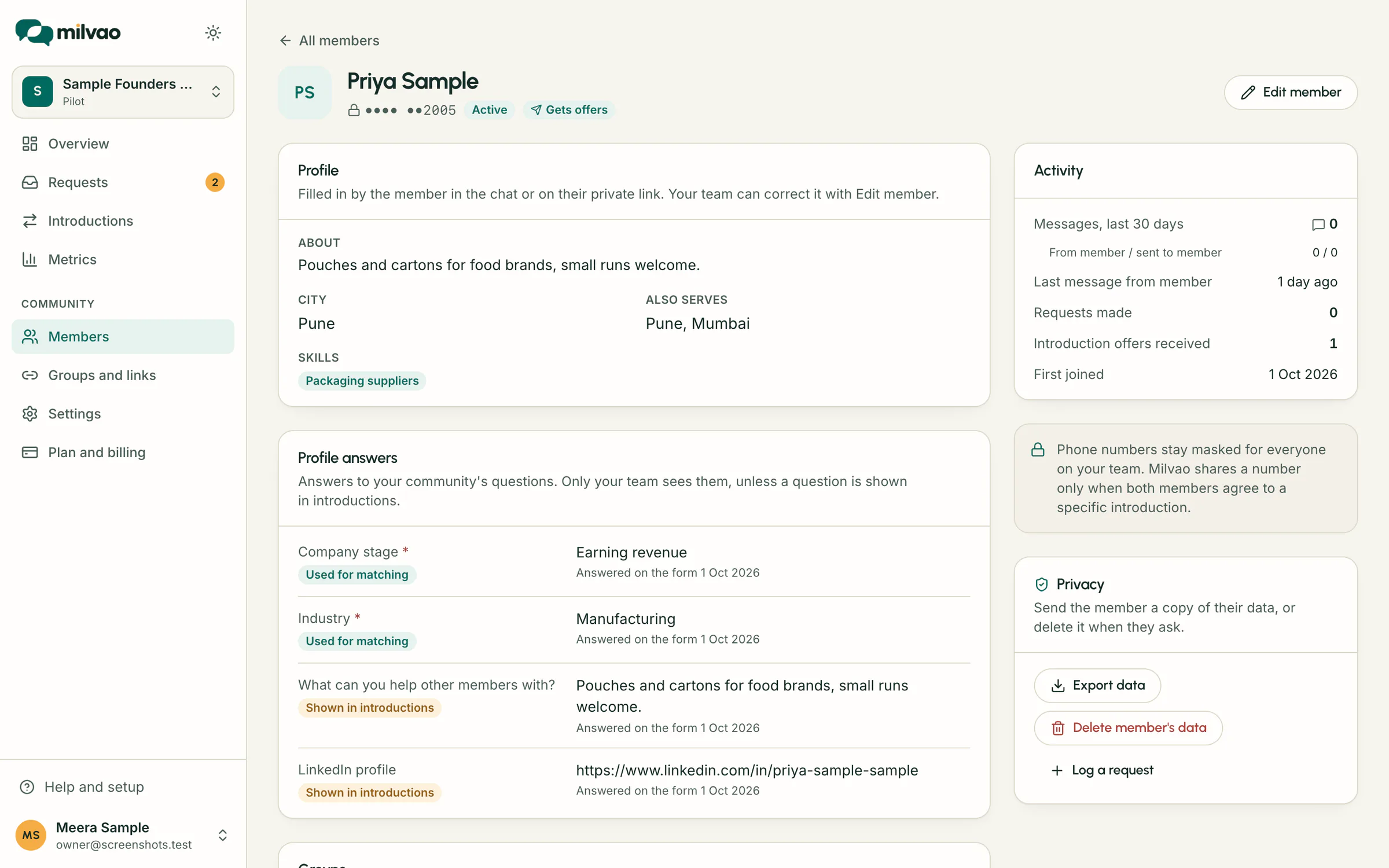
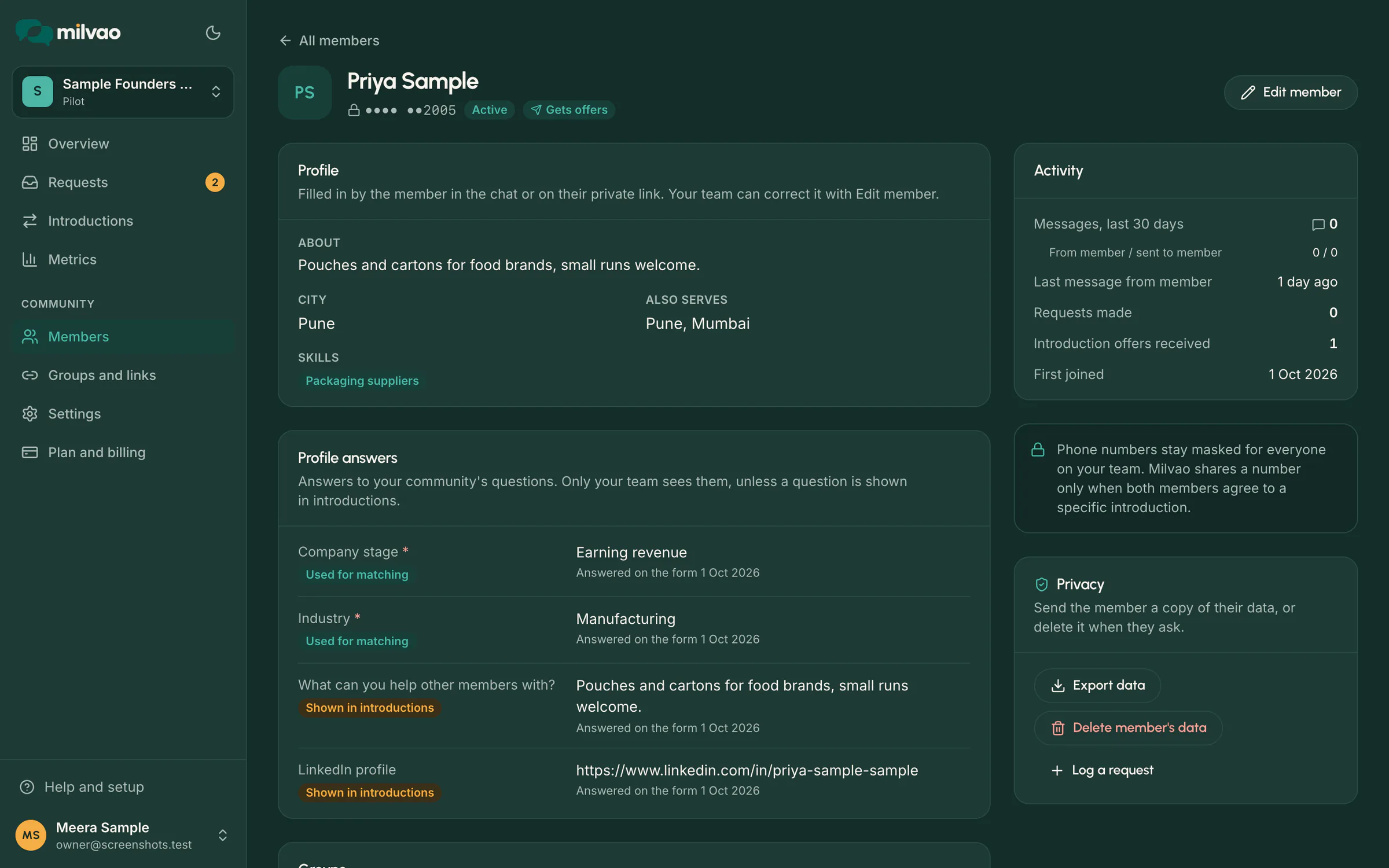
- Profile: about, city, cities they also serve and skills. Archived skills show "(archived)". An incomplete profile shows a note saying what's missing.
- Profile answers: their answers to your profile questions, with a badge for answers used for matching or shown in introductions, when they answered and whether in the chat or on the form. Unanswered required questions say "Not answered yet. Asked next time they message."
- Groups: each group with how they joined (for example
Link JOIN •••••345, or Added by an operator), their status (Joined by link, Verified with who verified and when, or Removed with the date), when they joined, and Verify or Remove buttons. See Verifying and removing members. Add to group puts them in one of your active groups they aren't in yet: choose the group in the dialog and press Add to group. They join as not yet verified, nothing is sent to them, and the toast has Undo. Groups they were removed from aren't listed; use Verify on that row to add them back. - Consent history: every time they turned introduction requests or messages on or off, newest first. Each entry shows Turned on or Turned off, what it was for (Introduction requests, Messages from this community or Share contact for one introduction), where it came from (Profile form, Profile questions in the chat, Sent PAUSE, Sent STOP and so on), the notice version they saw, and the time. This record can't be edited.
- Activity: messages in the last 30 days (from the member and sent to them), when they last messaged, requests made, introduction offers received and when they first joined.
Message text isn't shown on the member page.
Edit a member's details
Owners and operators can fix or complete a member's profile, for example a misspelt name, a missing city, or an answer the member gave on paper.
- Open the member from Members.
- Tap Edit member at the top of the page.
- Change any of these:
| Field | Notes |
|---|---|
| Name | 2 to 60 characters, or leave it blank |
| Home city | From your community's list, or Not set |
| Skills | Up to 10 from your list. Archived skills the member already has stay ticked |
| Also serves | Other cities from your list |
| About | Up to 280 characters |
| Profile answers | Every profile question that applies to the member, with the same answer types as the form. Required questions can be left blank here |
- Leave Tell the member on WhatsApp which details changed ticked (the default), or untick it for tiny fixes such as a typo.
- Tap Save changes.
What happens next:
- Profile status is recalculated with the same rule as the member's own form: name, city, a skill and every required question answered makes the profile Active. Clearing the city, for example, makes it Incomplete, and the member then can't receive introduction requests.
- The member is told. With the box ticked, they get "An organiser of [community] updated your profile (name, city). Reply PROFILE to review it." It names the fields, never the new values. The notice isn't sent if the member replied STOP, or if they haven't messaged in the last 24 hours and no approved message template is set up; the dialog tells you before you save.
- It's recorded. The activity log shows who edited the member and which fields changed, without the values. Answers you enter show on the member page as "Answered by an operator".
What you can't change
- The member's choices: introduction requests on or off, contact sharing for an introduction, PAUSE and STOP. The dialog shows them read-only with "Only the member can change these."
- Deleted members: when a member's personal data was removed at their request, the page explains that the profile can't be edited.
If the member (or another teammate) changed their details after you opened the dialog, saving is refused with "This member's details changed since you opened the form." Tap Reload, check the latest details, and edit again. Edits are limited to 60 an hour per person.
Phone numbers
Numbers are shown masked, with only the last 4 digits, on every page, and there is no reveal button. Only the owner can export full numbers, with a reason that is recorded in the activity log. A member's number is shared only with the other person in an introduction, after both agree. See Who sees what.
Frequently asked questions
Why is a member in the list twice?
They shouldn't be. A member is one person per phone number in your community, however many groups they join. If two entries look like the same person, they joined from two different phone numbers.
Can I add a member by hand?
Not yet. Members join by sending a JOIN code from one of your links.
Can I edit a member's profile?
Yes. Owners and operators can correct a member's name, about text, city, skills, cities served and profile answers with Edit member (see Edit a member's details). The member gets a short WhatsApp notice unless you turn it off for a small fix. Their consent choices (introduction requests, sharing their number, STOP) can only be changed by the member.
Can I export the member list?
Yes, if you're the owner. Use Export CSV on the Members page or Settings → Export data. Phone numbers show only the last four digits unless you tick Include phone numbers and give a reason, which is recorded. See Exports and activity log.
Something unclear or missing? Tell us