

Pilot setup checklist
The setup steps on your Overview page, from connecting your business number to your first members, and what the Overview numbers mean once you're live.
A Milvao pilot runs for 30 days. Milvao staff create your workspace and help you connect your business number and onboard your first members. The Overview page tracks setup with a checklist and then becomes your daily summary. For a step-by-step walkthrough of the same setup, use the setup guide.
The setup checklist
Until every step is done, Overview shows Get your community set up, with a progress bar and "[n] of 6 done". Click a step that isn't done to go where it's done, or click Open the setup guide to go through them one at a time. The checklist and the setup guide read the same status, so a step done in one shows as done in the other.
| Step | Who does it | Where | Done when |
|---|---|---|---|
| Business number connected | Owner, with Milvao staff during the pilot | Settings → WhatsApp number | Your number is Active (Live in the Settings menu and the setup guide) |
| Groups created | Owner or operator | Groups and links → Add group | At least one group exists |
| Invite links shared | Owner or operator | Groups and links → New link | A group has a working link and someone has joined with a link |
| First members joined | Members | Members | At least one member joined |
| Skills and cities set up | Owner or operator | Settings → Skills and cities, or the setup guide | At least one skill and one city exist |
| Choose how matches are made | Owner | Settings → Workspace → Matching, or the setup guide | The owner clicked Save choice, even to keep the default Automatic |
The Invite links shared circle turns amber when you have a working link but nobody has joined with it yet.
Start with the business number, since Meta reviews your display name, which usually takes a day or two. Choosing a number for your community helps you pick one, and Connect your WhatsApp number has the steps.
Suggested order for week one
- Add skills and cities first. Members can't save their profile without choosing a city and at least one skill, so set these up before you share any link. See Skills and cities.
- Add your groups. One record for each WhatsApp group you run. See Groups and join links.
- Create a join link for each group and pin it in that WhatsApp group once your number is Live.
- Invite your operators in Settings → Team. This isn't a checklist step, because some owners run their community alone. See Roles and your team.
- Choose how matches are made in Settings → Workspace → Matching (owner only). See Community settings.
- Watch the first members join on Members, and verify the ones you know. See Verifying and removing members.
- Turn on two-factor sign-in for your own account. See Two-factor sign-in.
Tip
Try the flow yourself first. Tap your own join link, send the JOIN message and fill in your profile. You'll see exactly what members see.
The Overview numbers
| Number | What it counts |
|---|---|
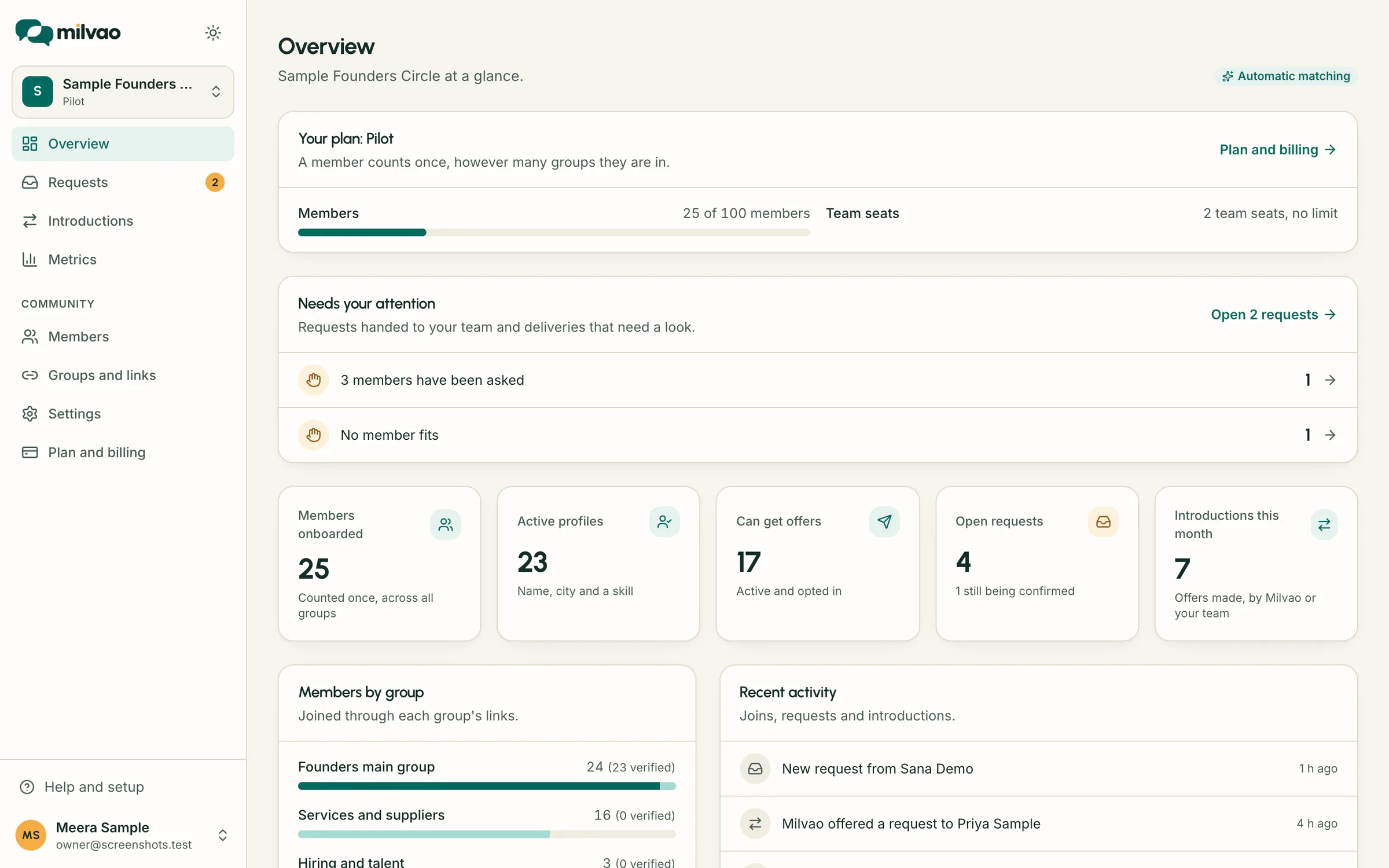
| Members onboarded | Everyone who joined, counted once across all groups. Deleted profiles aren't counted |
| Active profiles | Members with a name, city and at least one skill |
| Can get offers | Active members who turned on introduction requests and haven't paused or stopped |
| Open requests | Requests that need your team or have an offer out. The hint shows how many are still being confirmed by the member |
| Introductions this month | Introduction offers made this calendar month in your community's time zone, by Milvao or your team |
Below the numbers:
- Members by group shows how many members each group has, split into verified and joined by link. Removed members aren't counted.
- Recent activity lists the latest joins, requests and introductions. Click a line to open it.
- The badge at the top right shows your matching mode, Automatic matching or You approve matches. Click it to go to Settings → Matching.
After 30 days
At day 30 we review the introductions made with you and decide together whether to continue on the Starter plan (up to 300 members) or the Growth plan (up to 1,000).
Frequently asked questions
Can I share links before the number is connected?
You can create links at any time, but members can only join once your number is receiving messages. While no number is connected, the link dialog shows only the JOIN text, not a tap-to-message link. It's simpler to wait until the number is Live and share the link.
The checklist disappeared
It hides once all six steps are done. Everything it pointed to is still in the sidebar, and Help → Setup guide still opens the guide.
What's the difference between the checklist and the setup guide?
They track the same steps. The checklist is a summary on Overview. The setup guide explains each step, lets you do some of them in place, and ends with a tour of the app.
Something unclear or missing? Tell us