

Community settings
Your community's matching mode, name, time zone, bot language and default group, plus your team, skills and cities, and your WhatsApp business number.
Settings holds the choices that shape how your community works on Milvao. The owner can change everything, including connecting the business number. Operators see the same sections, read-only, except Skills and cities, which they can manage too, and their own team profile and notifications.
Find your way around Settings
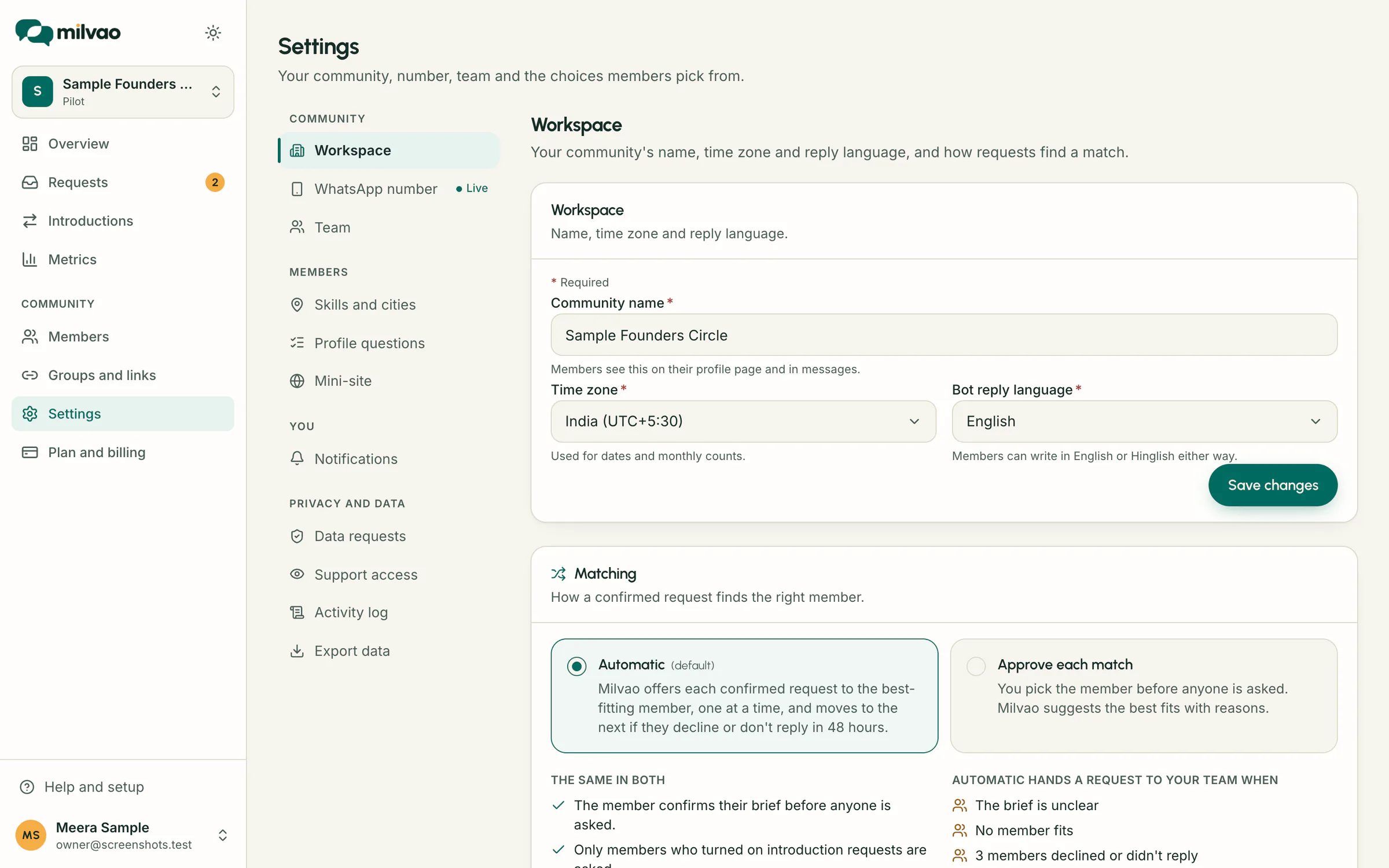
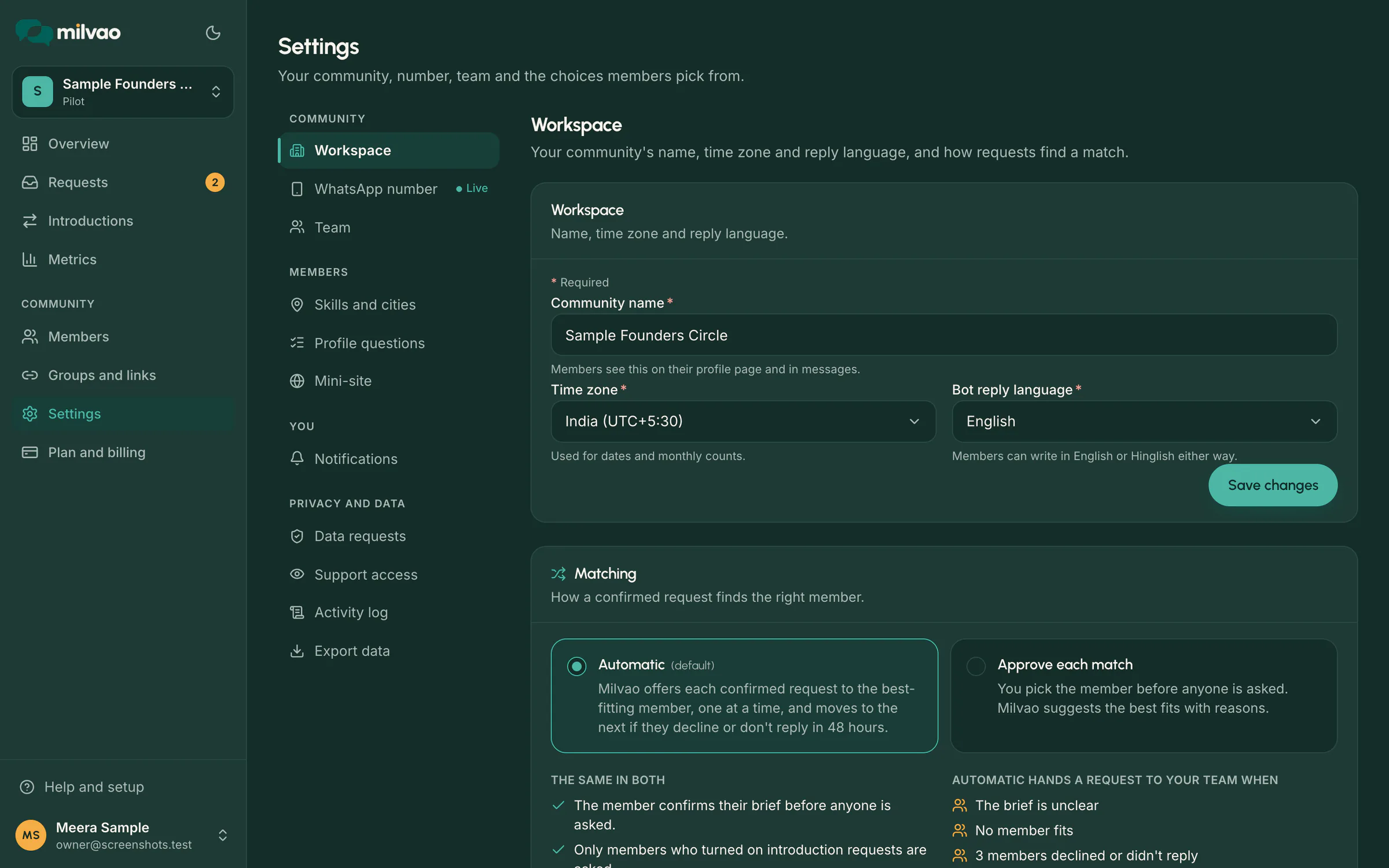
Settings has a menu of sections on the left (on a phone, a row of buttons you can swipe across the top). Each section has its own address, so you can bookmark it or share the link with your team.
| Group | Section | What's there |
|---|---|---|
| Community | Workspace | Community name, time zone, reply language, the matching mode and the default group for new members |
| WhatsApp number | The status of your business number and the guided steps to connect it. See Connect your WhatsApp number | |
| Team | Owner, operators, invites and team profiles. See Roles and your team | |
| Members | Skills and cities | The lists members pick from. See Skills and cities |
| Profile questions | Extra questions for members. See Profile questions | |
| Mini-site | Your public community page and directory. See Mini-site and directory | |
| You | Notifications | Your own email and WhatsApp alerts. See Notifications |
| Privacy and data | Data requests, Support access, Activity log, Export data | See Data requests, Support access and Exports and activity log |
Small labels next to a section tell you when something needs a look: Choose next to Workspace until a matching mode is picked (owners only, since only the owner can pick it), the number's status next to WhatsApp number (Live, Testing, Setting up, Fix, Not set), open or overdue data requests, and On while support access is switched on.
Matching
How a confirmed request finds the right member. Only the owner can change it.
| Option | What happens |
|---|---|
| Automatic (default) | Milvao offers each confirmed request to the best-fitting member, one at a time, and moves to the next if they decline or don't reply in 48 hours |
| Approve each match | You pick the member before anyone is asked. Milvao suggests the best fits with reasons |
The same in both:
- The member confirms their brief before anyone is asked.
- Only members who turned on introduction requests are asked.
- Numbers are shared only after both sides say yes.
- At most 2 requests per member per week, and 3 members per request.
In Automatic mode, Milvao hands a request to your team when the brief is unclear, when no member fits, or when 3 members declined or didn't reply. Those requests show under Requests as "Needs your attention".
Choose or change the mode
- Open Settings. Until you choose, the Matching card is highlighted with Choose one.
- Select Automatic or Approve each match.
- Click Save choice the first time, or Save change after that.
Saving completes the Choose how matches are made step on the Overview checklist, even if you keep the default. The badge at the top of Overview shows the current mode: Automatic matching or You approve matches. Every change is recorded in Milvao's audit log.
Requests and introductions are being rolled out now. You can choose your mode today, and it applies as soon as requests reach your community. See Matching modes.
Workspace
| Setting | What it does |
|---|---|
| Community name | Shown to members in Milvao's WhatsApp messages and on their profile page. 2 to 80 characters |
| Time zone | Used for dates in the dashboard, the daily summary and monthly counts such as Introductions this month. Default India (UTC+5:30). Every time zone in the world is available: click the box and type a country, city or offset, for example dubai, new york or 5:45. Common time zones are listed first, then all of them by region, each with its current UTC offset (daylight saving included) |
| Bot reply language | Language of Milvao's replies to members. English during pilots. Hindi is listed as coming later. Members can write in English or Hinglish either way |
Click Save changes after editing. You see "Settings saved."
Default group for new members
Guests who join by saving their profile (see Contact requests) have no invite link, so they land in no group. A member in no group is left out of public listings until they're in one.
On Settings → Workspace, the Default group for new members card lets the owner pick one of your groups, or None (leave them ungrouped), which is the default.
- Pick a group from Default group for new members.
- Click Save default group. The message has an Undo button for about 10 seconds.
With a group picked, every guest who joins by saving their profile is added to it at once, the same way its invite link would add them: marked Joined by link until you verify them, and anyone you removed from that group stays removed. Members who join with a link go to that link's group as before. People who are already members aren't moved.
If the group is archived, new members join no group until the owner picks another one or restores it on Groups and links, and the card says so. Operators and Milvao support see the choice read-only. Each change is recorded in the Activity log.
Team
The owner, operators and pending invites. See Roles and your team.
Skills and cities
The lists members pick from on their profile. See Skills and cities.
WhatsApp number
Settings → WhatsApp number shows your number, its status and the checks below, with a step-by-step guide for Meta's screens and a form that checks everything (owner only). See Connect your WhatsApp number. Milvao staff can also connect it for you.
| Status | Meaning |
|---|---|
| Being set up | The number is saved, but not every check has passed yet |
| Testing | Connected. Milvao staff are checking inbound and outbound messages before going live |
| Active | Your number is receiving and sending messages |
| Needs attention | Messages may not be getting through. Reply to your onboarding email and Milvao staff will help |
| Turned off | Messaging is turned off for this workspace |
The checks are Receiving messages and Sending replies, each with the date it was confirmed, and how many message templates are approved. Templates are pre-approved message formats WhatsApp needs for some messages Milvao sends first.
If it says "No number connected yet", the owner can connect it, or Milvao staff will during pilot setup.
Frequently asked questions
Can I switch matching modes later?
Yes, at any time. Only the owner can.
Why can't I edit these settings?
Only the owner can change the matching mode, the default group for new members and workspace details. Operators see "Only the owner can change this." Ask your owner.
Can I use my own WhatsApp number?
Yes. Your community's own business number is used, connected through the official WhatsApp Business Platform. The owner connects it in Settings → WhatsApp number, or Milvao staff connect it with you. To pick the right number first, see Choosing a number for your community.
Something unclear or missing? Tell us