

Connect your WhatsApp number
Connect your community's own WhatsApp Business number to Milvao. Create the account in Meta, make a permanent token, paste your IDs and run the check.
Your community's members message one WhatsApp Business number to join, ask for introductions and answer offers. As the owner, you connect that number yourself in Settings → WhatsApp number. It takes about 30 minutes in Meta's business tools, then one click in Milvao. If you'd rather not, Milvao staff can connect it with you during pilot setup.
Meta changes its screens often. The labels below are the ones Meta used in November 2026; if one differs slightly, look for the closest match.
Overview
| Step | Where | What you end up with |
|---|---|---|
| 1 | Your phone | A new number, not on WhatsApp |
| 2 | Meta Business settings | A business portfolio and a new WhatsApp Business Account with your number verified |
| 3 | Meta Business settings | Milvao's app connected to your business |
| 4 | Meta Business settings | A system user and its permanent token |
| 5 | Meta Business settings | Your WhatsApp Business Account ID |
| 6 | Milvao, Settings → WhatsApp number | A passing check, then Testing, then Active |
Open Settings → WhatsApp number. The Connect your number form is at the top, with the six steps of How to set it up below it (on very wide screens, side by side: the form on the left, the steps on the right).
1. Choose the number
Not sure which number to use, or whether you can reuse one you already have? Read Choosing a number for your community first. It covers existing numbers, landlines, numbers on other platforms, display names, limits and costs.
| Do | Don't |
|---|---|
| Use a new number that has never been on WhatsApp, or delete its WhatsApp account first | Use your personal number, or a number someone uses in the WhatsApp or WhatsApp Business app |
| Pick a number that can get an SMS or a voice call (a landline works with a voice call) | Pick a number that can't receive a code |
| Put it in a new WhatsApp Business Account under your community's own Meta business portfolio | Add it to an account that Wati, Interakt or another platform manages. They could read your members' requests |
| Keep it for Milvao only | Connect it to another platform too. A number works with one platform at a time |
Deleting a number from the WhatsApp Business app: in the app open Settings → Account → Delete account. Chats on that phone are lost. Wait a few minutes before adding it to Meta.
Start business verification early. In Business settings open Security Centre → Start verification. Until Meta verifies your business, the number can only start conversations with a small number of people each day. Members who message first can always get replies.
2. Create the WhatsApp Business Account
- Open business.facebook.com and sign in with Facebook. No business portfolio yet? Click Create a business portfolio and enter your community's name, your name and a business email.
- Go to Business settings (business.facebook.com/settings), then Accounts → WhatsApp accounts. Click Add, then Create a new WhatsApp Business account.
- Name the account after your community, pick your time zone and a category.
- Set the display name to your community's name as people know it. Members see it at the top of the chat. Meta reviews it, usually within a day or two.
- Add the number: country code, number, then Text message or Phone call, and enter the 6-digit code.
- Check it in WhatsApp Manager (business.facebook.com/wa/manage) under Account tools → Phone numbers. You can also add the number from there with Add phone number.
3. Connect Milvao's app to your business
Your members' messages reach Milvao through Milvao's Meta app, so the token you make next must be for that app.
- In Business settings, open Accounts → Apps.
- Click Add, then Request access to an app ID.
- Enter Milvao's app ID. It is shown in step 3 of How to set it up, with a Copy button. If it isn't, Milvao support sends it to you.
- Milvao approves the request, usually within a working day. The Milvao app then appears in your Apps list.
This doesn't give Milvao access to anything else in your business.
4. Create a system user and its token
- In Business settings, open Users → System users and click Add. Name it
Milvaoand choose the Employee role. If Generate token stays greyed out later, change the role to Admin. - Select the system user and click Assign assets:
- Apps: pick Milvao and turn on Manage app.
- WhatsApp accounts: pick your new account and turn on full control.
- Click Save changes.
- Click Generate token. Choose the app Milvao, set Token expiration to Never, and tick:
whatsapp_business_managementwhatsapp_business_messaging
- Click Generate token and copy it. Meta shows it once.
Paste the token straight into Milvao. Don't send it by email or chat, to Milvao or anyone else.
5. Find your WhatsApp Business Account ID
- WhatsApp Business Account ID: in Business settings open Accounts → WhatsApp accounts and click your account. The ID is the long number under its name, usually 15 or 16 digits.
- Phone number ID: you can leave it empty. Milvao lists the numbers in your account and uses the only one, or asks you to choose. It is an ID, not the phone number itself.
6. Paste and check
In Connect your number:
| Field | What to enter |
|---|---|
| WhatsApp Business Account ID | The ID from step 5. Digits only |
| Phone number ID (optional) | Leave empty, or the ID if you know it |
| Access token | The token from step 4. Once saved, the field says "A token is saved. Leave empty to keep it." |
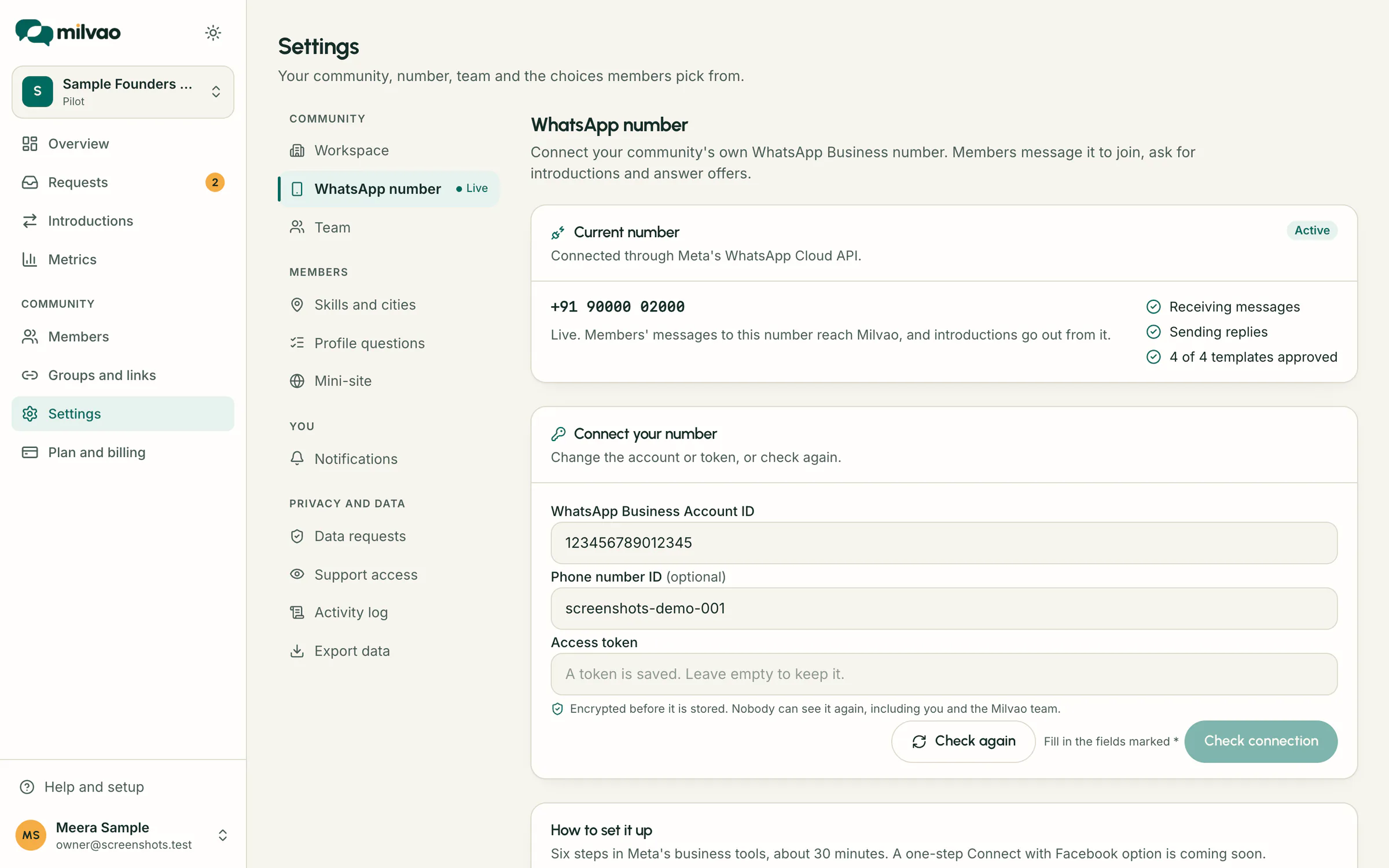
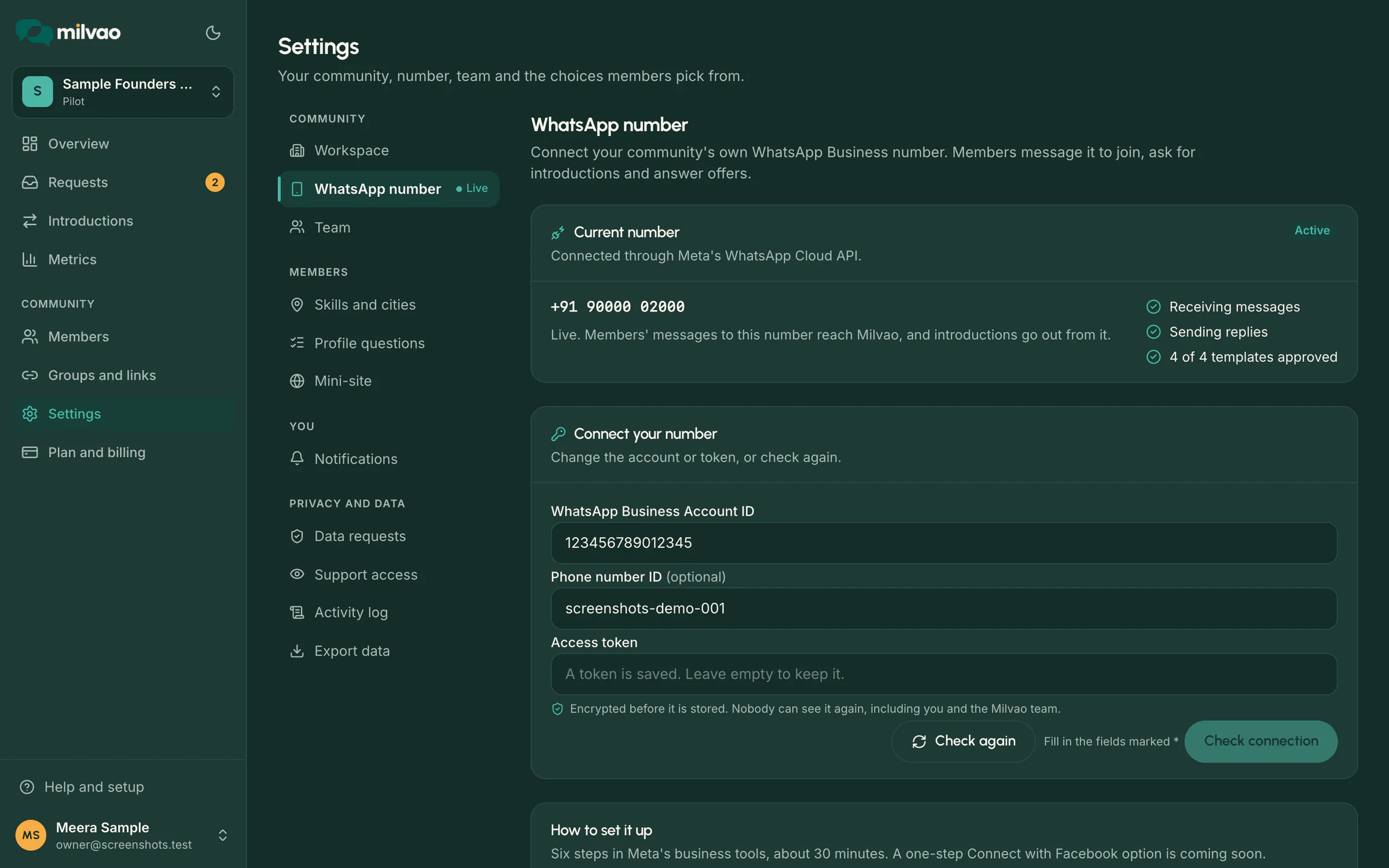
Click Check connection. If your number is already live, Milvao first asks Replace your live number?: pointing it at a different number pauses introductions until Milvao switches the new one on. The same number changes nothing.
Milvao then shows What Milvao found. Nothing is saved unless the token works and the number belongs to the account. When it saves, the token is encrypted and the form empties. Later, Check again reruns everything with what is saved.
If your account has several numbers, Milvao asks Which number will members message? Choose one and click Check connection again. Your token is still in the form.
What the check covers
| Check | Passes when |
|---|---|
| Milvao can use your access token | Meta accepts the token, it was made for Milvao's app, and it doesn't expire |
| Number found in your WhatsApp Business Account | The number is in that account. Milvao saves its display number and name from Meta |
| Token has both WhatsApp permissions | whatsapp_business_management and whatsapp_business_messaging are granted |
| Milvao receives your members' messages | Milvao subscribed to the account's webhooks |
| Number registered for the Cloud API | The number can send and receive through Milvao. If not, register it with a PIN (below) |
| Display name approved | Meta approved your display name. Advisory: messages work while it's in review |
| Message templates approved | All four of Milvao's templates are approved. Advisory: see Templates below |
When the first five pass, the result says Your number is connected and the status moves from Being set up to Testing.
Register the number
If the number is verified but not registered, enter a 6-digit PIN and click Register number. The PIN becomes the number's two-step verification PIN; keep it safe. If you already set a two-step verification PIN for this number in WhatsApp Manager, enter that one.
Message templates
WhatsApp only lets a business start a conversation, or write more than 24 hours after a member's last message, with a template Meta has approved. Milvao uses four. Click Submit Milvao's templates to send any missing ones to Meta for review (category Utility, in your community's reply language; English today). Meta usually reviews them within minutes, sometimes up to a day. Click Check again to see the result.
| Template | Status shown | Meaning |
|---|---|---|
| Introduction offer, Contact disclosure, Request update, Profile link | Approved | Milvao uses it |
| Pending | Meta is still reviewing it | |
| Rejected | Meta rejected or paused it, or it doesn't have the variables or buttons Milvao needs. The reason is shown | |
| Missing | No template for it yet. Use Submit Milvao's templates |
Milvao recognises templates named milvao_offer_v1, milvao_disclosure_v1, milvao_request_update_v1 and milvao_profile_link_v1 (and later versions). This is the exact wording it submits:
Introduction offer (milvao_offer_v1), with two quick reply buttons in this order: Accept, Decline
A member of {{1}} is looking for help:
"{{2}}" Service: {{3}} City: {{4}}
Would you like an introduction? If you accept, we'll share your WhatsApp number with them and theirs with you. If you decline, nothing is shared.
This offer is open for 48 hours.
Contact disclosure (milvao_disclosure_v1)
You're now introduced to {{1}}. Their WhatsApp number is {{2}}
This is about: "{{3}}".
They have your number too, so either of you can say hello first.
Request update (milvao_request_update_v1)
An update on your request: "{{1}}".
{{2}}
Reply here if you need anything else.
Profile link (milvao_profile_link_v1)
Here is your private profile link: {{1}}
It works for 60 minutes, once. Reply PROFILE for a new one.
The {{1}} style placeholders are filled in by Milvao for each message: community name, request summary, service, city, the other person's name and number, or the profile link.
Going live
- With the status at Testing, send any message from your personal WhatsApp to the business number. Milvao records it automatically and Receiving messages gets a tick.
- Milvao staff check that a reply reaches you, then switch the number on. The status shows Active.
Only Milvao staff switch a number to Active, Needs attention or Turned off. Your check never does.
What members see
- Your display name at the top of the chat (the number until Meta approves the name).
- Replies from Milvao's assistant in the chat, and the template messages above when Milvao writes first.
- Nothing changes for members if you click Check again. Pointing the connection at a different number means members must message the new number.
Troubleshooting
| Milvao says | What to do |
|---|---|
| "Meta didn't accept the access token" (Meta error 190) | The token is mistyped, expired or revoked. Generate a new one in step 4 with Token expiration: Never and paste it |
| "This token was made for a different Meta app" | Generate the token again and choose the Milvao app. Step 3 must be approved first |
| "The token works, but it expires on…" | Generate a new token with Never |
| "Meta couldn't find a WhatsApp Business Account with that ID" | Copy the ID again from Accounts → WhatsApp accounts, and check the account is assigned to the system user with full control |
| "That Phone number ID isn't in this WhatsApp Business Account" | Leave Phone number ID empty and let Milvao list the numbers |
| "This WhatsApp Business Account has no phone numbers yet" | Add and verify the number in WhatsApp Manager, Account tools → Phone numbers → Add phone number |
| "This number is already connected to another Milvao community" | Use a different number, or contact Milvao support |
| "The token is missing whatsapp_business_messaging" (or management) | Generate a new token with both permissions ticked |
| "Milvao confirmed it can manage the account…" (needs attention) | Milvao couldn't prove whatsapp_business_messaging yet. Make sure you ticked it |
| "Milvao receives your members' messages" failed | The token needs whatsapp_business_management and must be for the Milvao app. Fix, then Check again |
| "The number hasn't been verified with the SMS or voice code yet" | In WhatsApp Manager open Phone numbers, click the number and finish verification |
| "That PIN doesn't match" (Meta error 133005) | Enter the two-step verification PIN already set on the number, or reset it in WhatsApp Manager |
| "Too many PIN attempts" | Wait a few hours, then try again |
| "Meta declined" your display name | Edit it in WhatsApp Manager so it matches your community's public name, and resubmit |
| A template is Rejected | Read the reason. Fix it in WhatsApp Manager, or delete it and click Submit Milvao's templates |
| "Couldn't reach Meta" or "Meta took too long" | Try again in a minute |
| "Too many attempts. Try again in N minutes" | Milvao limits checks to protect your account. Wait and retry |
| "Connecting your own number isn't switched on yet" | Contact Milvao support. They connect it for you |
Connect with Facebook (coming soon)
A quicker option is on the way: one Connect with Facebook button that lets you sign in, pick or create your WhatsApp Business Account and number, and skip copying IDs and tokens. It appears in Settings → WhatsApp number once Meta has approved Milvao. Until then, use the steps above.
Frequently asked questions
Who can connect the number?
Only the workspace owner. Operators who open Settings → WhatsApp number see "Only the workspace owner can connect the business number."
Can Milvao staff see my token?
No. It is encrypted before it is stored and never shown again, to you, your operators or Milvao staff. Milvao only uses it to talk to Meta for your number.
Can I keep using this number in the WhatsApp Business app?
No. A number connected to Milvao works through Meta's Cloud API only. Use a new number. See Choosing a number for your community.
Why does Milvao need its own app connected to my business?
Members' messages reach Milvao through Milvao's Meta app. The token you create must be for that app, which is why step 3 comes first.
What does it cost?
Meta charges for some business-initiated messages on your WhatsApp Business Account. Add a payment method in WhatsApp Manager under Overview → Add payment method. Milvao's own pricing is separate.
Can I change the number later?
Yes. Paste the new account ID or token and click Check connection. A live number goes back to Testing until Milvao switches the new one on.
Something unclear or missing? Tell us