

Automatic matching or approve each match
Choose whether Milvao asks the best-fitting member automatically or waits for you to pick. The privacy and consent rules are the same either way.
The two modes
| Automatic (default) | Approve each match | |
|---|---|---|
| Who picks the member to ask | Milvao, from the ranking | You, from up to five suggestions |
| Your time per request | None, unless it needs you | A minute to review and pick |
| After a decline or no reply in 48 hours | Milvao asks the next best match | Comes back to you |
| Best for | Busy communities, fast answers | Small, high-trust networks where you know everyone |
Who can be asked
Milvao only suggests or asks members who:
- have a complete profile and have turned on introduction requests,
- haven't paused requests or sent STOP,
- offer the service the request needs,
- cover the city, if the request needs one (their own city or one of the cities they serve),
- aren't the person asking, and haven't already been asked about this request,
- haven't blocked the person asking,
- have had fewer than 2 requests in the last 7 days.
Guests (visitors who used the Contact button) are never asked. A contact request goes only to the member it was sent to, in either mode.
If nobody fits, the request page says why, for example "No member offers this service" or "Everyone who fits has already had 2 offers in the last 7 days".
How Milvao ranks members
Everyone who can be asked gets a score from the same parts, every time:
| Part | Weight | What counts |
|---|---|---|
| Service fit | 25% | Offers the service. Members who list fewer services rank a little higher |
| City fit | 25% | Based in the city ranks above serving it |
| Accepts requests | 12% | Share of past requests they accepted |
| Replies quickly | 8% | Their typical time to answer |
| Introductions completed | 8% | Accepted requests where both contacts went through |
| Did you connect? | 7% | What people introduced to them answered afterwards: connected and it helped, connected, or didn't connect |
| Fairness | 15% | Members asked less in the last 7 days come first |
| Profile answers | small bonus | An answer to a question marked as used for matching (or shown in introductions) whose option appears in the brief, for example Industry: Services for "an IT services firm" |
New members aren't penalised for having no history: until they've answered a few requests or been rated, their track record counts as your community's typical member. One decline or one "didn't connect" doesn't sink anyone either. The profile-answer bonus only breaks close calls; it never outweighs a better service or city fit. Profile answers are never sent to the AI model. When two members score the same, the order is fixed, so the ranking never shuffles between page loads.
Each request's page shows the reasons behind every suggestion and every offer, in both modes, for example Based in Mohali, Accepted 4 of 5 offers, Industry: Services, Connected in 3 of 4 rated introductions, Not asked this week. Each offer is marked Matched by Milvao or Chosen by and the operator's name.
When a request needs you
These requests wait under Requests → Needs your attention, with the reason:
- The brief is still unclear after one question, or the requester needs to confirm an edited brief.
- No member fits (the page shows why).
- 3 members were asked and none accepted.
- Your workspace is in approve-each-match mode, or automation is paused for that request.
- A message with contact details couldn't be delivered (see Introductions and contact sharing).
When automatic mode runs out of members to ask, the person who asked gets one short update saying an organiser is taking it from here.
Stepping in
On a request's page you can (step by step in Reviewing requests):
- Turn off automatic matching for that request with the Automatic matching switch on its page. An offer already waiting for a reply carries on; nobody new is asked until you resume or pick someone yourself.
- Choose a member yourself from the suggestions, in either mode. You can do this when no offer is waiting for a reply. In automatic mode, if they decline, Milvao carries on with the next best match (unless automation is paused).
- Close the request with a reason. Any offer waiting for a reply is withdrawn and the person who asked is told.
If someone else changed the request while you had it open, Milvao asks you to reload instead of acting on old information. Choosing a member also re-checks every rule above at that moment, so a member who paused a minute ago can't be asked.
Limits, in both modes
- One member is asked at a time.
- At most 3 members per request.
- A member is asked at most twice in 7 days.
Change the mode
Open Settings → Matching, choose Automatic or Approve each match, and click Save choice (the first time) or Save change. Only the owner can change it; operators see the card read-only. Requests already in progress continue as they are. The change is recorded in the audit log with the old and new mode.
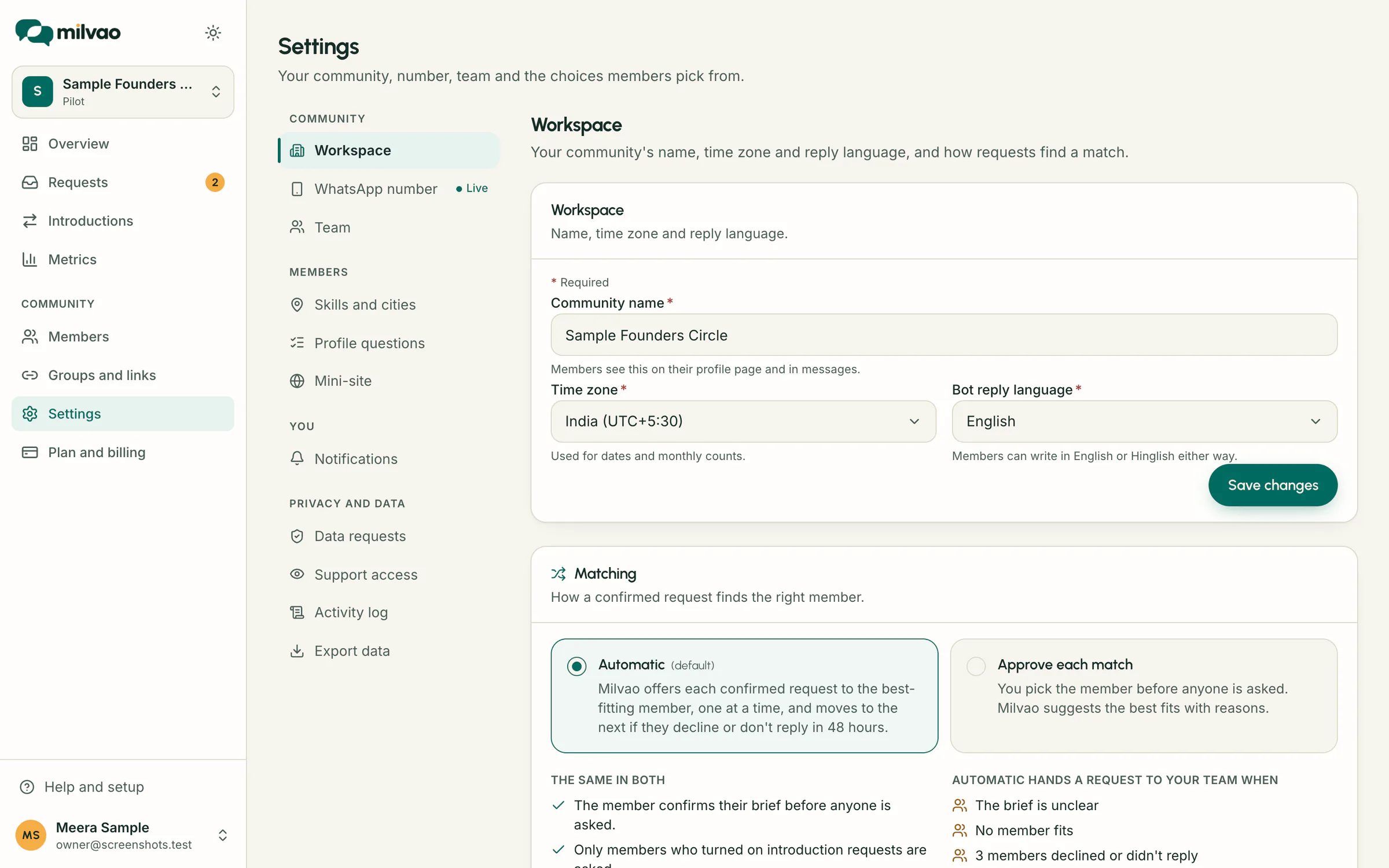
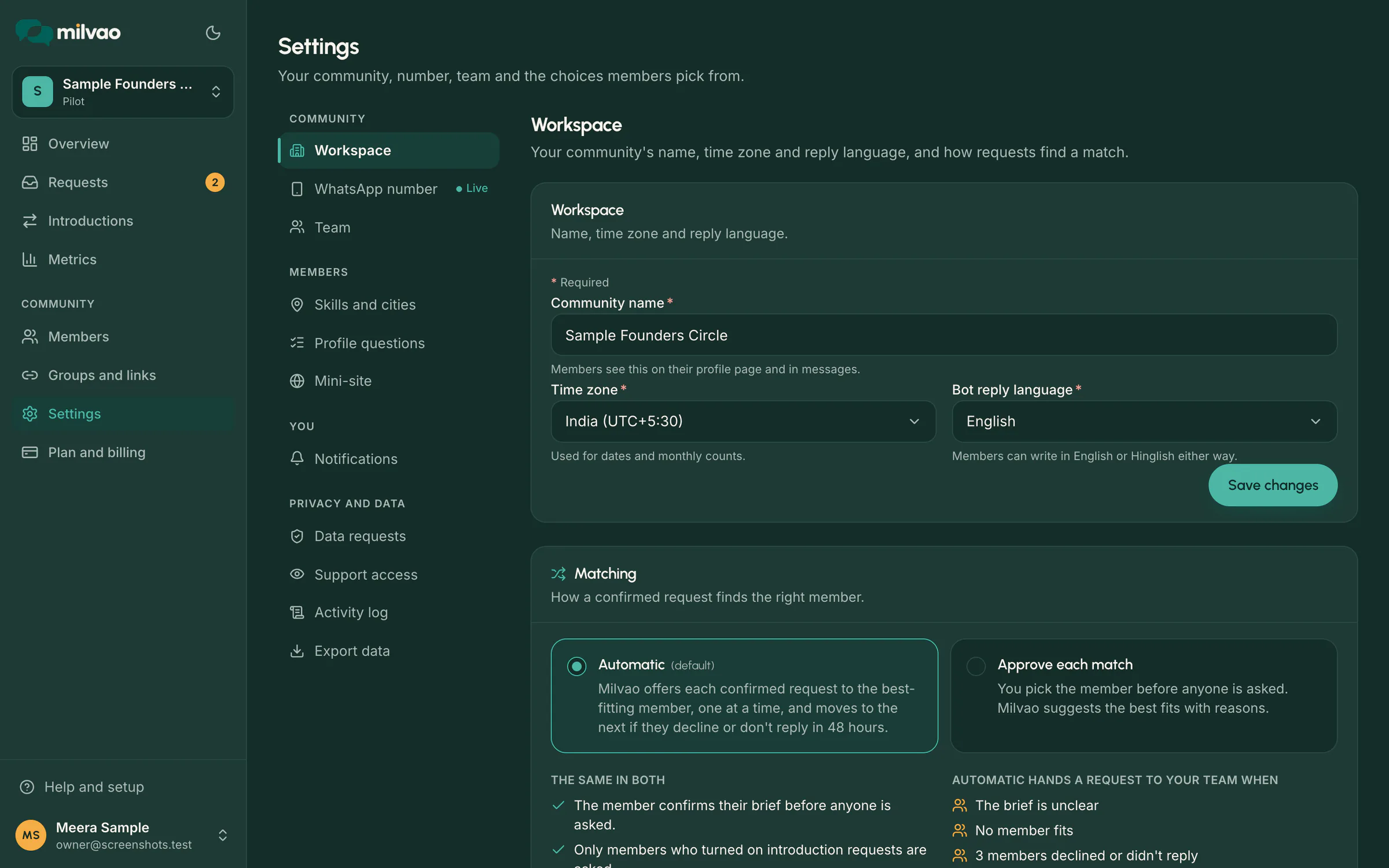
Your current mode shows as a badge on Overview, Requests and Introductions: Automatic matching or You approve matches. Click it to go to the setting.
Saving your choice, even if you keep Automatic, completes the Choose how matches are made step on the Overview checklist.
Frequently asked questions
Can I make Milvao ask a specific person in automatic mode?
Yes. Open the request and choose the member yourself when no offer is waiting for a reply. The offer is marked Chosen by with your name.
Why wasn't my most helpful member asked?
Check the request page. The usual reasons are that they already had 2 requests this week, they paused requests, or they don't list the service or city the request needs.
Something unclear or missing? Tell us