

Mini-site, member directory and public profiles
Give your community a public page on milvao.com, show your organisers, choose who sees the member directory, allow public profiles and review photos.
The mini-site is a public page for your community at milvao.com/c/your-community. It shows your logo, cover, description, what members offer and how to join. From the same settings you choose who can see the member directory, whether members may have a public profile page, whether visitors can press Contact, and whether your community is listed on milvao.com/communities with Request to join.
Only the owner can change these settings. Operators can see them, and anyone on the team can review photos.
Set up the mini-site
- Go to Settings → Mini-site and directory → Set up the mini-site.
- Under Logo and cover, click Upload. Use a JPEG, PNG or WebP picture up to 4 MB. Logos work best square, covers wide (at least 1600 × 600). Milvao removes location and camera details and resizes the picture.
- Fill in Tagline (one line, up to 120 characters) and About the community (up to 2,000 characters).
- Add your Website and Social links if you like. Each must be a full address starting with https://, and social links must point to that network, for example linkedin.com for LinkedIn.
- Click Preview at the top to see the page as visitors will. The preview link works for one hour, even while the mini-site is off, and search engines don't see it.
- Switch on Show the mini-site and click Save changes. Open mini-site takes you to the live page.
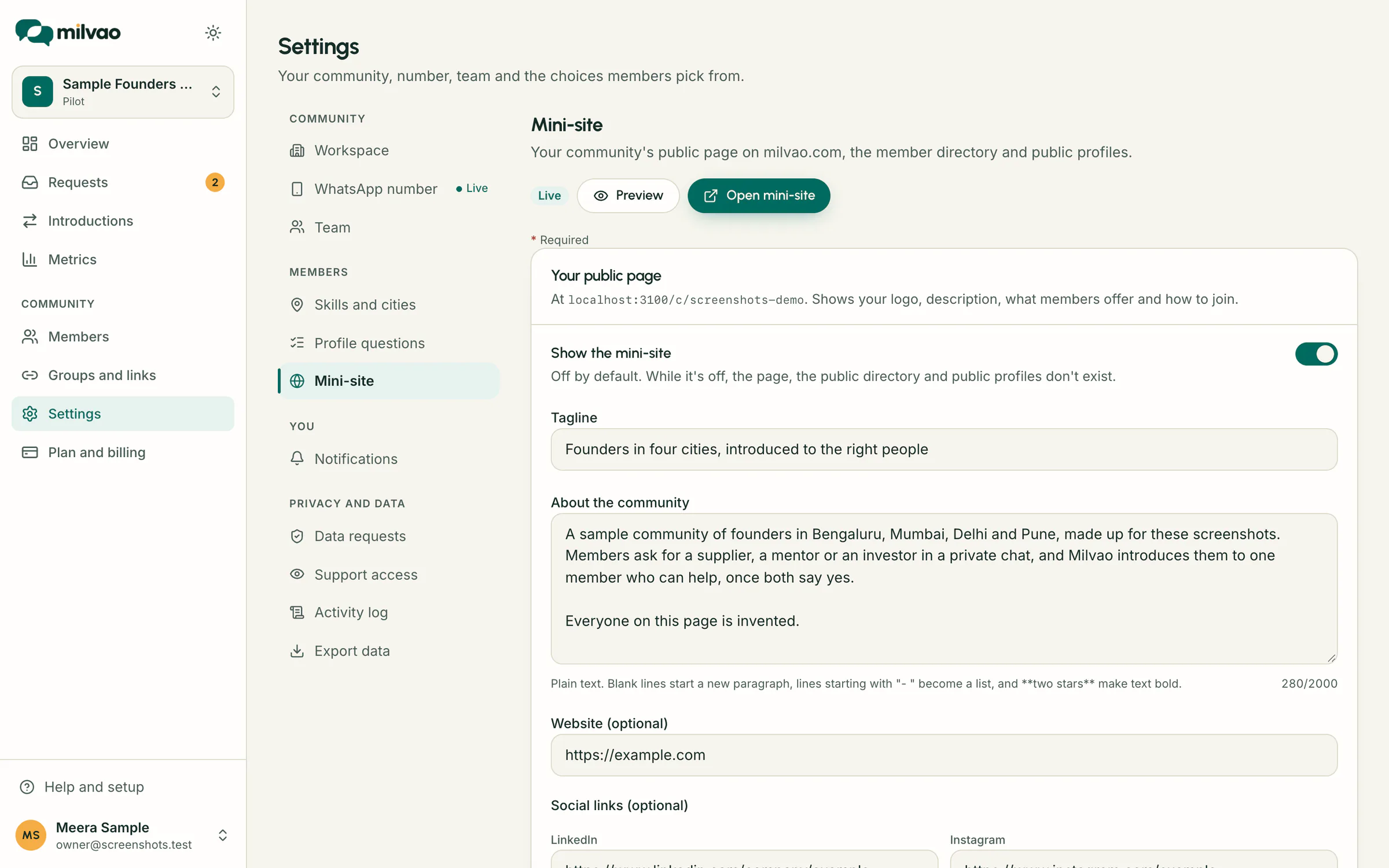
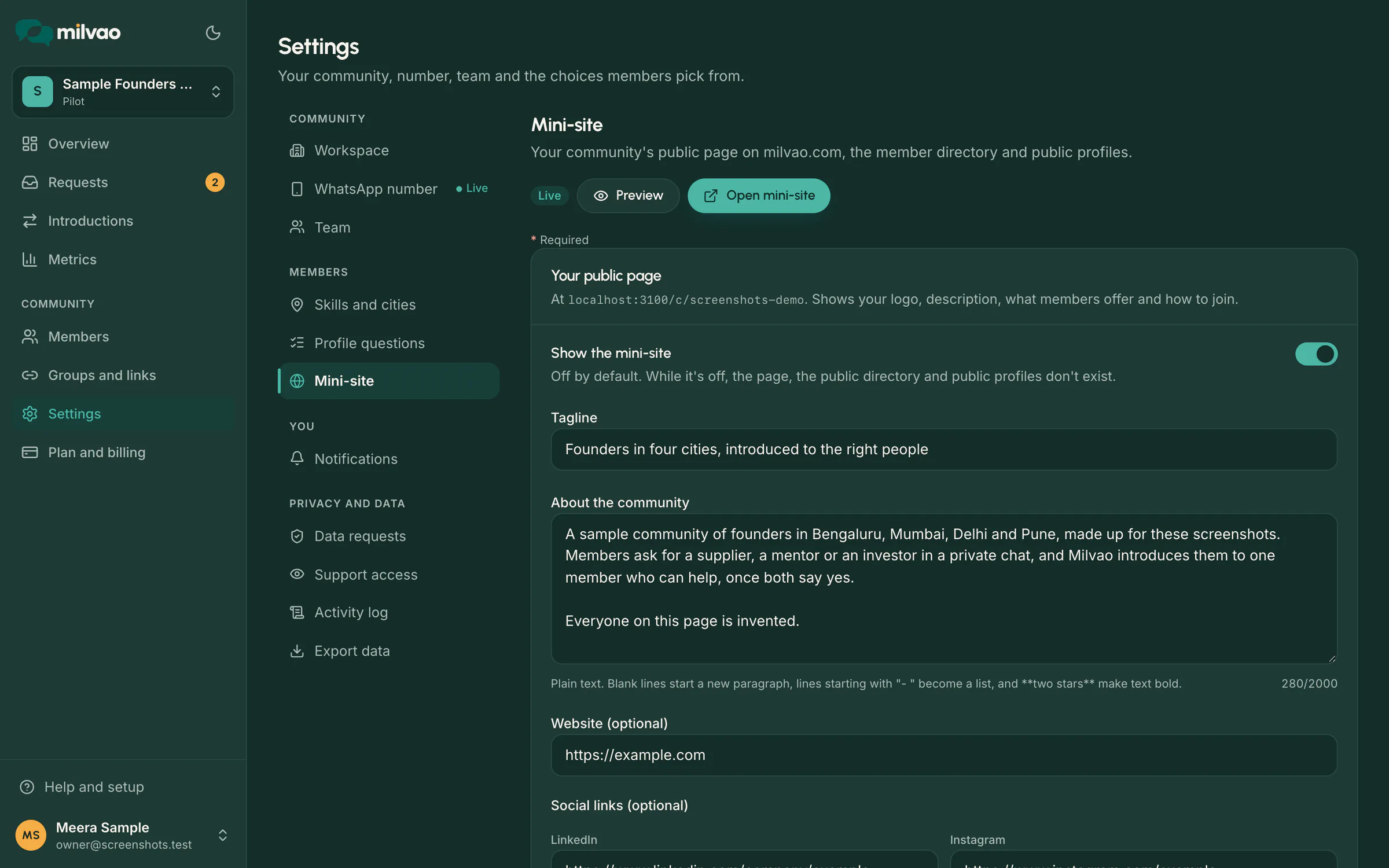
In About the community, a blank line starts a new paragraph, lines starting with "- " become a list, **two stars** on each side make text bold, and [text](https://link) makes a link. Nothing else is formatted.
What the page shows
| Section | What visitors see |
|---|---|
| Header | Your logo, cover, name, tagline, website and social links |
| About | Your description |
| What members offer | Skills and cities of active members. A count appears only when at least five members share it, so no one can be picked out |
| How to join | Steps to join through a group's join link. Join codes and links are never shown on the page: members get the link from an organiser. With join requests on, a Request to join button too |
| Report this community | A small link at the bottom of the side column that opens our contact form with the page address filled in, for visitors to tell the Milvao team about a problem |
| Organisers | Team members who chose to be shown, with their photo, title, short bio and links. Hidden when nobody is shown |
| Member directory | A link to the public directory, or to the member portal when the directory is for members only |
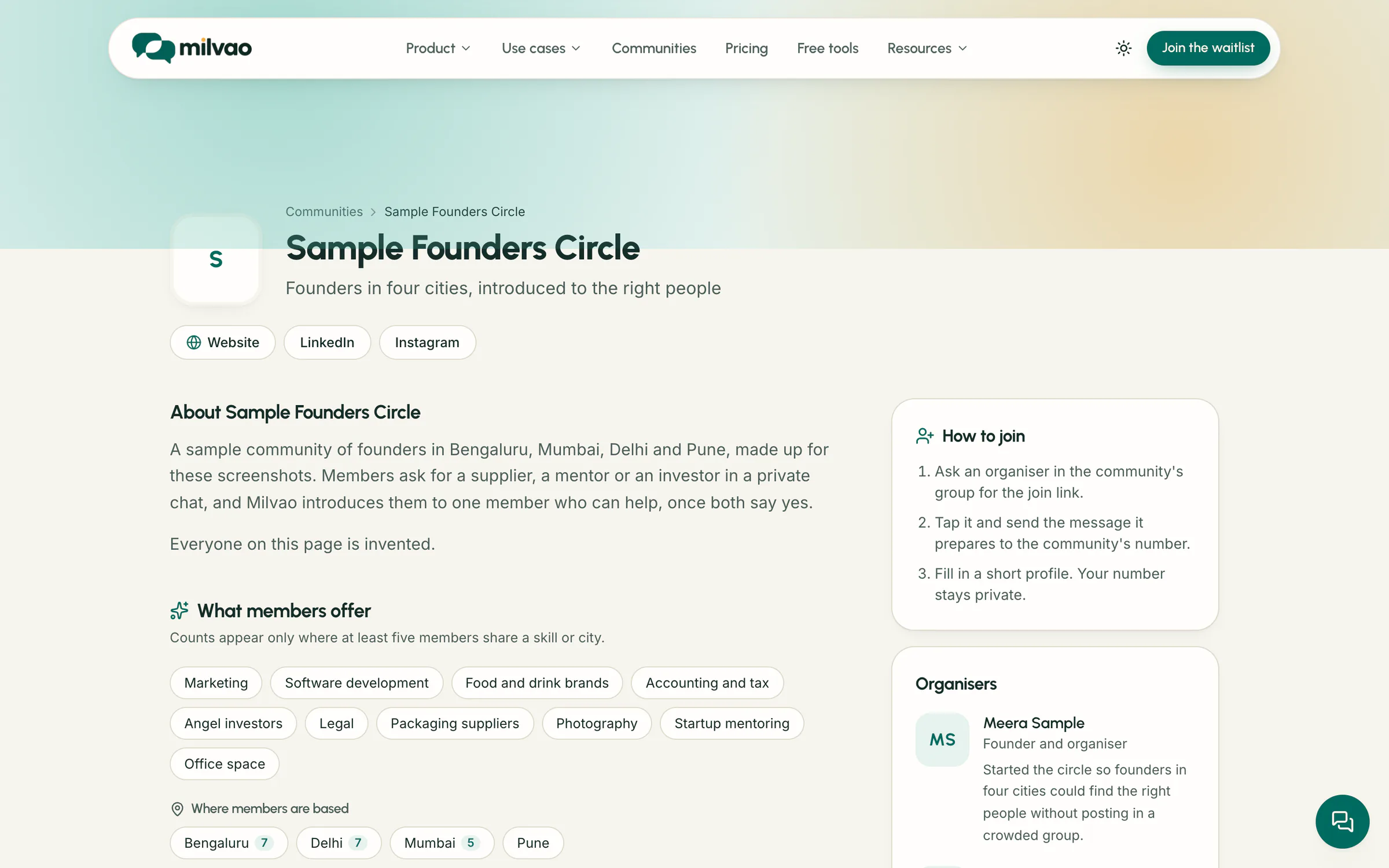
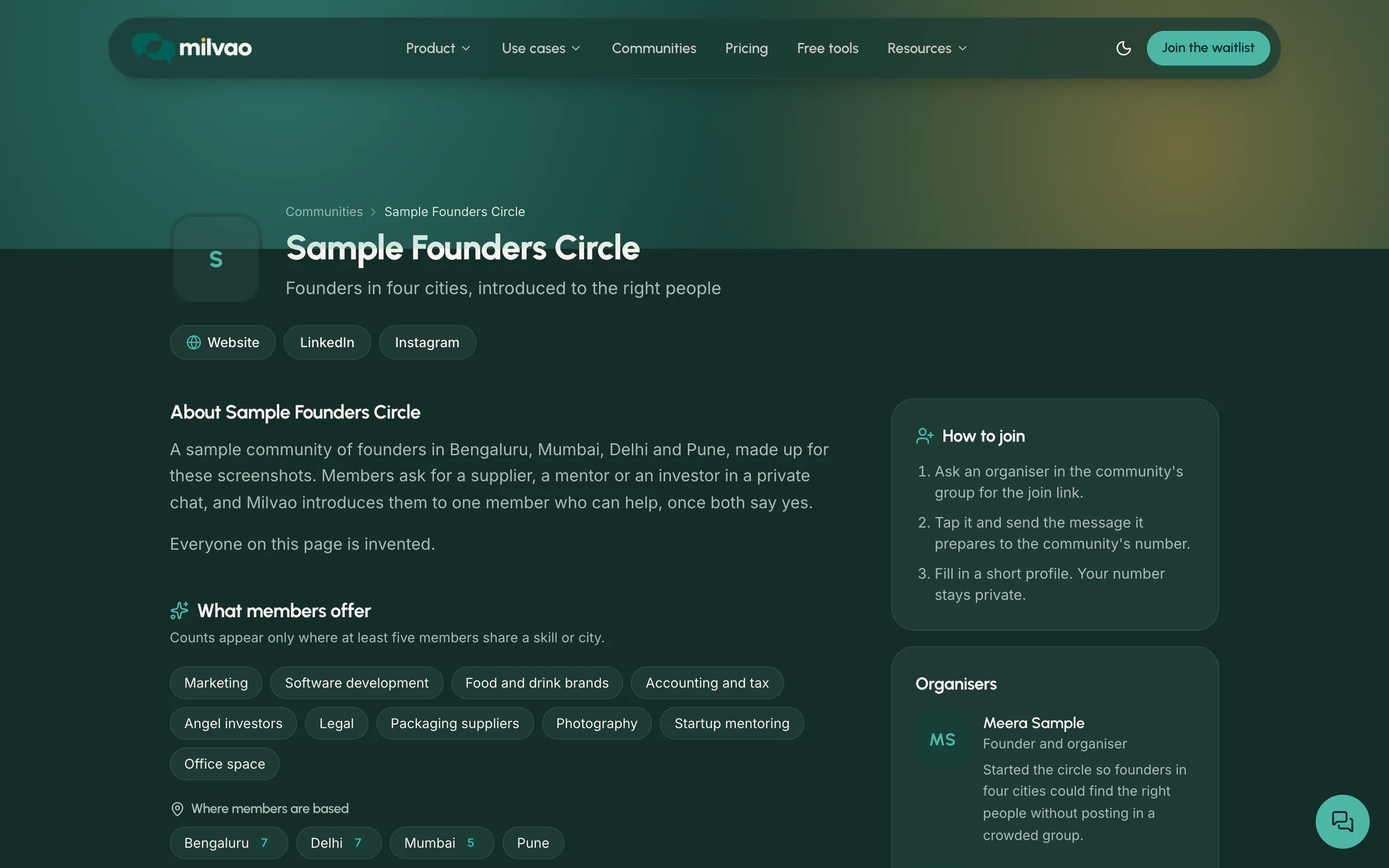
Search engines can index the mini-site while it's on. Turn it off and the page, the public directory and public profiles stop existing.
Show your organisers
The Organisers box on the right of the mini-site shows the people behind the community, so visitors know who they'd be joining. Each person on your team decides for themselves in Settings → Team → Edit profile: a display name (or their account name), a title such as "Founder and organiser", a short bio, a photo, LinkedIn and website links, and Show on the mini-site. The owner can edit everyone's profile and set the order.
The box shows photo or initials, name, title, bio and links. Write to the organisers appears only when someone filled in a public email for the mini-site. Sign-in emails are never shown, and phone numbers in a bio are hidden. With nobody shown, the box doesn't appear.
List the community and accept join requests
Under Milvao communities directory, switch on List in the Milvao communities directory to add a card for your community to milvao.com/communities, and Accept join requests from the directory to let visitors ask to join from that card and from your mini-site. Both are off by default and need the mini-site on. The Milvao team reviews each community before it's listed, and again after you change its name, tagline, description, logo or cover. Requests arrive in Members → Join requests. See Communities directory and join requests.
Show your badges
If the Milvao team approved seasonal badges for your community, the owner can show them in a Badges section on the mini-site with Settings → Badges → Show badges on my public page (off by default). Each badge links to its verification page on milvao.com. See Badges and awards.
Choose who can see the directory
Under Member directory and profiles → Who can see the directory:
| Choice | Who can browse it |
|---|---|
| Hidden | No one. Members can still ask for introductions as usual |
| Members only (default) | Members signed in to the member portal with a code sent to their number |
| Public | Anyone on the internet, at milvao.com/c/your-community/members |
Whatever you choose, only members who chose to be listed appear. You can't list anyone yourself. The directory shows name, headline, city, skills and an approved photo, never a phone number.
Before you pick Public, tell your members. Search engines don't index the public directory, and it shows 24 people at a time with limits on how fast anyone can browse, but people can still copy what they see.
Allow public profiles
Switch on Allow public profiles to let members turn on their own profile page at milvao.com/c/your-community/m/their-name. A profile shows their photo, name, headline, city, skills, short bio and answers to profile questions set to Also shown in introductions. Email answers and phone numbers are never shown.
Each member decides for themselves, and can turn their profile off at any time. Search engines index a profile only if the member also allows that. Every profile has a Report this profile link that opens our contact form with the page address filled in.
Allow Contact
Switch on Allow Contact to show a Contact button in the public directory and on public profiles. A visitor confirms their WhatsApp number with a one-time code and writes a short brief. The member accepts or declines, and numbers are shared only if they accept, as with any introduction.
Review profile photos
When a member adds a photo, it waits for your team. Go to Members → Profile photos, or click the photos button on Settings → Mini-site.
- Approve shows the photo on the member's profile, in the directory and on their member page.
- Remove deletes the photo straight away. You can pick a reason and tick Tell the member why on WhatsApp. The reason is sent only if the member wrote to your number in the last 24 hours, because WhatsApp allows replies only within that time. Otherwise the photo is still removed and you see that they weren't told.
The Approved tab lists photos already approved, so you can remove one later.
When a member leaves the directory
If a member stops being listed, turns off their public profile or has their data deleted, their entry disappears from milvao.com straight away. Their photo file is deleted when they're deleted or when you remove it.
Frequently asked questions
Can I add members to the public directory myself?
No. Each member chooses to be listed. Your setting only decides who can see the members who did.
Does the mini-site show how many members we have?
Only roughly, such as "50+", and only once you have at least 25 active members.
Why don't I see counts next to some skills?
A count appears only when at least five members share a skill or city, so a single member can't be identified.
Can visitors find our community without the link?
Only if you list it on milvao.com/communities. Search engines can also find your mini-site while it's on.
Is the public directory in Google?
No. The directory pages ask search engines not to index them. Public profiles are indexed only when the member allows it, and the mini-site is indexed while it's on.
What do people see when they share the link?
A preview card with your community's name, tagline, logo and cover, made from what the mini-site already shows. A shared public profile shows the member's name, headline and photo only if the member allows search engines; otherwise the card shows your community instead. A square logo and a wide cover look best.
Something unclear or missing? Tell us