

Your member page
For members. Sign in to your community's member page with a code sent on WhatsApp to edit your profile, see requests and connections, and use the directory.
Your community's member page is at an address your organisers share, ending in /m/ and the community's name. It works on any phone or computer.
Sign in
- Enter the WhatsApp number you use with the community, with the country code, and tap Send me a code.
- A 6-digit code arrives on WhatsApp from the community's number. It works for 10 minutes.
- Enter it and tap Sign in.
You stay signed in on that device for 30 days after your last visit. After 5 wrong codes, ask for a new one.
What's on your member page
| Tab | What you can do |
|---|---|
| Profile | Edit your name, headline, city, skills, cities you serve, a few words about you and your answers to the community's questions. Upload a photo. Turn introduction requests on or off. Choose who can see you. |
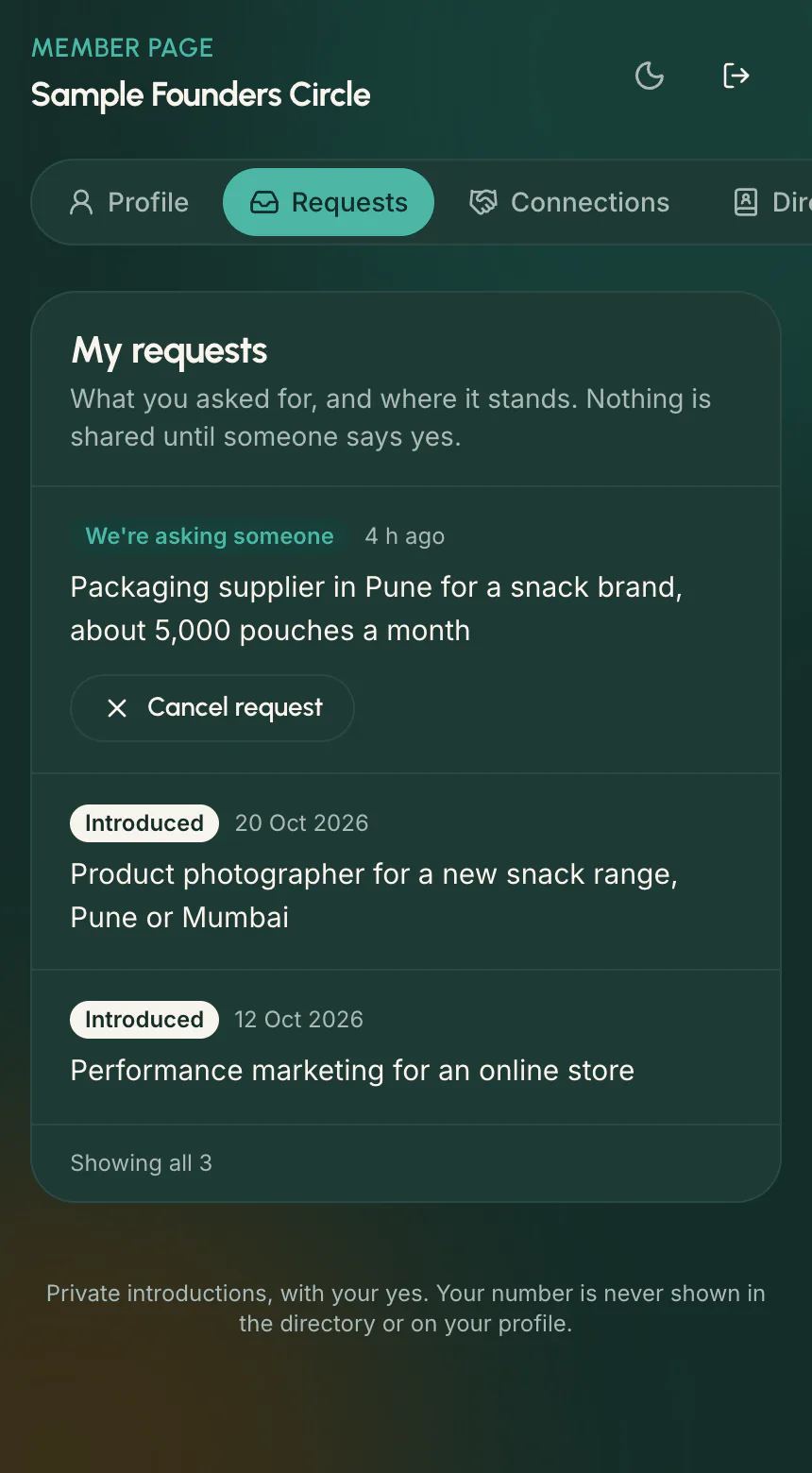
| Requests | See what you asked for and where it stands, cancel an open request, and see contact requests sent to you |
| Connections | People you were introduced to after you both said yes, with their WhatsApp number. See Your connections |
| Directory | Find members by name, skill, city or a profile answer, and press Contact to ask for an introduction. Shown only if your community has a directory |
| Blocked | People you blocked. Tap Unblock to undo |
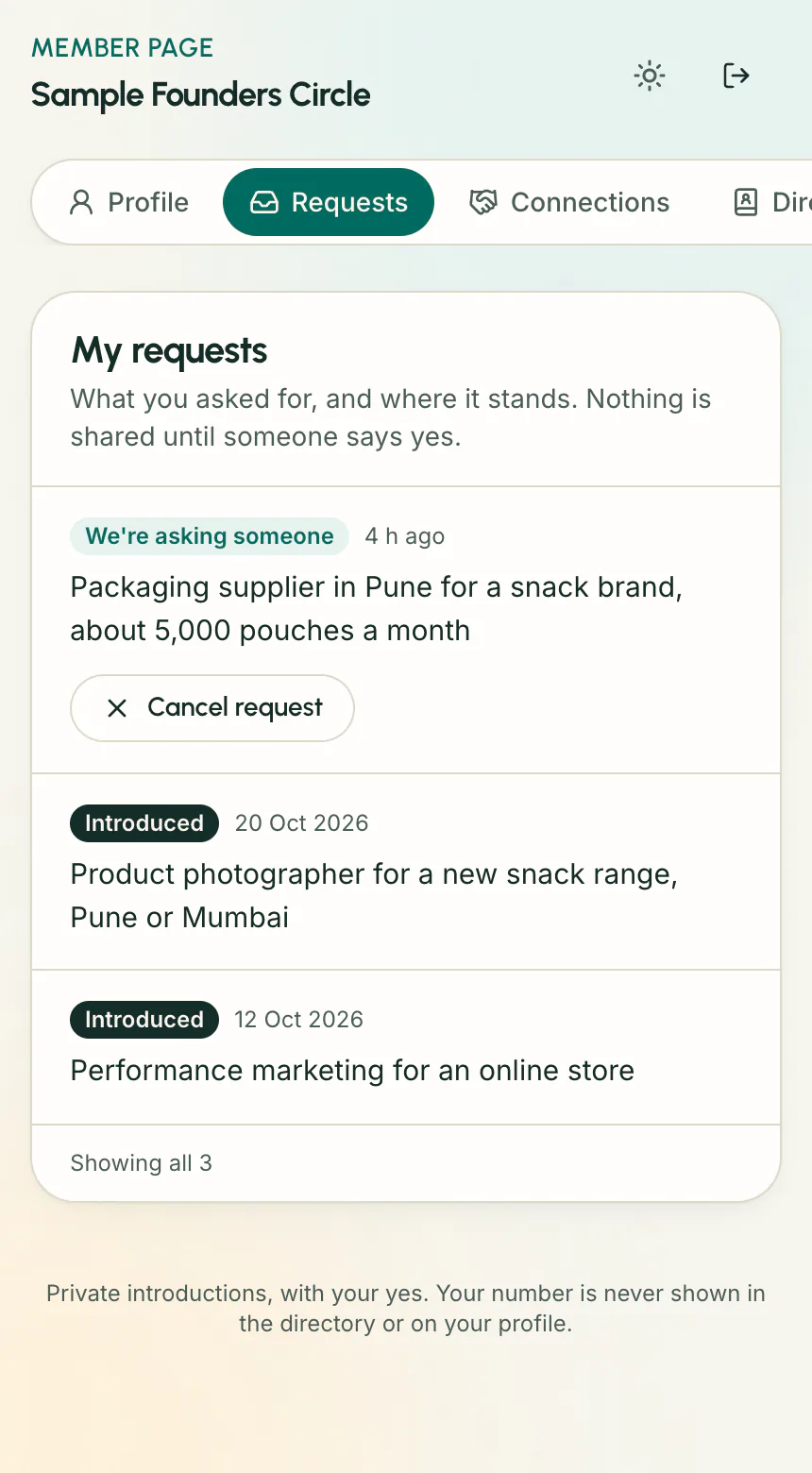
Long lists come a page at a time, newest first: 10 requests or connections per page and 20 blocked people. Under the list you see how many there are (for example "Showing 1–10 of 23") and Previous, Next and page numbers. On a phone it shows "Page 1 of 3" between Previous and Next. After you cancel, hide or unblock something, you stay on the same page.
Your photo
Tap Upload a photo on Profile (JPEG, PNG or WebP, up to 4 MB). Milvao crops it square and removes location and camera details. It shows to others only after an organiser approves it; until then it says Waiting for approval. Remove deletes it.
Who can see you
Under Who can see you, each switch is its own choice. Tap Save my choices after changing them.
- List me in the member directory: members who sign in (or anyone, if your community made its directory public) see your name, approved photo, headline, city and skills. If your community allows Contact, people can ask to be introduced to you. You still decide on WhatsApp.
- Give me a public profile page: a page on the community's website with your name, headline, city, skills, about text and approved photo. Only if your community offers public profiles.
- Let search engines show my public page: only with a public page. Turning it off asks search engines to drop the page, which can take a few weeks.
Your WhatsApp number is never shown in any of them. Turning a switch off removes you straight away.
Block someone
If someone keeps sending you contact requests, block them. You can do this on WhatsApp (tap Decline, then Block this person), from Requests under Contact requests to you, or from Connections. They can't send you contact requests in this community any more, they aren't offered to you as a match, and they aren't told.
Sign out
Tap the sign-out icon at the top. Tick Also sign out on my other phones and computers to end every session at once.
Frequently asked questions
I didn't get a code
Check the number and country code, and that you use that number on WhatsApp with this community. If you aren't a member yet, open the invite link your organiser shared in the group first.
Is the member page a different account?
No. It's the same profile you fill in from WhatsApp. Changes made in one place show in the other.
Something unclear or missing? Tell us