

Introductions and contact sharing
How an introduction works from offer to accepted, when numbers are shared, what happens after a decline or no reply, and how to fix a partial send.
The Introductions page
Introductions is a table of every offer, newest first: the request (and who asked), who it was offered to (number masked), Chosen by (Milvao or a person on your team), the state, how long the member has left to reply, Contacts shared (To requester and To member, with a Retry button on a side that failed) and when it was offered. Rows that are only partly shared have an orange edge.
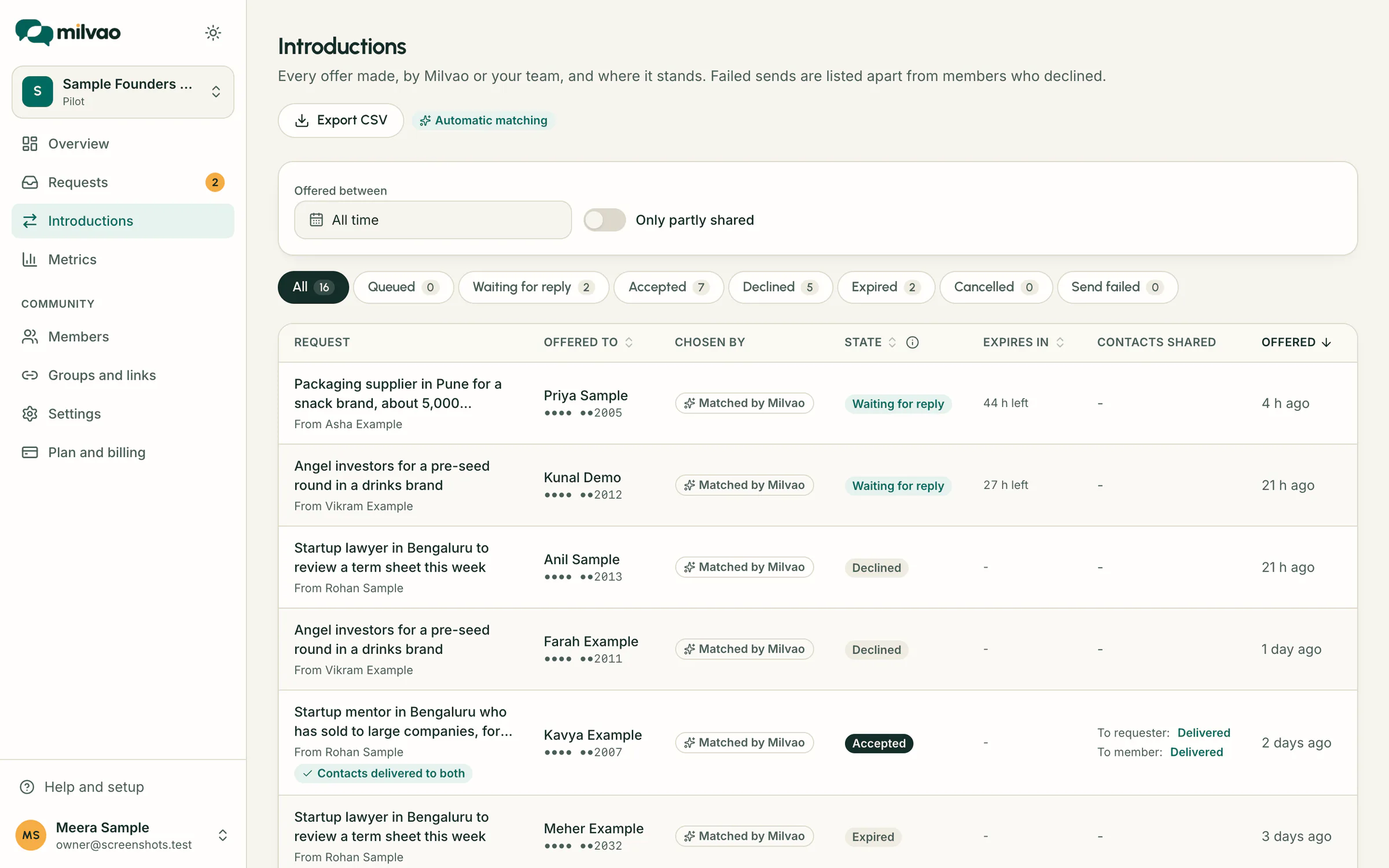
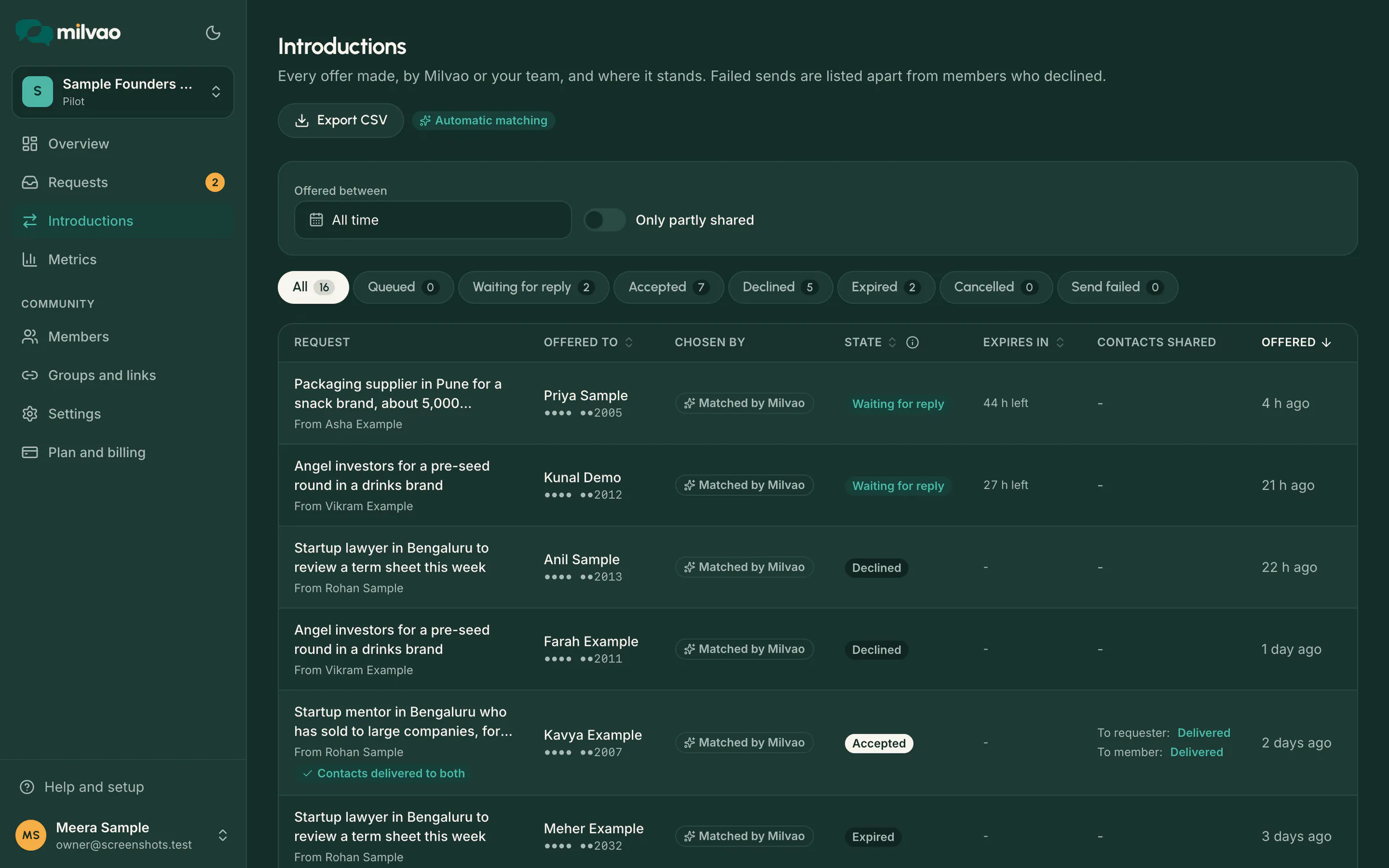
Filter by date with Offered between, switch on Only partly shared, or pick a state tab above the table. Click Offered to, State, Expires in or Offered to sort. Use the page numbers under the table to see more, and click a row to open its request.
What the member being asked sees
A WhatsApp message with the request summary, the service, the city and any details the requester confirmed, plus Accept and Decline buttons. A contact request says instead that someone found their profile, with the requester's one-line message, and after Decline the member can tap Block this person. It never includes the requester's name, number or original message. The buttons only work for that member and that offer.
Offer states
| Offer state | Meaning |
|---|---|
| Queued | About to be sent |
| Waiting for reply | WhatsApp accepted the message; the 48 hours have started |
| Accepted | They said yes; contacts are being shared |
| Declined | They said no; the request moves to the next match or to you |
| Expired | No answer in 48 hours; treated like a decline. The member isn't messaged about it |
| Cancelled | The request was closed, or the member paused requests, sent STOP or turned requests off |
| Send failed | WhatsApp couldn't deliver it (not the same as a decline). Milvao moves on to the next match |
If WhatsApp doesn't confirm whether an offer went out (a timeout), the offer stays Queued and nobody else is asked until Milvao staff check the provider's records. If the member answers in the meantime, that answer counts.
When numbers are shared
- The member taps Accept. That tap is their permission to share their number for this one introduction.
- Milvao checks that the request is still open and that the requester still allows sharing.
- Each person gets a private message with the other's name and WhatsApp number, plus up to 5 of the other person's answers to questions marked Shown in introductions (for example "Firm: Mehta and Co"). Answers to other questions are never included. Milvao checks both permissions once more right before each message goes out.
- The request shows Introduced once WhatsApp has accepted both messages.
A contact that has been delivered can't be taken back, which is why Milvao waits for two yeses and rechecks both right before sending.
Delivery to each side
On the request page, each accepted introduction shows two lines: To requester and To member, each with its own status:
| Status | Meaning |
|---|---|
| Pending | Waiting to send |
| Sent | WhatsApp accepted it |
| Delivered | It reached their phone |
| Failed | It couldn't be delivered |
| Cancelled | Not sent, for example the request was closed first or a permission was missing |
If one side fails, the request moves to Needs your attention. Click Retry on the failed side. Only that side is sent again; the side that already went through is never resent. Retry checks both permissions again first.
Closing a request
Closing withdraws any offer still waiting for a reply and any contact message not yet sent, and tells the requester their request was closed. Messages already delivered stay delivered.
Frequently asked questions
Does the member get a reminder before the 48 hours run out?
No. If they don't answer, the offer expires quietly and the next match is asked (or the request comes back to you).
What if the member taps Accept after the 48 hours?
They're told the offer has expired and nothing was shared.
Do the shared answers appear if the message goes out as a template?
No. Outside WhatsApp's 24-hour window the approved template is used, and its wording is fixed, so only the name, number and summary are sent. Both people can see the answers on their member page under Connections.
Can I see what was sent?
The request page shows each step with times. Phone numbers in contact messages are hidden in the stored copy.
Something unclear or missing? Tell us