

Review a request and choose who to ask
Handle requests that need your team: correct the brief, message the member, offer the request to a suggested member or close it, with every step recorded.
Open Requests. The Needs you tab lists every request that is waiting for your team, with the reason under each summary. The orange count next to Requests in the menu shows how many there are, and Overview → Needs your attention shows the same requests grouped by reason, plus offers that couldn't be sent and contact details that failed to deliver.
The request tabs
| Tab | What's in it |
|---|---|
| Needs you | Requests waiting for your team (state Needs attention) |
| In progress | The member is still confirming the brief, or an offer is out. The line under the summary says what the member is being asked, or who is being asked and how many hours they have left |
| Introduced | Both people were sent each other's number |
| Closed | Closed by your team or cancelled by the member |
| All | Everything, newest first |
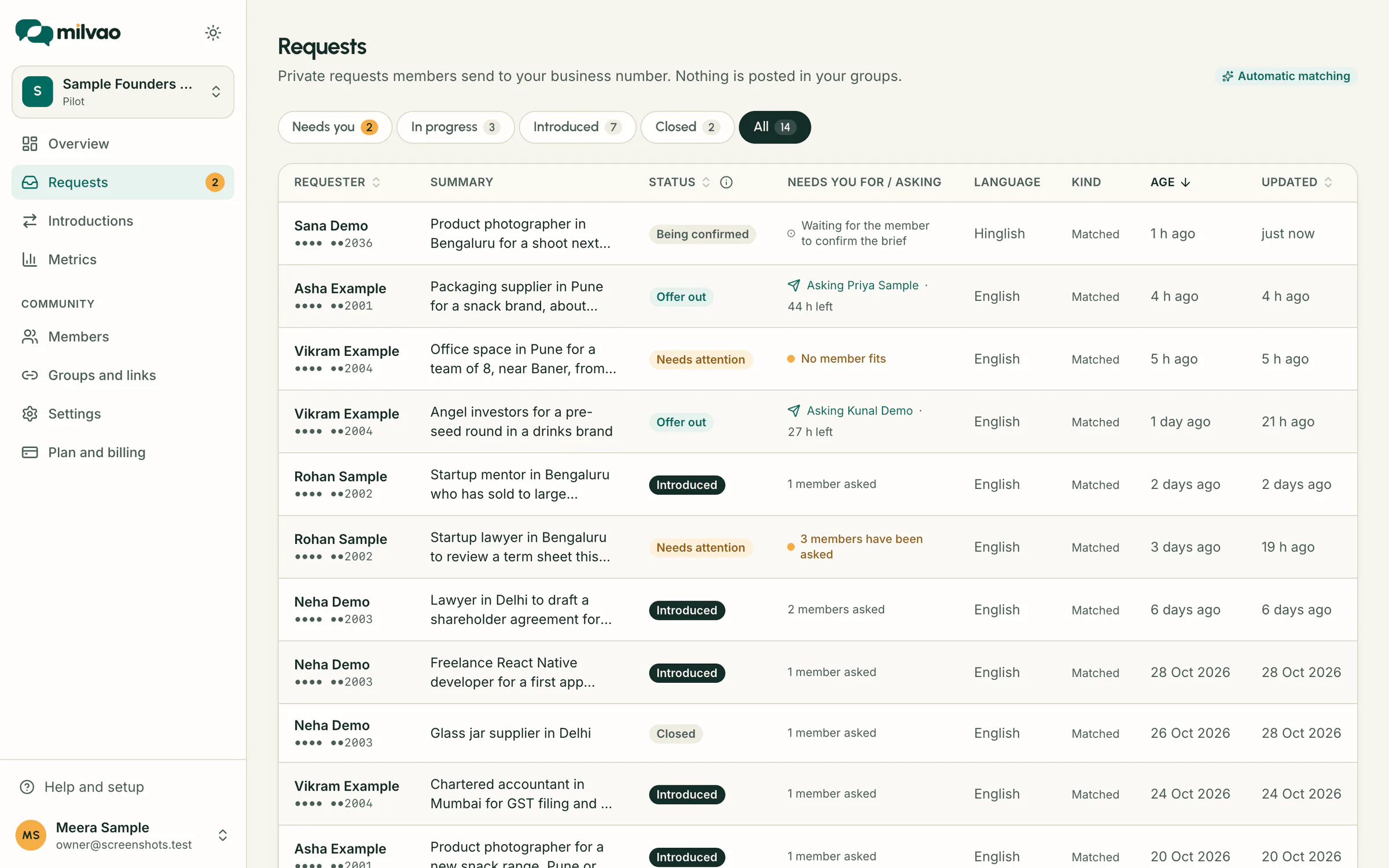
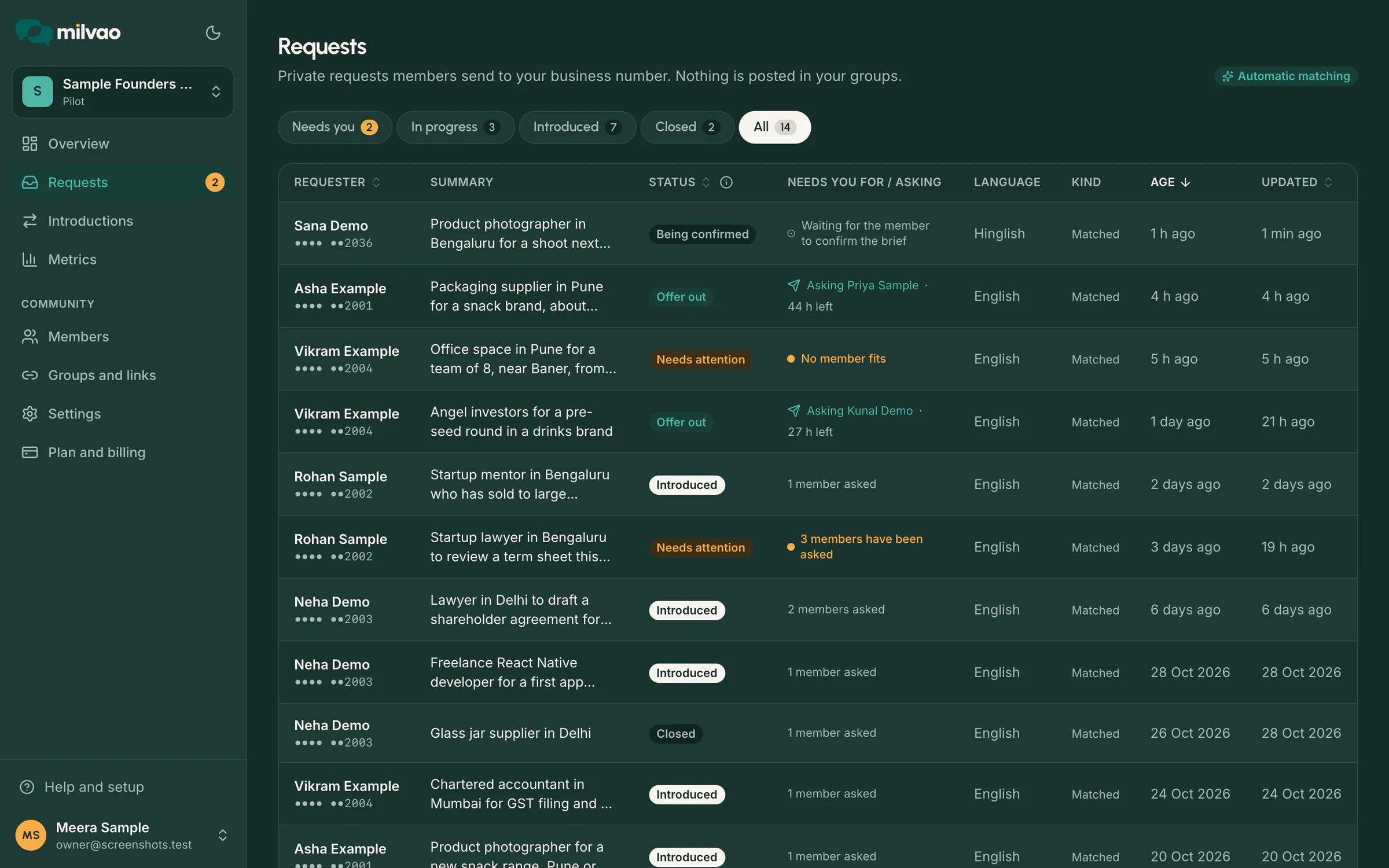
Each tab is a table with these columns:
| Column | What it shows |
|---|---|
| Requester | Name (Guest for a visitor who pressed Contact) and the masked number |
| Summary | The one-line brief, or "Brief not ready yet" |
| Status | The request's state |
| Needs you for / asking | Why it needs you, what the member is being asked, or who is being asked and how many hours they have left |
| Language | The language the member writes in |
| Kind | Contact request when they pressed Contact on a member, Matched otherwise |
| Age and Updated | When it arrived and when it last changed |
Click Requester, Status, Age or Updated to sort, and click again to reverse. The table shows 25 requests a page with "Showing 1–25 of [total]"; use the page numbers, Previous and Next, or Rows per page for 50 or 100. Click a row to open the request. On a phone each request shows as a card instead.
Why a request needs you
| Reason shown | What happened | What to do |
|---|---|---|
| Pick a member to ask | Your workspace approves each match | Choose from Suggested members |
| Milvao couldn't read this request | The brief couldn't be written automatically | Read What they asked, then Edit brief, or close it |
| AI reading is switched off | Automatic reading is turned off for your workspace (at your request or during a provider problem), so every new request comes to you first | Read What they asked, then Edit brief to write it, or close it |
| Still unclear after one question | The member's answer didn't settle the service or city | Correct the brief; the member confirms it again |
| No member fits | Nobody eligible right now (the reason is shown) | Broaden the brief, or close it |
| 3 members have been asked | The most for one request | Close it, or contact the member yourself |
| Waiting for the member to confirm the edited brief | You changed the brief after they confirmed | Nothing. Offers start again once they tap Confirm |
| The member didn't allow sharing their number | Without it nobody can be introduced | Contact the member yourself, or close it |
| Automatic matching is paused | Someone on your team paused it for this request | Choose a member, resume, or close |
| Contact details couldn't be delivered | A member accepted but one side didn't get the other's number | Retry the failed side |
| A message is blocked | WhatsApp wouldn't allow the message right now | It can go once the person messages your number again |
| Your workspace is suspended | No offers go out while suspended | Contact the Milvao team |
Read the request
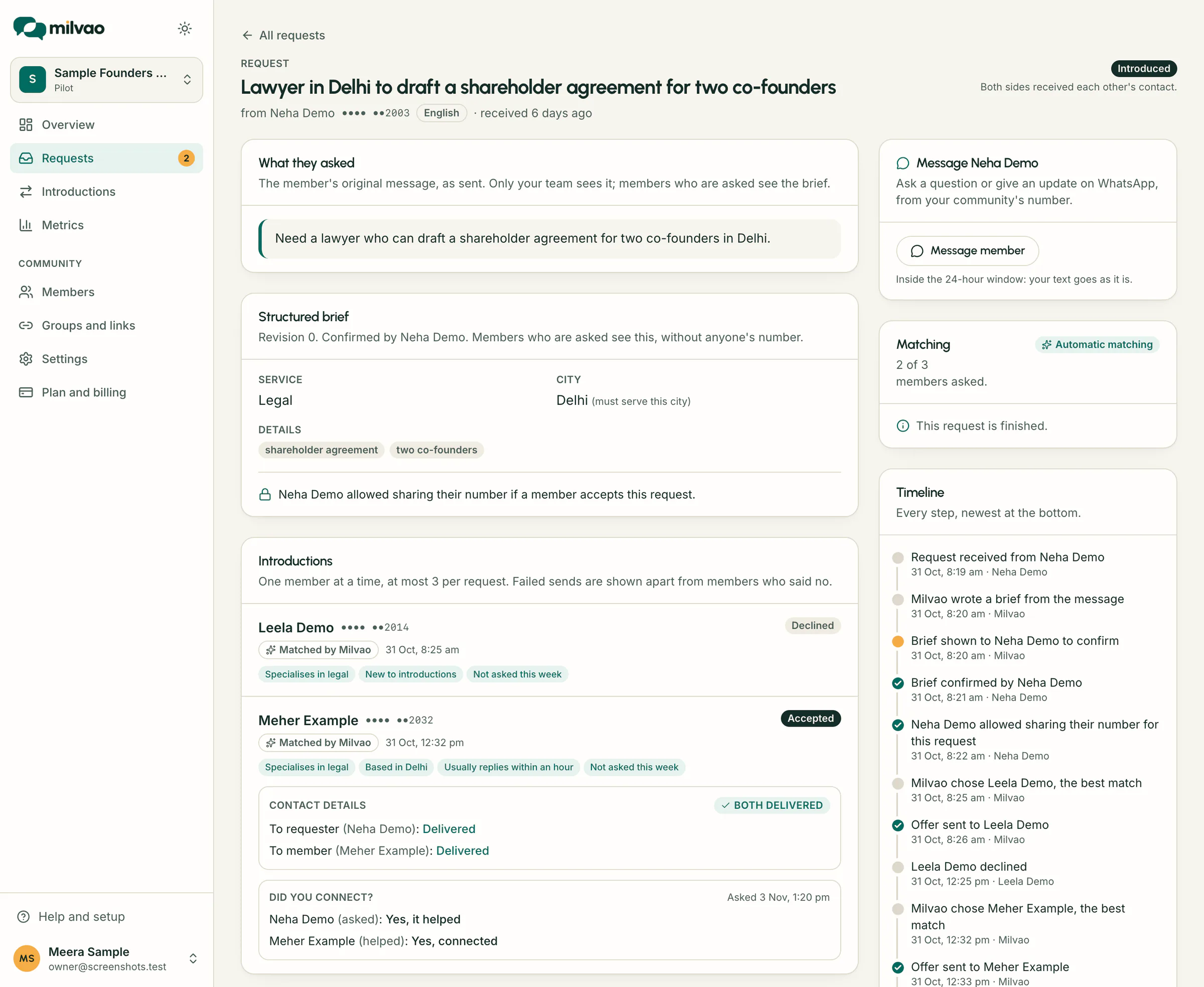
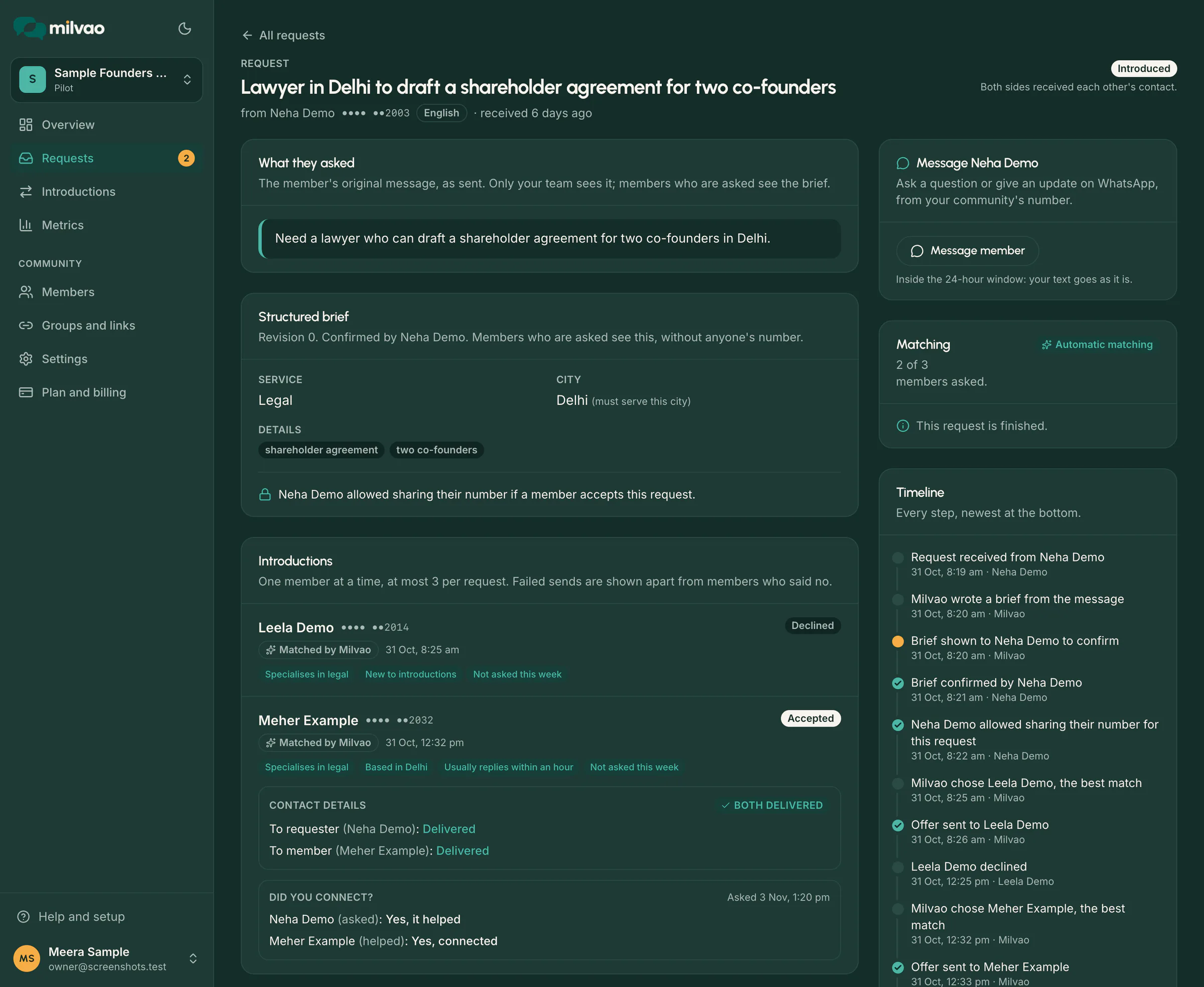
- What they asked is the member's original message. Only your team sees it. Members who are asked see the brief, never these words.
- Structured brief shows the service, city, details, and whether the member allowed sharing their number for this request. It also says whether the member confirmed this version.
- Timeline lists every step with the time and who did it (the member, Milvao, or the operator's name), including failed sends, which are shown apart from members who said no.
Correct a brief
- Click Edit brief.
- Change the Summary, Service, City, Only members who serve this city and Details (one per line, up to 8).
- Click Save brief.
Service and city come from your skills and cities. If the member already confirmed the brief and you change the service, city or summary, the form tells you that the member will be asked to confirm again. They get the new brief on WhatsApp, and no new offers go out until they tap Confirm. Changing only the details doesn't need a new confirmation.
Message the member
Use Message member (in the card at the top right of the request) to ask the person who sent the request a question or give them an update on WhatsApp, from your community's number.
- Click Message member.
- Pick a quick reply such as Could you tell us the city?, or write your own message (up to 1,000 characters).
- Click Send message.
| When | How it goes |
|---|---|
| The member wrote to your number in the last 24 hours | As your text, starting From the community name team: |
| Longer ago | Inside your approved Request update template, with the request summary, up to 850 characters. WhatsApp only allows templates outside the 24-hour window |
| The member replied STOP | Only within 24 hours of a message they sent, to answer them. Otherwise the card explains why you can't message them |
If the Request update template isn't approved yet, or your number isn't connected, the card says so instead of showing the button. The message appears on the request's timeline as messaged with your name; the text itself is kept with the member's other messages and cleared after the retention period. Clicking twice sends one message, and a member gets at most 10 messages from your team an hour.
Choose who to ask
Suggested members shows up to five members who can be asked, best match first, each with the reasons for the match (for example Specialises in commercial leasing or Serves Mohali). Only members with an active profile who turned on introduction requests and serve the city are listed. Click Refresh to rank again.
Click Offer to this member, check the summary in the dialog and click Send offer. The member gets the brief without anyone's number and has 48 hours to accept. The offer then appears under Introductions, marked Chosen by and your name, with a countdown.
The button is greyed out, with the reason shown above the list, when an offer is already out, the member hasn't confirmed the brief, 3 members have been asked, or the request is closed. Clicking twice never sends two offers.
When nobody fits, the card says why (for example Nobody who offers this service serves this city.) and offers two ways forward: broaden the brief, or close the request. More members turning on introduction requests also helps; See who can't get offers opens the member list filtered to them.
Pause automatic matching
In automatic mode, the Matching card has an Automatic matching switch for this request. Turn it off and Milvao stops asking new members about this request; you choose instead, or close it. Turn it back on and Milvao may ask the next best member straight away. An offer already out is not withdrawn. In approve-each-match mode there is nothing to pause.
Close a request
Click Close request, pick a reason (for example Sorted outside Milvao or Duplicate request), add a note if you like, and click Close request again. Other needs a note. Any offer still waiting is cancelled and the member gets a short message that the request is closed. Contact details already delivered can't be taken back. Introduced requests can't be closed.
When contact sharing is partial
After a member accepts, each introduction shows Contact details with two lines, To requester and To member, each with its own status: Pending, Sent, Delivered, Failed or Cancelled. If one side failed, the introduction is marked Partly shared and a Retry button appears next to that side. Retry checks both permissions again and resends only that side. You can also find every partly shared introduction under Introductions → Only partly shared.
Did you connect?
Three days after an introduction, Milvao asks both people once whether they connected (see Receiving introduction requests). Once they've been asked, the introduction shows Did you connect? with the date asked and each side's answer: Yes, it helped, Yes, connected, Not yet or No answer yet. Only your team sees the answers. Metrics adds them up under Said they connected.
Why a request closed
A closed request says why under Matching, and the timeline's last step says the same: the reason your team picked (for example Sorted outside Milvao), Cancelled by the member, The member didn't confirm the brief in time, or for a contact request The member they asked declined, didn't reply in 48 hours or can't take requests right now. When the person who asked taps Ask someone similar, the timeline shows that they asked Milvao to find someone similar.
If the page is out of date
Someone else, or Milvao itself, may change a request while you have it open. If that happens your change isn't saved and you see This request changed. Reload to see the latest. Click Reload in the message, check the request again, and redo the change if it still makes sense.
Frequently asked questions
Can I offer a request to someone who isn't in the suggestions?
No. Only members who opted in and fit the brief can be asked. If someone is missing, check their profile under Members: they need an active profile, introduction requests turned on, the right skill and the city.
Does the member see who chose them?
No. Members never see whether Milvao or your team made the match. Your team sees it on the request and under Introductions.
Is every change recorded?
Yes. Edits, messages to members, offers, pauses, closures and retries are recorded with your name in the audit log, and each step appears on the request's timeline.
How do I hear about new requests that need my team?
Turn on A request needs your team in Settings → Notifications, by email or WhatsApp. See Notifications by email and WhatsApp.
Something unclear or missing? Tell us