

Pilot metrics
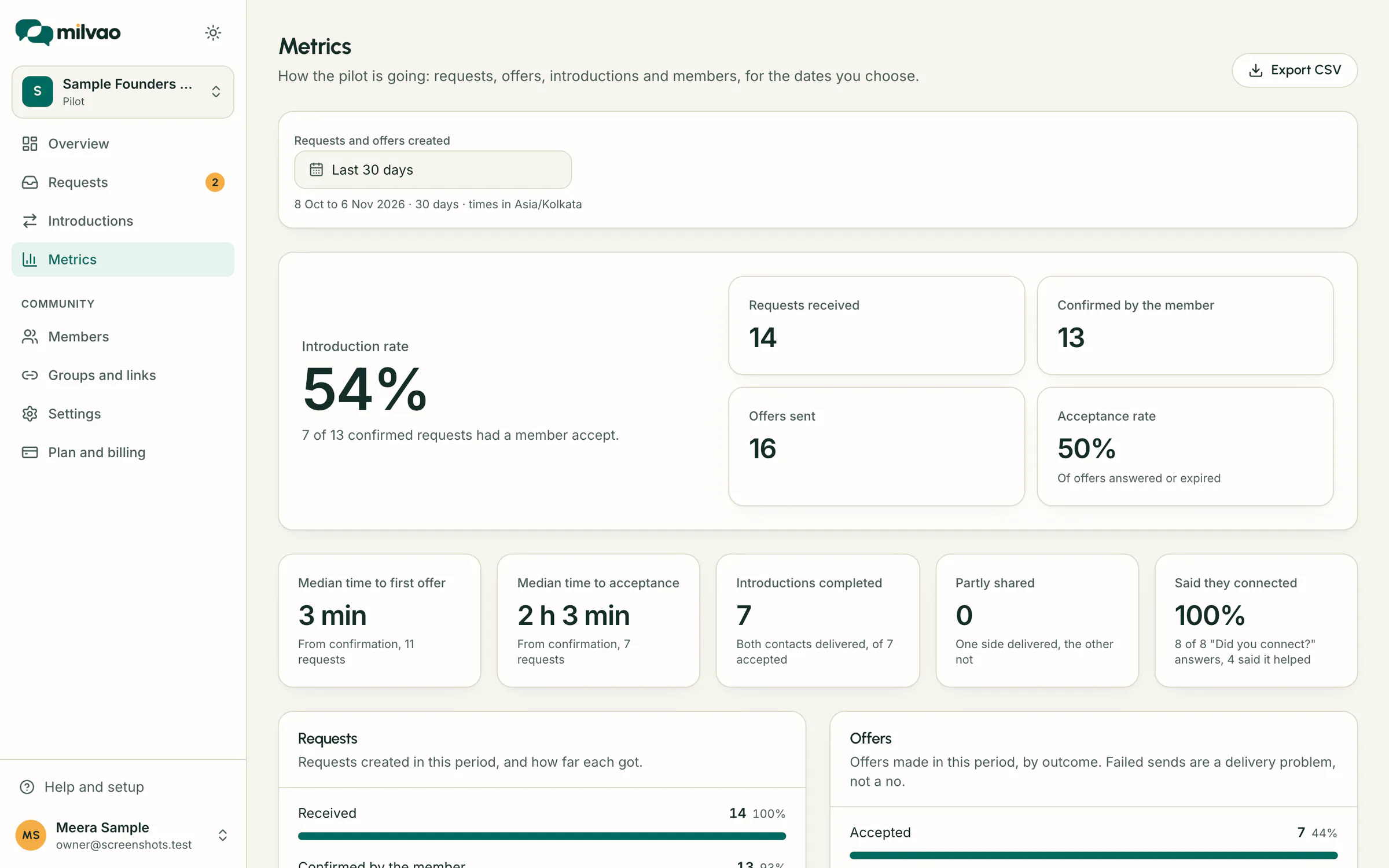
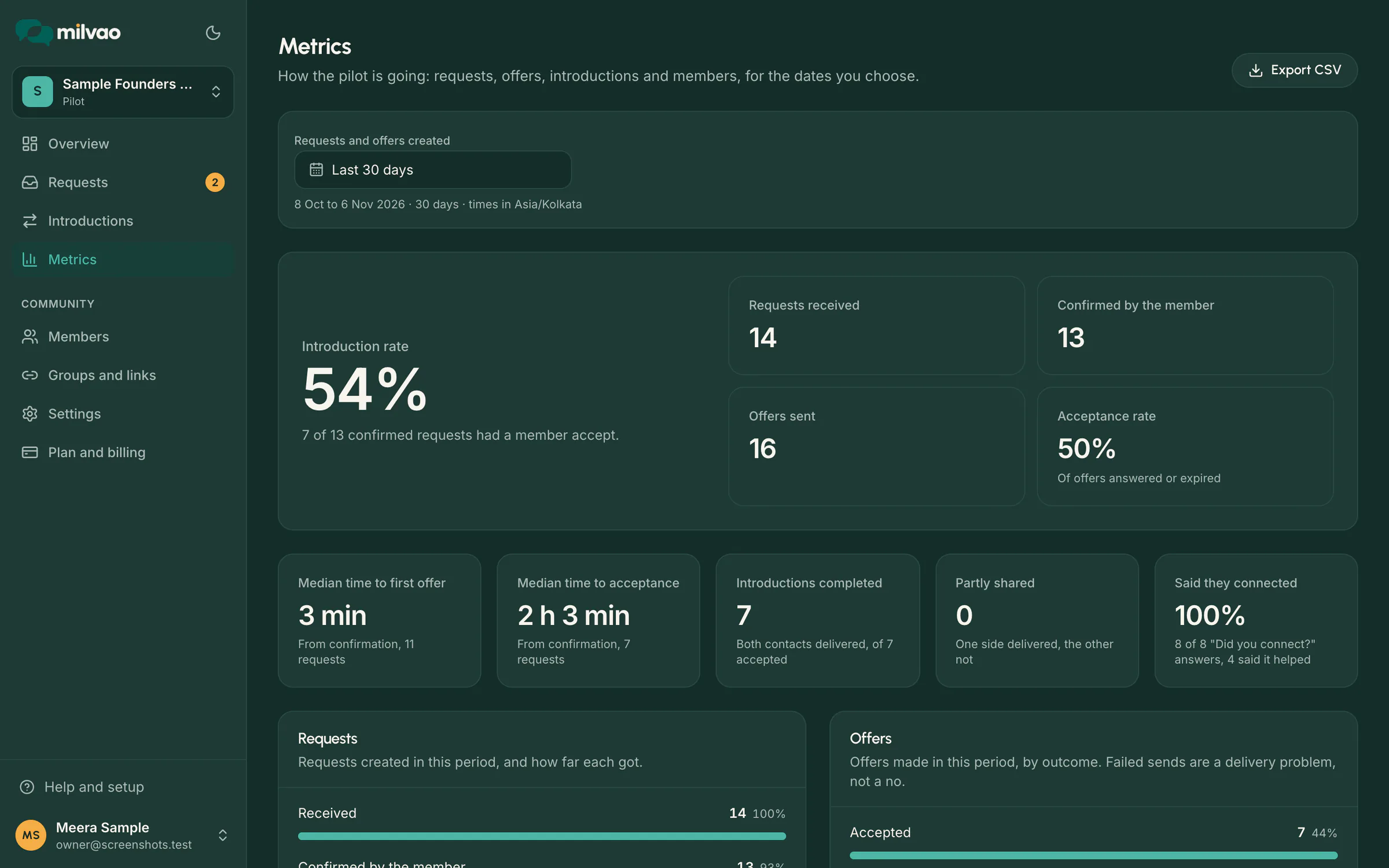
Read the Metrics page. See how many requests came in, how many found a member, how fast offers went out, and how members joined, for any dates you pick.
Open Metrics in the menu. Pick the dates with the date button at the top (presets: Last 7 days, Last 30 days, This month, Last 90 days, or choose a start and end day and click Apply). Days follow your workspace time zone, shown under the date button. You can pick up to 366 days.
What each number means
| Number | How it's counted |
|---|---|
| Introduction rate | Requests where a member accepted, divided by requests the member confirmed |
| Requests received | Requests created in the period |
| Confirmed by the member | Of those, how many the member confirmed |
| Offers sent | Offers created in the period that WhatsApp accepted |
| Acceptance rate | Accepted offers divided by offers that were accepted, declined or got no reply in 48 hours. Offers still waiting, cancelled or that couldn't be sent are left out |
| Median time to first offer | From the member confirming to the first offer going out, middle value |
| Median time to acceptance | From the member confirming to a member accepting, middle value |
| Introductions completed | Accepted offers where both people received the other's number |
| Partly shared | Accepted offers where one side has the number and the other doesn't yet. Click Review and retry to fix them |
| Said they connected | Of the "Did you connect?" answers to introductions asked about in the period, how many said Yes or Yes, it helped (both sides count). The line under it shows how many answers there were and how many said it helped |
The request numbers follow the requests created in the period, even when the next step happened later. A request that arrives on the last day still counts as confirmed or accepted once that happens.
The breakdowns
- Requests shows how far the period's requests got: received, confirmed, a member accepted, nobody fitted at some point, closed.
- Offers shows each offer's outcome: accepted, declined, no reply in 48 hours, still waiting, couldn't be sent, cancelled. A send that failed is a delivery problem, not a no.
- Handed to your team shows why requests needed a person (for example No member fits or Pick a member to ask), once per request and reason.
- Requests also shows Closed by the member (cancelled, or no longer needed) when there are any: members who cancelled. These are counted apart from requests your team closed.
- Members shows who joined and who messaged your number in the period, plus active profiles and members who can get offers right now, and joins by group. All of these count members only: guests (visitors who used Contact on your mini-site) aren't counted, the same way your plan's member limit counts.
Hover over or tab to a bar to see its exact share. Each number is also printed next to its label.
Using it for your pilot review
At day 30, open Metrics with Last 30 days and go through the introduction rate, acceptance rate, the two median times and the hand-off reasons with the Milvao team. The same numbers are available to the team from the API, with the same definitions.
Frequently asked questions
Why does the introduction rate say No data yet?
No request in the period was confirmed by the member yet. Pick a longer range, or check back once members confirm their requests.
Why don't the offer counts match the requests?
Offers are counted by when the offer was made, requests by when the request arrived. One request can have up to 3 offers.
Are phone numbers or messages shown here?
No. Metrics shows counts only.
Something unclear or missing? Tell us