

Setup guide and product tour
How the setup guide walks owners through getting a community live step by step, and how the product tour shows each part of Milvao one at a time.
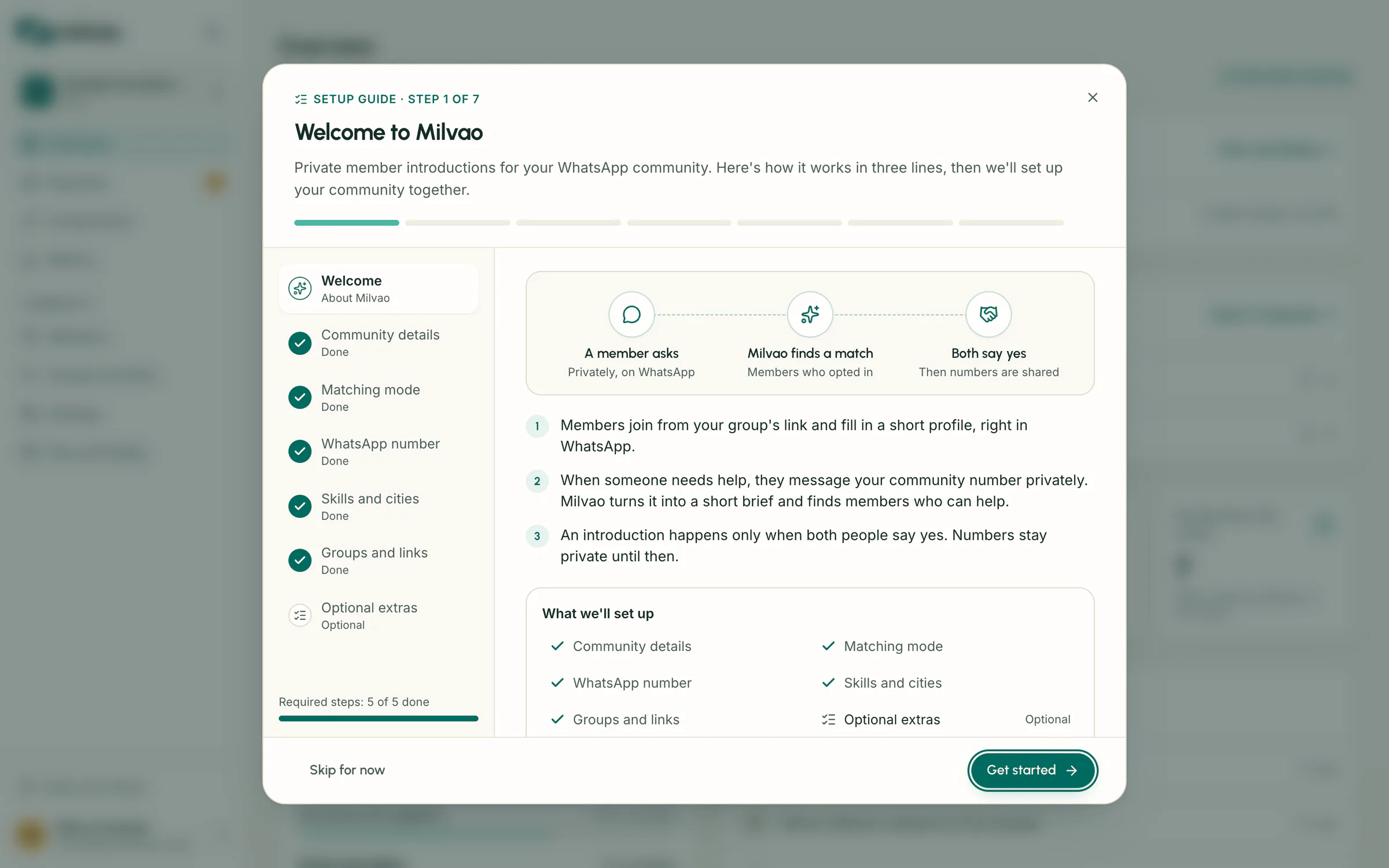
The setup guide is a window that walks you through getting your community live, one step at a time. Each step explains itself, shows its real status from your workspace and either lets you do the job right there or takes you to the exact screen. When you finish it, the product tour starts and points at each part of the app in turn.
When the guide opens
| Who | Opens by itself | Steps |
|---|---|---|
| Owner | The first time you enter a workspace that isn't set up yet | 7 |
| Operator | The first time you enter the workspace | 3 |
Once you finish or close the guide, it never opens by itself again for you in that workspace. Progress is saved per person, so your teammates see their own guide.
To open it again at any time:
- Click the Help button (the question mark next to your community's name at the top of the sidebar), then Setup guide.
- On Overview, click Open the setup guide in the Get your community set up card.
The guide never opens during a Milvao support view, and support staff can't change your progress.
The owner's steps
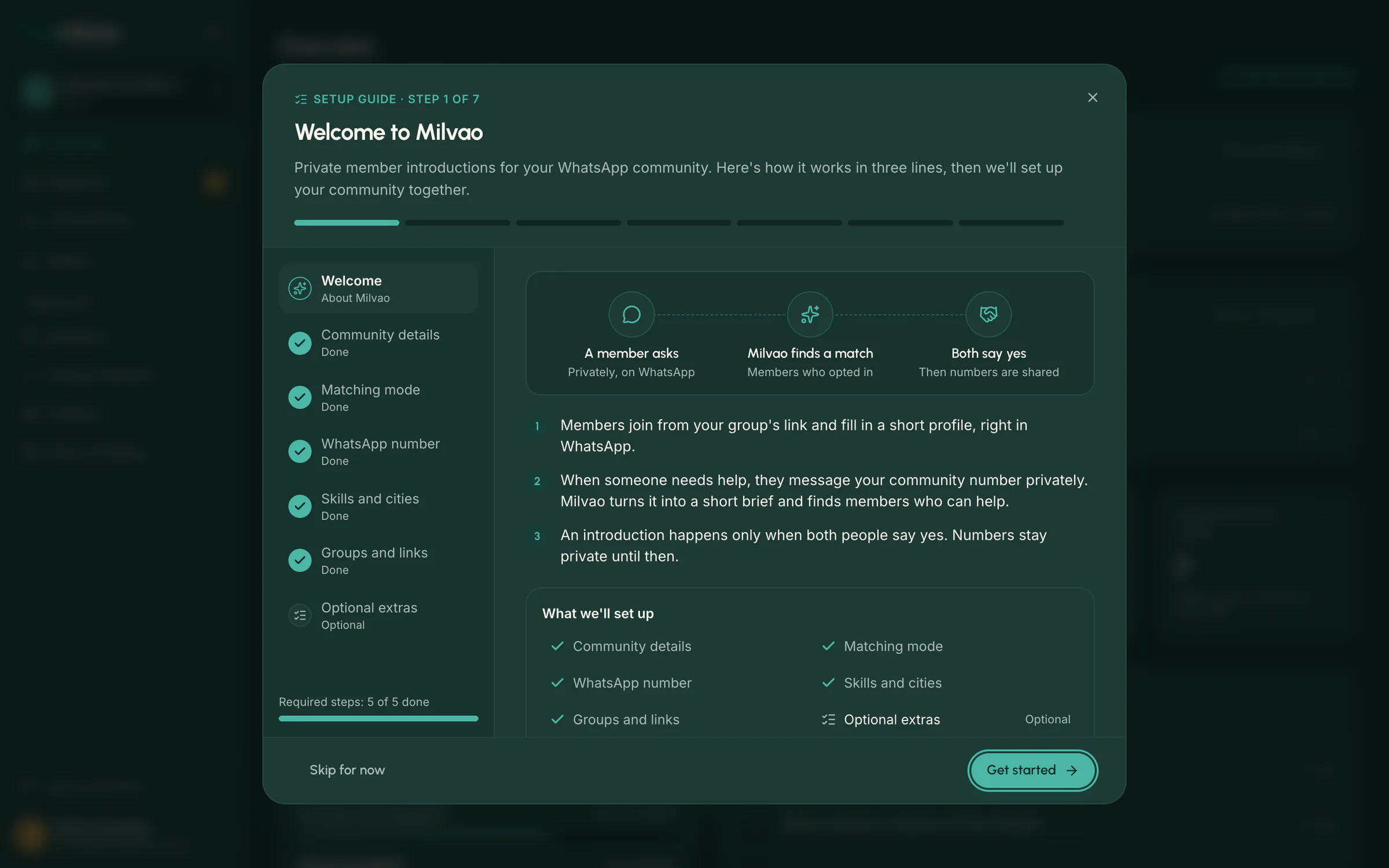
Step pills along the top show where you are. On a laptop or larger screen, the list on the left shows each step as Done, To do or Optional, with Required steps: n of 5 done under it. Click any step to jump to it.
| Step | What it asks | Where it's done | Done when |
|---|---|---|---|
| 1. Welcome | How Milvao works, in three lines | ||
| 2. Community details | Community name, time zone and bot reply language | Right in the guide (Save changes) | The name and time zone are set |
| 3. Matching mode | Automatic, or your team approves each match | Right in the guide (Save choice) | You saved a choice, even to keep Automatic |
| 4. WhatsApp number | Connect your community's WhatsApp Business number | Open WhatsApp number settings | The number is Active on the WhatsApp number page (Live in the guide) |
| 5. Skills and cities | The lists members pick from on their profile | Right in the guide (Add), or Rename or archive in Skills and cities | At least one skill and one city exist |
| 6. Groups and links | A record for each WhatsApp group and a join link | Open Groups and links | A group has a working join link |
| 7. Optional extras | Profile questions, invite your team, mini-site, import members, notifications | A link to each screen | Not required |
The WhatsApp number step shows the live status (Not connected, Being set up, Testing, Live, Needs attention or Turned off). Click Check again after you finish connecting in another tab.
On the WhatsApp number page, press Connect with Facebook if you see it. Otherwise follow the steps on that page to copy your account ID and access token from Meta and paste them into Connect your number. During a pilot, the Milvao team can also connect the number for you.
Leaving the guide to do a step
When a step takes you to another screen, the guide steps aside and a Resume setup guide button appears at the bottom of the screen. Click it to carry on where you were. Click the cross next to it to close the guide.
Finishing
The last step lists anything still to do under Still to do before you can finish. Click a name to go back to that step. When the five required steps are done, click Finish and take the tour.
You don't have to finish in one go. Click Skip for now (or Close for now on the last step), the cross at the top right, or press Esc to close the guide. It won't open by itself again, and the checklist on Overview keeps track until every step is done.
The checklist on Overview
Until your community is live, Overview starts with a Get your community set up card. It reads the same status as the guide and lists the steps in the same order, plus the first real use:
- Choose how matches are made
- Business number connected
- Skills and cities set up: add them before you share a link, because members can't finish their profile without them.
- Groups created
- Invite links shared: amber while a link works but nobody has joined with it yet.
- First members joined
Click a line to open the screen where it's done. Owners read what to do; operators see which steps are the owner's. The card disappears once all six are done. Until then, Needs your attention below it says Nothing yet: requests that need a person appear there once members have joined and start asking.
The operator's steps
Operators see a shorter guide, since the owner connects the number and chooses the matching mode:
- Welcome: how Milvao works.
- Where setup stands: the status of the WhatsApp number, matching mode, skills and cities, and groups and links, read only. Steps marked Owner are for the owner. You can open Skills and cities and Groups and links from here to help.
- Your day to day: what to look at each day on Overview, Requests, Members and Groups and links.
Operators can always click Finish and take the tour.
The product tour
The tour starts when you finish the setup guide. To take it again, click Help, then Take the tour.
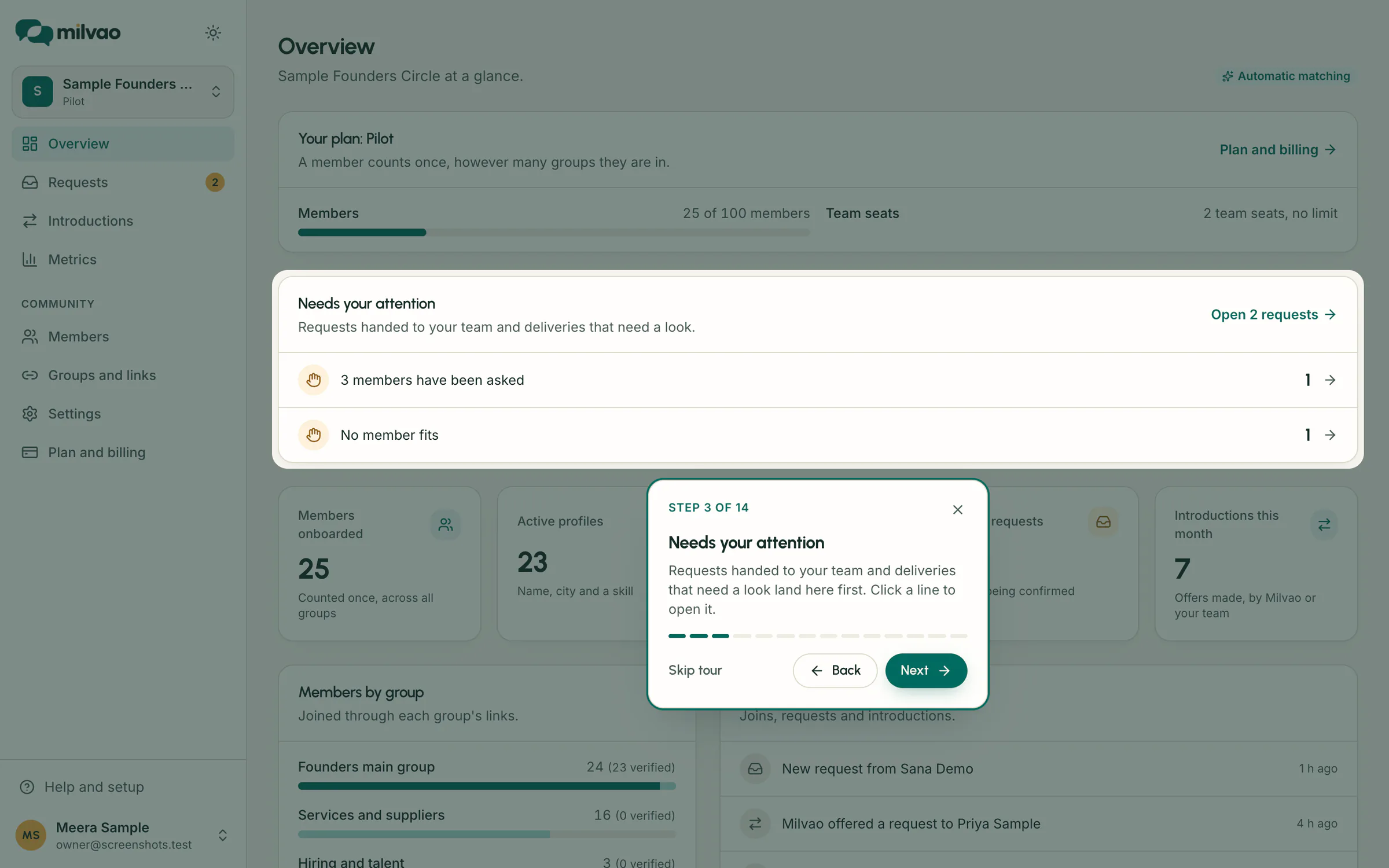
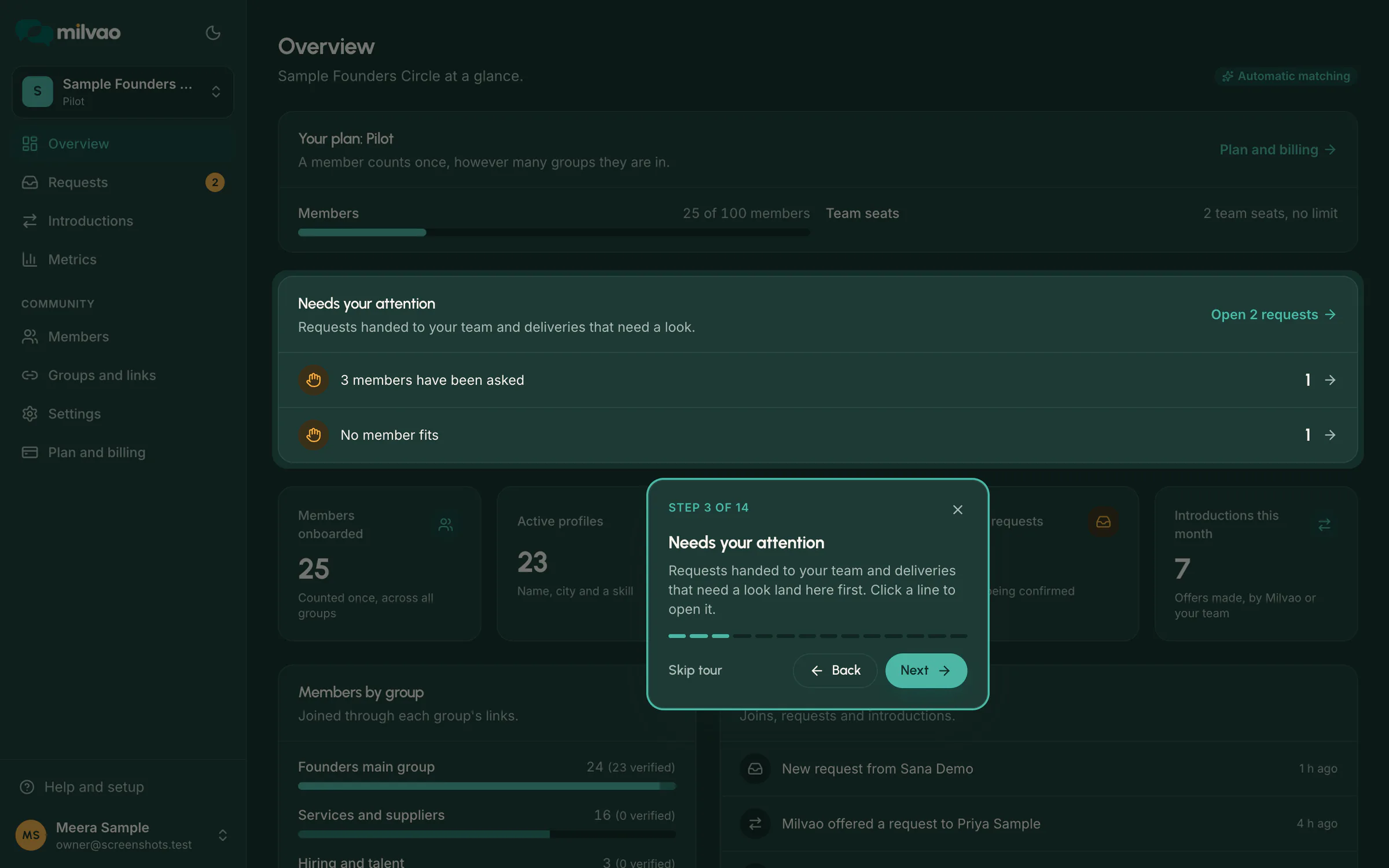
Each step dims the page and highlights one real part of the app, with a card that says Step n of N. The tour opens the right page for each step:
| Step | Page | What it points at |
|---|---|---|
| A quick tour of Milvao | Overview | A welcome card in the middle of the screen |
| Overview | Overview | Overview in the sidebar |
| Needs your attention | Overview | The Needs your attention card |
| Requests | Requests | Requests in the sidebar and its count |
| Request views | Requests | The Needs you, In progress, Introduced, Closed and All views |
| Inside a request | Your latest request | The request's brief and status. Left out until your first request arrives |
| Introductions | Introductions | Introductions in the sidebar |
| Members | Members | Members in the sidebar |
| Import and review | Members | Import, Profile photos and, once you use them, Join requests |
| Groups and links | Groups and links | Groups and links in the sidebar |
| Metrics | Metrics | Metrics in the sidebar |
| Settings | Settings | The Settings menu |
| Notifications | Settings, Notifications | Notifications in the Settings menu |
| Help is always here | Settings, Notifications | The Help button |
Use Next and Back, or the right and left arrow keys. Skip tour, the cross or Esc ends it. On the last step, click Done. If a part of the page isn't on screen, the card appears in the middle instead. If you reload the page during the tour, it carries on from the same step.
The tour respects your device's reduced motion setting and works in light and dark mode.
Frequently asked questions
I closed the guide by mistake
Click Help, then Setup guide. It opens at the step you were on.
Can I finish the guide before my number is live?
Not as an owner: Finish and take the tour works once the number is Live and the other required steps are done. Close the guide for now and reopen it once the number is connected. You can take the tour any time from Help.
Does the guide change anything on its own?
No. It only shows status. Saving community details, the matching mode or a new skill or city is the same as doing it in Settings, and appears in the activity log the same way.
Is my progress recorded?
Finishing or closing the guide, and finishing or skipping the tour, are recorded in your workspace's activity log under Settings, with no other details.
See also Pilot setup checklist.
Something unclear or missing? Tell us