

Key takeaways
- Eight pages, each with one job. The menu shows how many requests are waiting for your team.
- A six-step checklist on Overview guides setup, then Overview becomes the daily summary.
- Owners and operators share the same view. Only the owner changes matching, the team, the number and the plan.
- Two-factor sign-in, an audit log and time-limited support access protect the workspace.
Pages in the community management dashboard
| Page | What it's for |
|---|---|
| Overview | Setup checklist, member numbers, open requests, introductions this month, Needs your attention and recent activity |
| Requests | Tabs for Needs you, In progress, Introduced, Closed and All, each with the reason or the current step |
| Introductions | Every offer and its state, with a filter for introductions where only one side got the contact |
| Members | The directory with filters, member pages, consent history and Edit member |
| Groups and links | One card per WhatsApp group, its join links, join counts and archived groups |
| Metrics | Requests, offers, introductions and members for any dates you pick |
| Settings | Matching mode, workspace details, team, skills and cities, profile questions, notifications and the WhatsApp number |
| Plan and billing | The plan, payments, invoices and receipts. Only the owner can change anything here |
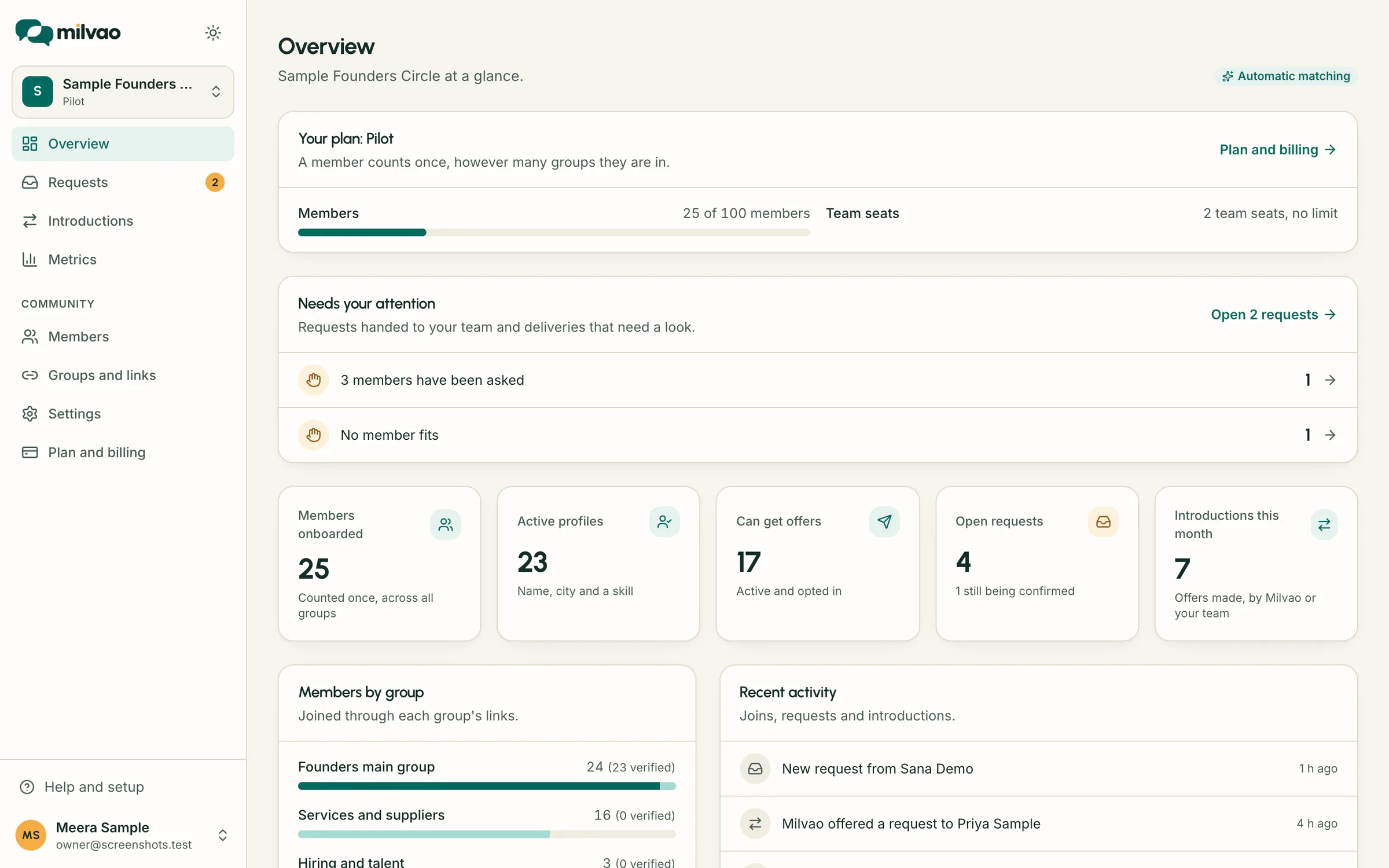
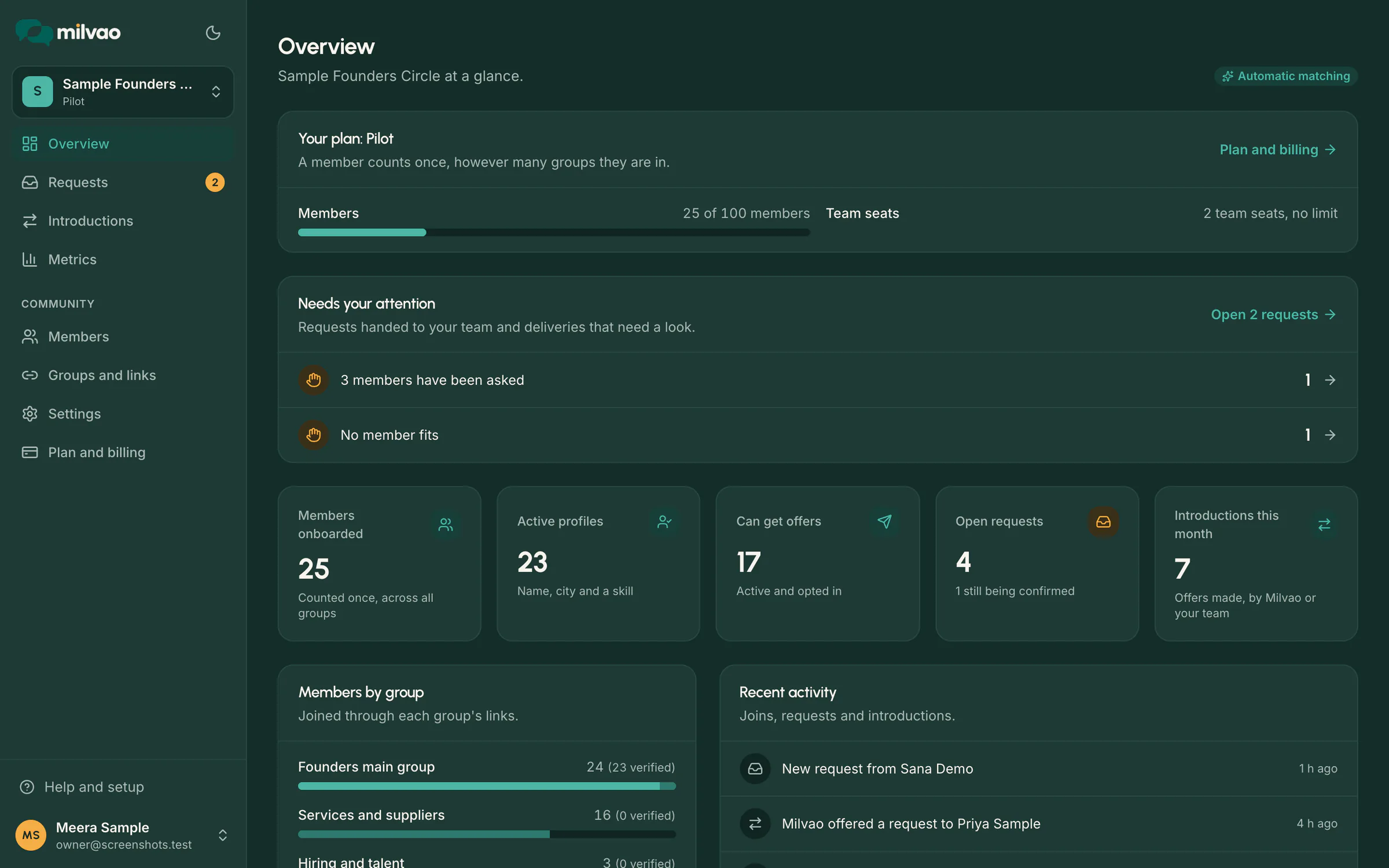
The first week: the setup checklist
| Step | Who does it | Done when |
|---|---|---|
| Business number connected | Milvao staff, or the owner | The number shows Active |
| Groups created | Owner or operator | At least one group exists |
| Invite links shared | Owner or operator | A link works and someone joined with it |
| First members joined | Members | At least one member joined |
| Skills and cities set up | Owner or operator | At least one of each exists |
| Choose how matches are made | Owner | The owner saved a choice, even to keep Automatic |
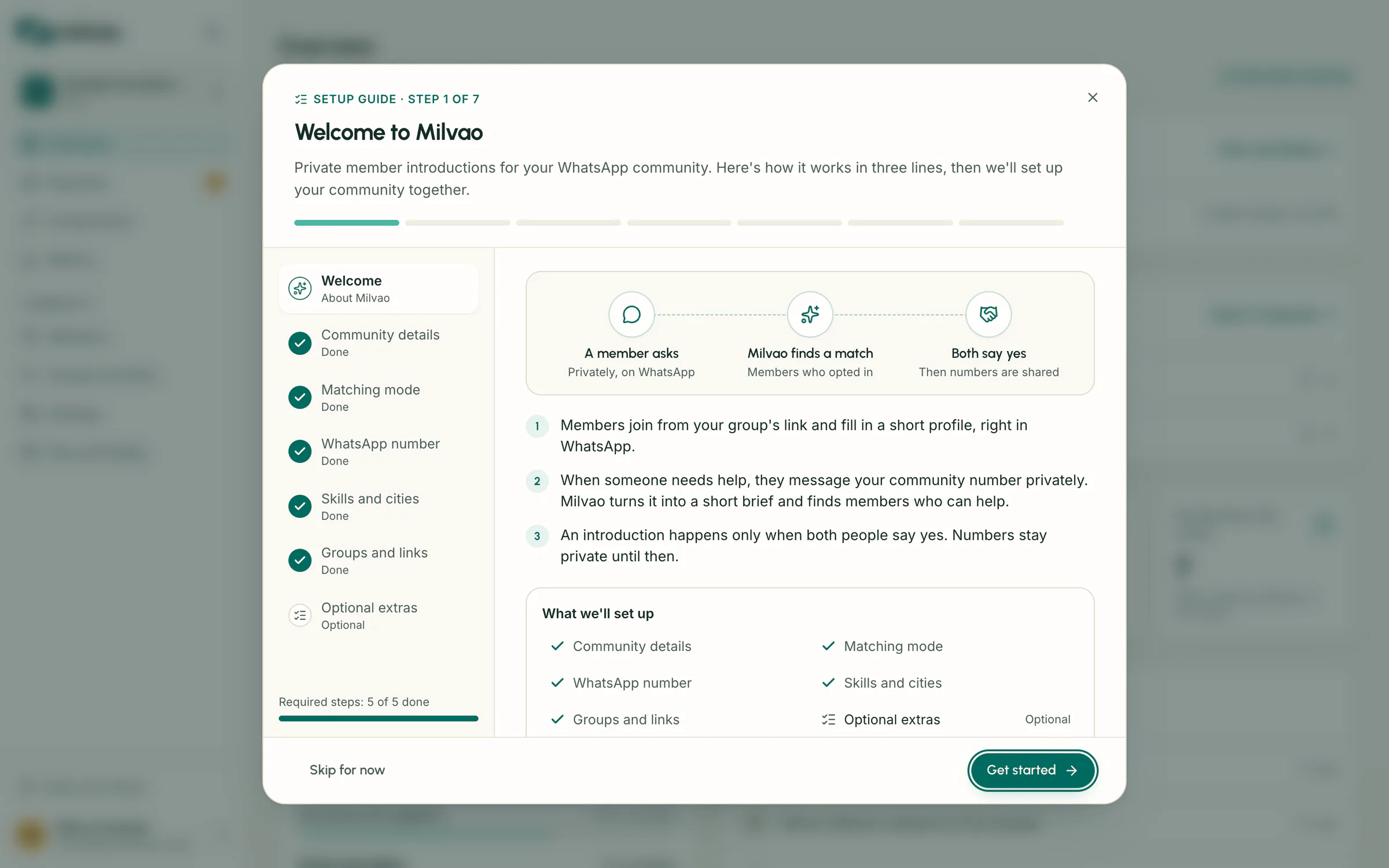
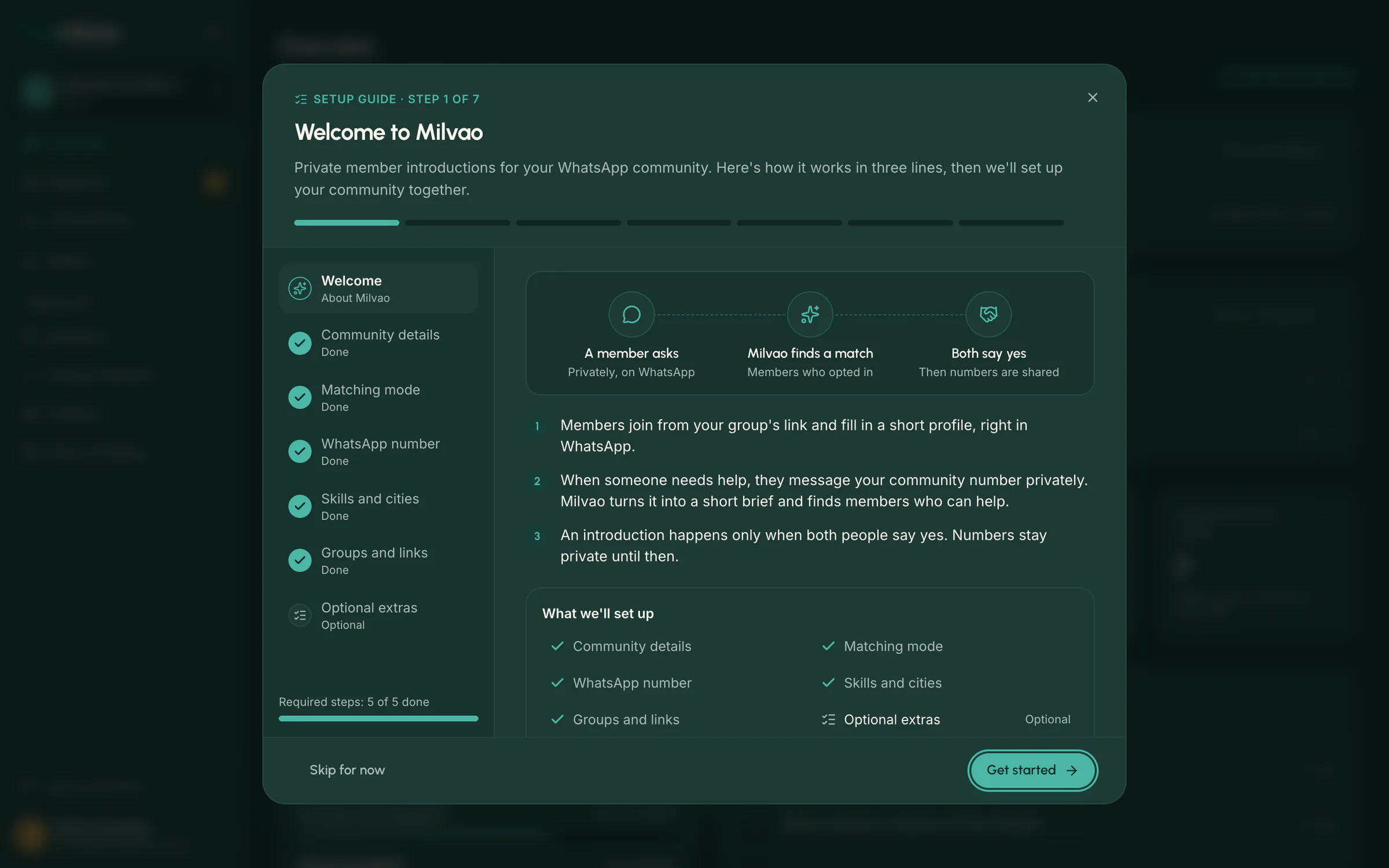
The checklist hides once all six are done. Adding skills and cities before sharing any link matters most, because members can't finish a profile without them.
Who can do what
| Action | Owner | Operator |
|---|---|---|
| Work on requests and introductions | Yes | Yes |
| Manage groups, links, members, skills, cities and profile questions | Yes | Yes |
| Change matching mode and workspace details | Yes | View only |
| Invite or remove operators | Yes | No |
| Connect the WhatsApp number and manage the plan | Yes | View only |
| Complete members' data requests | Yes | No |
Operator invites work once and expire after 7 days. Each person chooses their own notifications.
Safeguards around the dashboard
- Email and password sign-in with optional two-factor sign-in and a reminder until it is on.
- If someone else changed a request or member while you had it open, your change isn't saved and you're asked to reload.
- Clicking a send button twice sends once.
- Team and staff actions are written to an audit trail kept in a separate logs database.
- Milvao staff can open your dashboard only when the owner grants read-only access for 1 hour, 24 hours or 7 days, and every page they open is listed for the owner.
- Members' phone numbers are masked to the last 4 digits on every screen, with no reveal button. Only the owner can export full numbers, in a CSV download, after giving a reason that is recorded in the activity log. When your team approves a join request and sends the link themselves, they see that visitor's number, and the view is recorded.
Sources
- Milvao Help Center: Pilot setup checklist (checked 5 November 2026)
- Milvao Help Center: Roles and your team (checked 5 November 2026)
- Milvao Help Center: Support access (checked 5 November 2026)
Facts about WhatsApp and other services come from the pages listed, on the dates shown, and can change.