

Key takeaways
- Built from JOIN messages, so it lists people who actually joined, counted once across groups.
- Filters combine and live in the page address, so a view can be bookmarked or sent to a teammate.
- The Offers column says why a member can or can't be asked, and only the member can change it.
- Numbers show the last 4 digits only on screen. Only the owner can export full numbers, with a reason that is recorded.
What the community member directory shows
| Column | What it shows |
|---|---|
| Member | Name, or No name yet, and the masked number |
| City | Where they're based, or Not set |
| Skills | What they can help with, from your list |
| Groups | Every group they joined, with a Verified or Removed badge where that applies |
| Profile | Active, Incomplete or Deleted, plus how many required answers are missing |
| Offers | Whether they can get introduction requests, and why not |
| Joined | When they first joined |
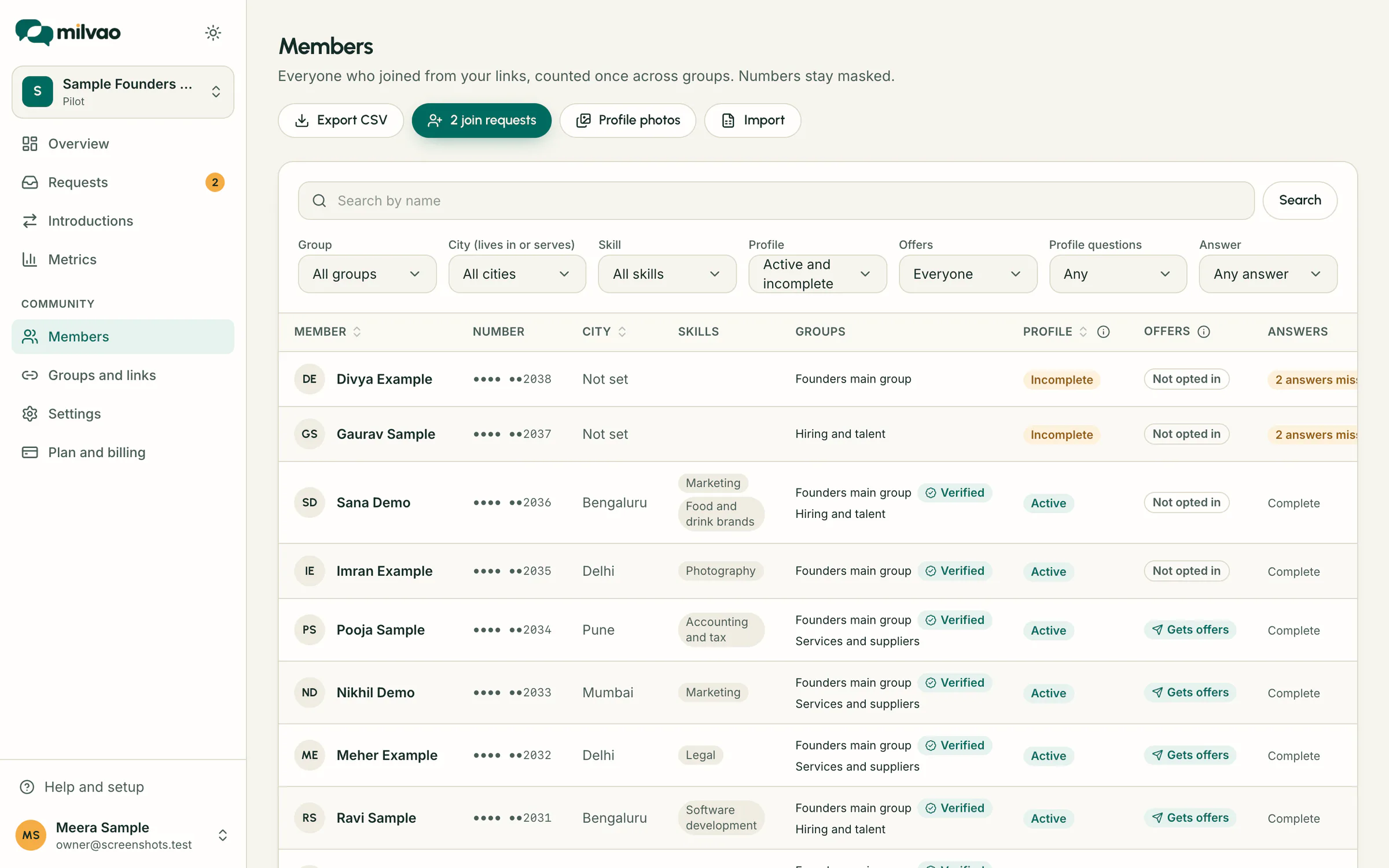
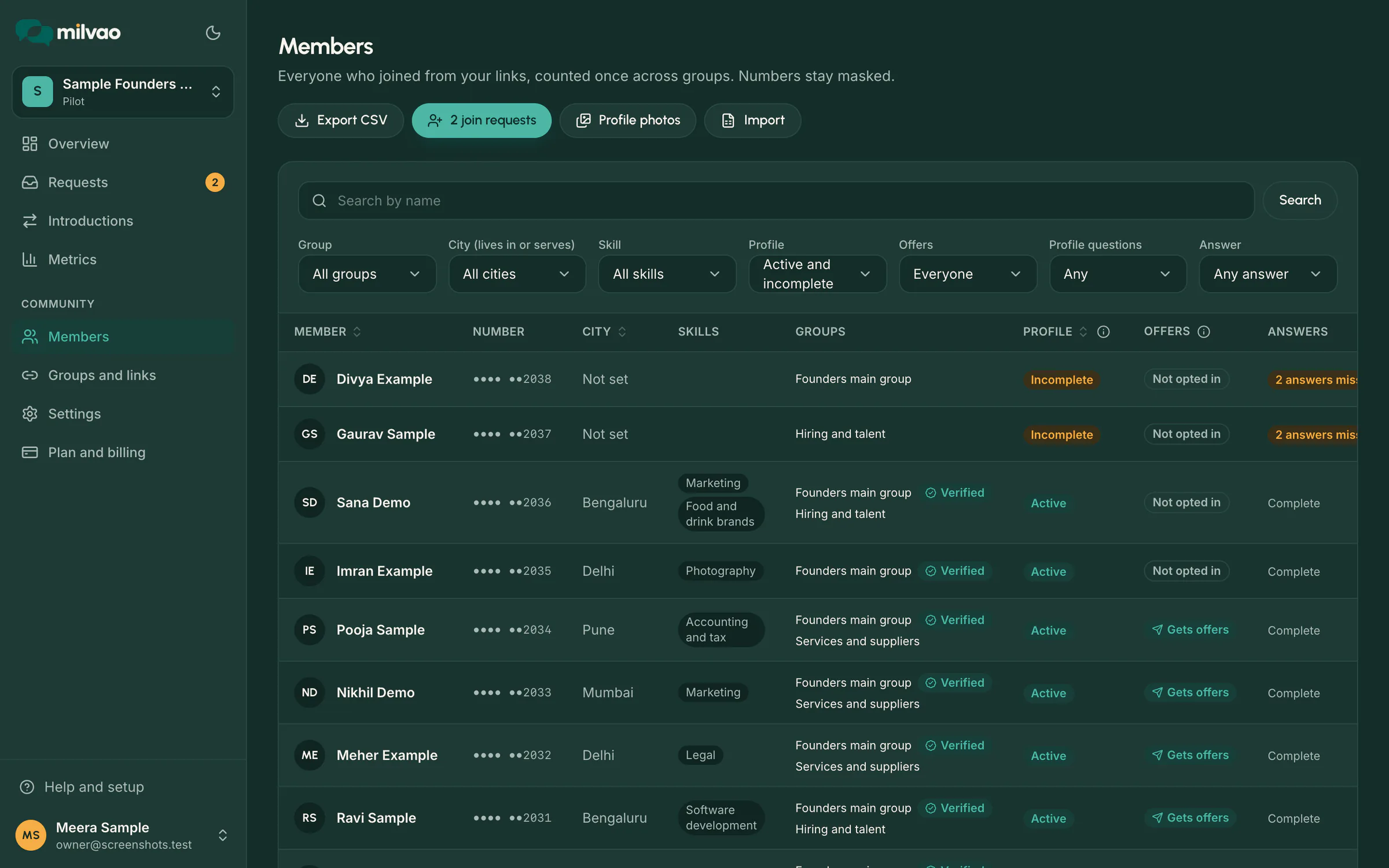
The list shows 25 members at a time, newest first. On a phone it turns into cards with the name, number, city, first skills and profile status.
Filters that work together
- Search by part of a name. Capital letters don't matter.
- Group: one group, or all of them. Members removed from a group drop out of its view.
- City: members based in the city or serving it.
- Skill: members who offer it, including archived skills, which are labelled.
- Profile: Active and incomplete by default, or Active, Incomplete or Deleted alone.
- Offers: everyone, only those who can get offers, or only those who can't.
- Profile questions: members missing required answers, and any option of a choice or yes or no question, such as Industry: Services.
Combine them to find, say, active members in Mohali who offer commercial leasing and can get offers. Clear filters resets the view.
Why a member can or can't be asked
| Badge | Meaning | What changes it |
|---|---|---|
| Gets offers | Can be asked about matching requests | Nothing needed |
| Not opted in | Hasn't turned on introduction requests | The member turns it on in their profile |
| Opted in, profile incomplete | Wants requests but the profile isn't active | The member adds the missing city, skill or answer |
| Paused | Replied PAUSE | The member replies RESUME |
| Stopped | Replied STOP | The member turns requests on again in their profile |
Your team can't opt anyone in. That choice belongs to the member, which keeps every offer a member receives one they agreed to.
Correcting a member's details
- 1Open the member and tap Edit member.
- 2Fix the name, home city, skills (up to 10), cities served, the short line about them or their profile answers.
- 3Leave Tell the member on WhatsApp which details changed ticked, or untick it for a typo.
- 4Tap Save changes. Profile status is worked out again with the same rule as the member's own form.
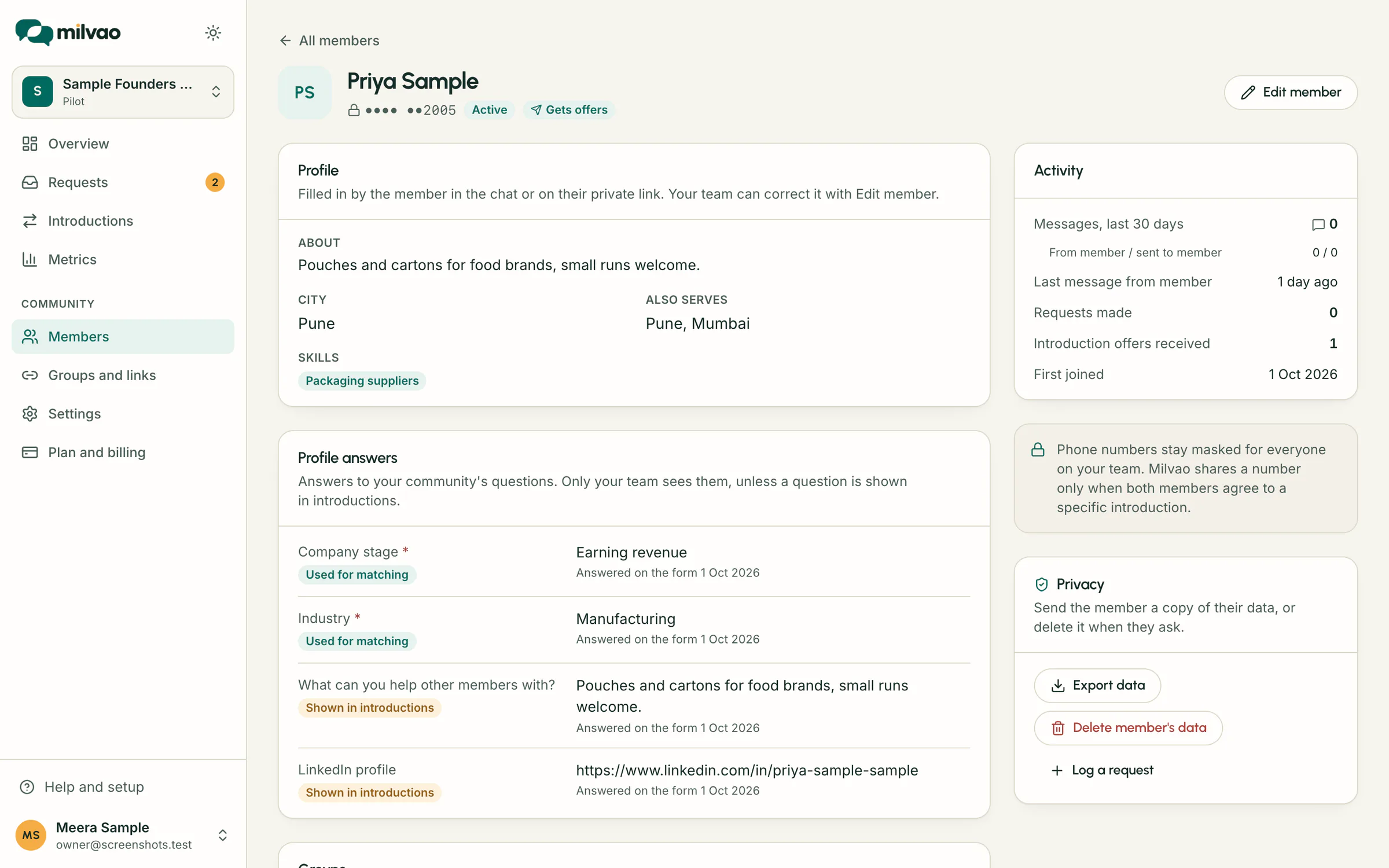
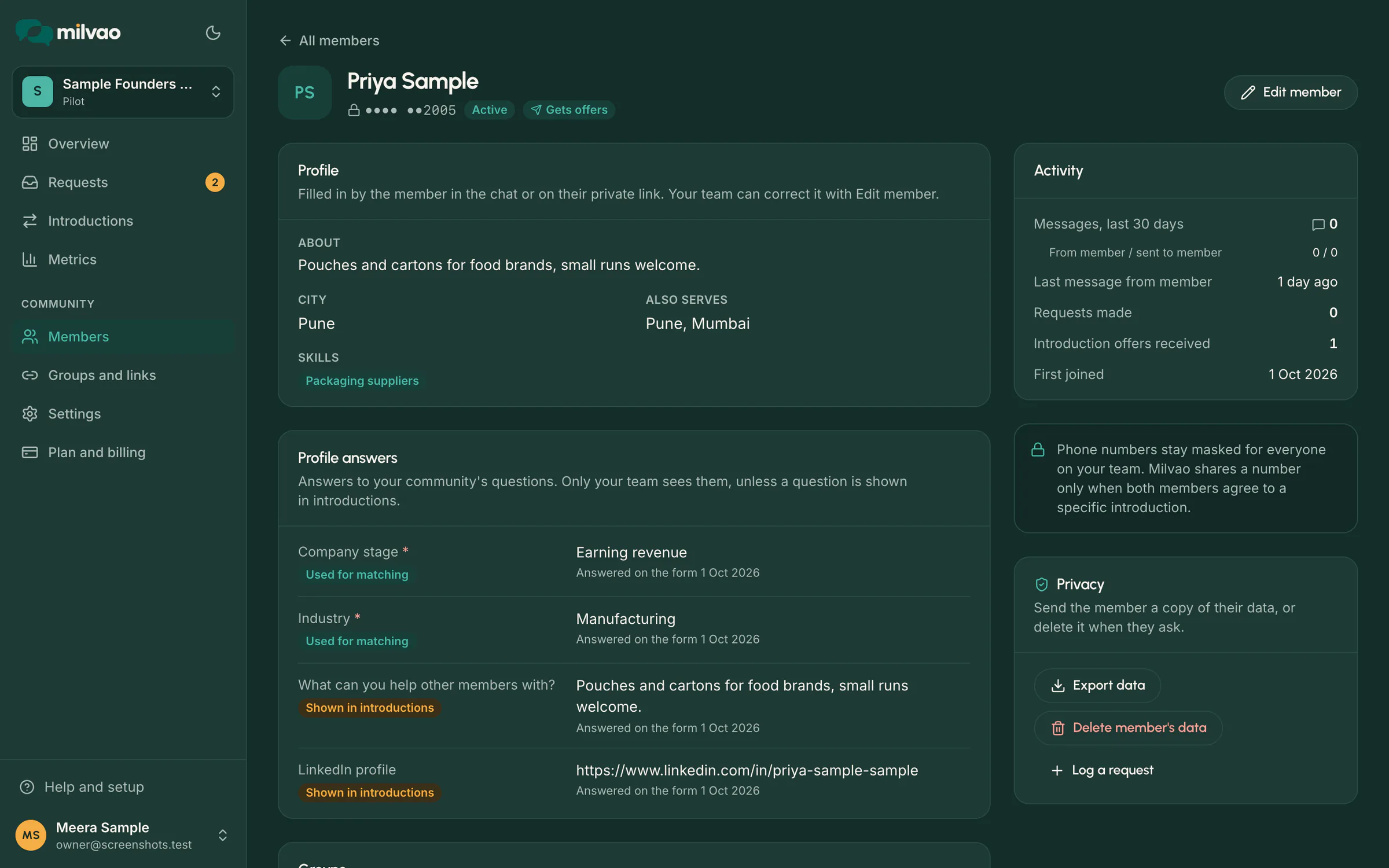
The member's notice names the fields that changed, never the new values, and the activity log records who edited what. Their own choices, such as introduction requests, PAUSE and STOP, are shown read-only. Each person can make up to 60 edits an hour.
What the directory doesn't do
- Adding a member by hand isn't available yet. People join by sending a JOIN code from one of your links. A spreadsheet you import only pre-registers people until they send JOIN themselves.
- Members can't browse this list. The directory members see in the member portal shows only people who chose to be listed, never with a phone number.
- Full phone numbers are never shown in the dashboard. The owner can download the list as a CSV file, with numbers masked unless they tick Include phone numbers and give a reason, which is recorded.
Sources
- Milvao Help Center: The member directory (checked 5 November 2026)
- Milvao Help Center: Who sees what (checked 5 November 2026)
Facts about WhatsApp and other services come from the pages listed, on the dates shown, and can change.