

Key takeaways
- Sign-in uses a 6-digit code sent on WhatsApp. It works for 10 minutes, and a device stays signed in for 30 days after the last visit.
- Five tabs: Profile, Requests, Connections, Directory and Blocked.
- Being listed, having a public profile page and letting search engines show it are three separate choices, all off by default.
- Connections come only from finished introductions, and Hide removes one from the member's own list only.
- It's the same profile members fill in on WhatsApp, so a change in one place shows in the other.
What the member portal for communities shows
| Tab | What a member can do |
|---|---|
| Profile | Edit name, headline, city, skills, cities served, a few words about them and answers to the community's questions. Upload a photo, turn introduction requests on or off, and choose who can see them |
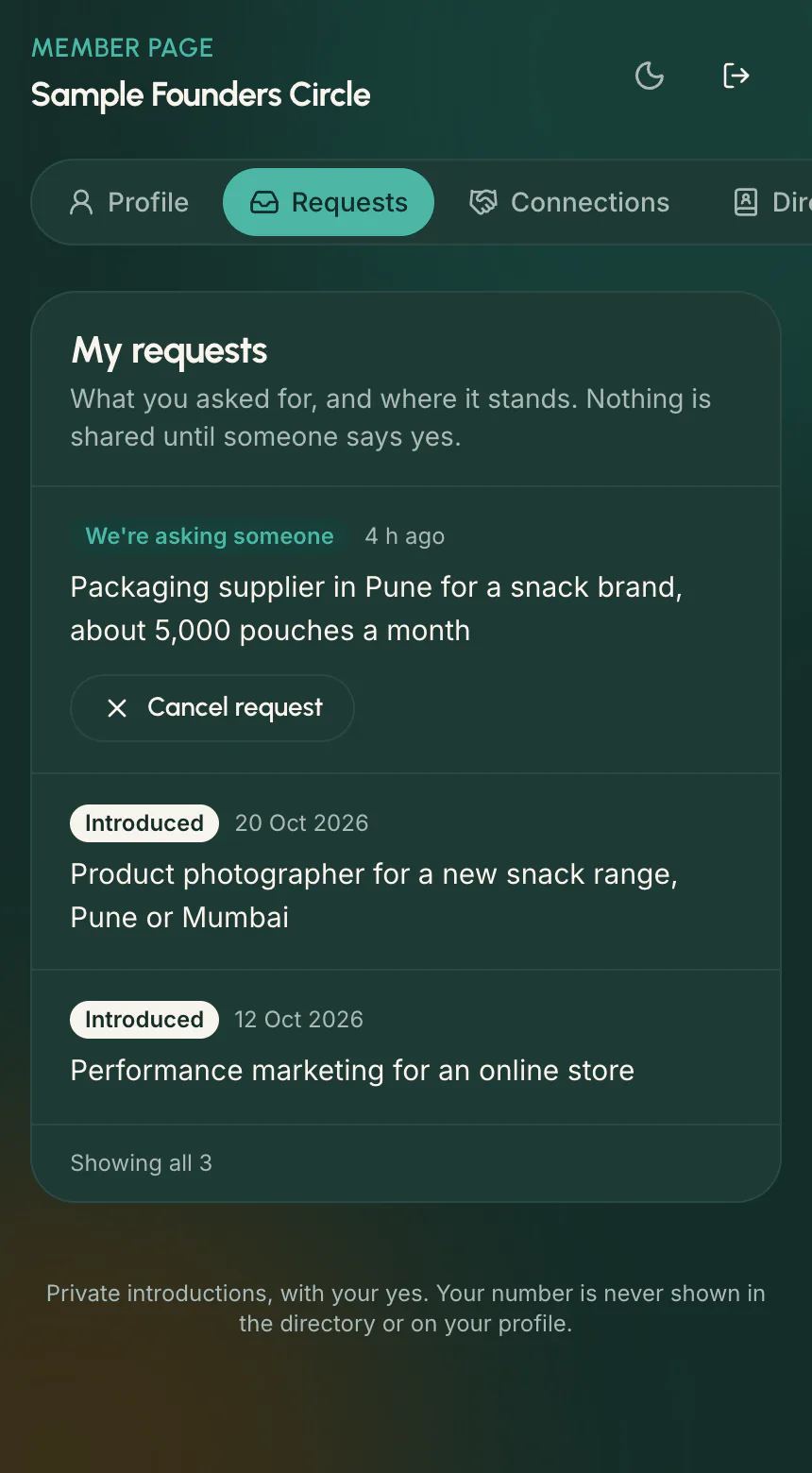
| Requests | See what they asked for and where it stands, cancel an open request, and see contact requests sent to them |
| Connections | People they were introduced to after both said yes, with a button to open a WhatsApp chat |
| Directory | Find members by name, skill, city or a profile answer, and press Contact. Shown only if the community has a directory |
| Blocked | People they blocked, with Unblock |
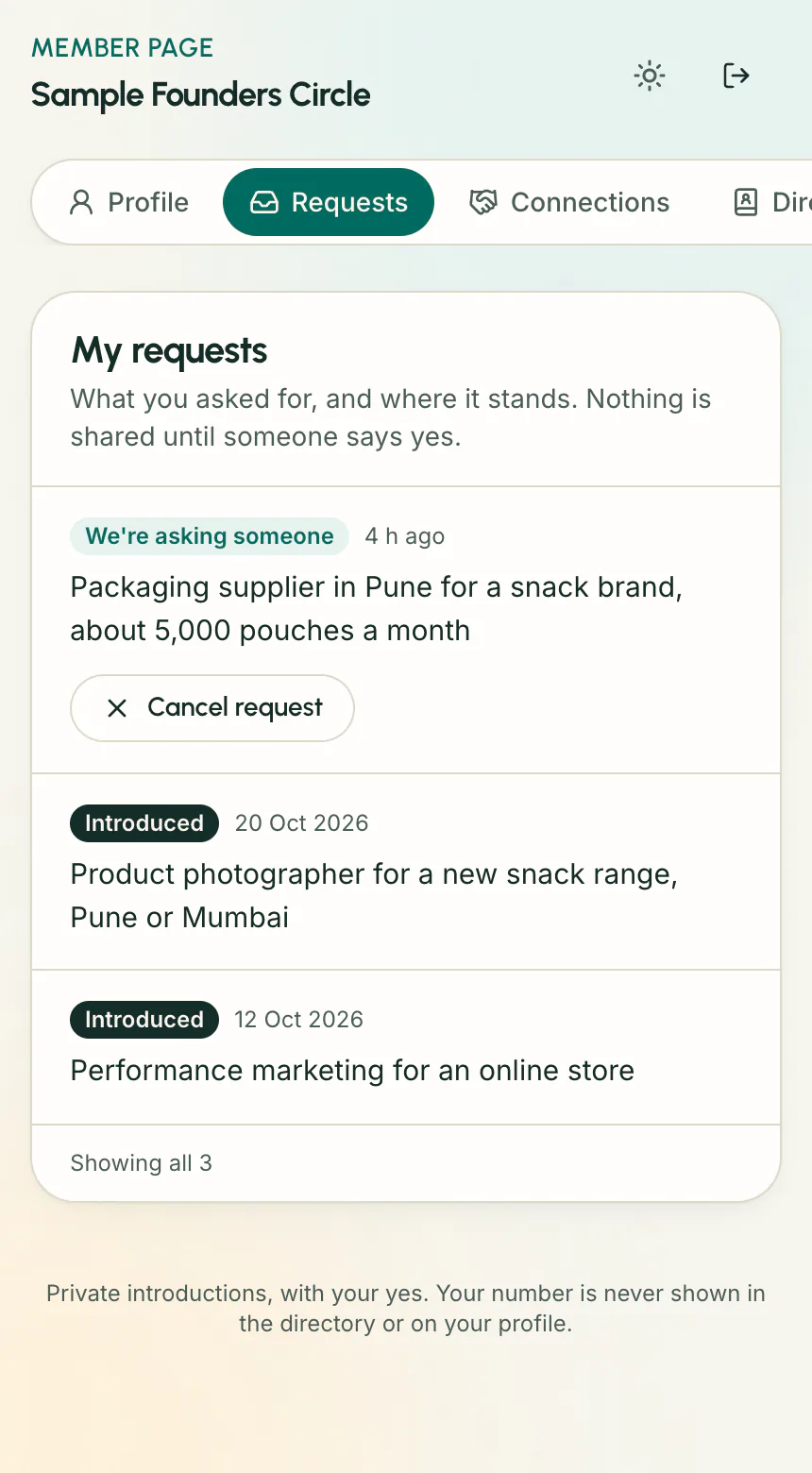
How members sign in
- 1The member opens the member page address their organisers share.
- 2They enter the WhatsApp number they use with the community, with the country code, and tap Send me a code after a bot check.
- 3A 6-digit code arrives on WhatsApp from the community's number. It works for 10 minutes.
- 4They enter the code and tap Sign in.
The form answers the same way whether or not a number belongs to a member, so nobody can use it to find out who is in a community. After 5 wrong codes the member asks for a new one, and signing out can end every session on other phones and computers at once.
Connections from completed introductions
A connection appears only after a double opt-in introduction finishes: both people said yes and both numbers were sent. A request that is still open, was declined or expired never shows anyone's number. Members see the details in Your connections.
- Each connection shows the other person's name, headline, city and approved photo, You asked or They asked with the request summary, and when they were introduced.
- Up to 5 of their answers that they marked as shown in introductions are listed too.
- On WhatsApp, /connections lists the 10 newest, and Send contact again resends a number once a day per connection, up to 5 times a day.
- Hide removes a connection from the member's own list. The other person still sees it and isn't told.
Who can see a member
- List me in the member directory: signed-in members, or anyone if the community made its directory public, see name, approved photo, headline, city and skills.
- Give me a public profile page: a page on the community's mini-site, only if the community allows public profiles.
- Let search engines show my public page: only with a public page. Turning it off asks search engines to drop the page.
- A photo shows to others only after an organiser approves it. The WhatsApp number is never shown, and switching a choice off removes the member straight away.
Contact requests and blocking
When the community allows Contact, a member listed in the directory or with a public profile can receive a contact request. The person asking confirms their WhatsApp number with a one-time code and writes one line of 10 to 300 characters, with phone numbers, emails and links removed. Only that member is asked, with Accept and Decline and 48 hours to answer, and the offer counts toward the usual 2 in 7 days. People who aren't members become guests, who can't receive requests and aren't listed.
Each requester can send 3 contact requests a day and 10 a week, and a member has at most 5 open at once. A member can block someone on WhatsApp after Decline, or from Requests or Connections on the portal. The blocked person can't send them contact requests in that community, isn't offered as a match and isn't told. Limits and guests: contact requests.
Sources
- Milvao Help Center: Your member page (checked 5 November 2026)
- Milvao Help Center: Your connections (checked 5 November 2026)
- Milvao Help Center: My requests and connections (checked 5 November 2026)
- Milvao Help Center: Contact requests (checked 5 November 2026)
Facts about WhatsApp and other services come from the pages listed, on the dates shown, and can change.