

Key takeaways
- Off until the owner switches it on in Settings, Mini-site. Operators can see the settings, and anyone on the team can review photos.
- The directory can be hidden, for signed-in members only, or public. Only members who chose to be listed ever appear.
- A public profile needs the owner's setting and the member's own choice. Search engines index it only if the member allows that too.
- Members' photos wait until someone on your team approves them.
- You can list the community on milvao.com/communities and let visitors press Request to join.
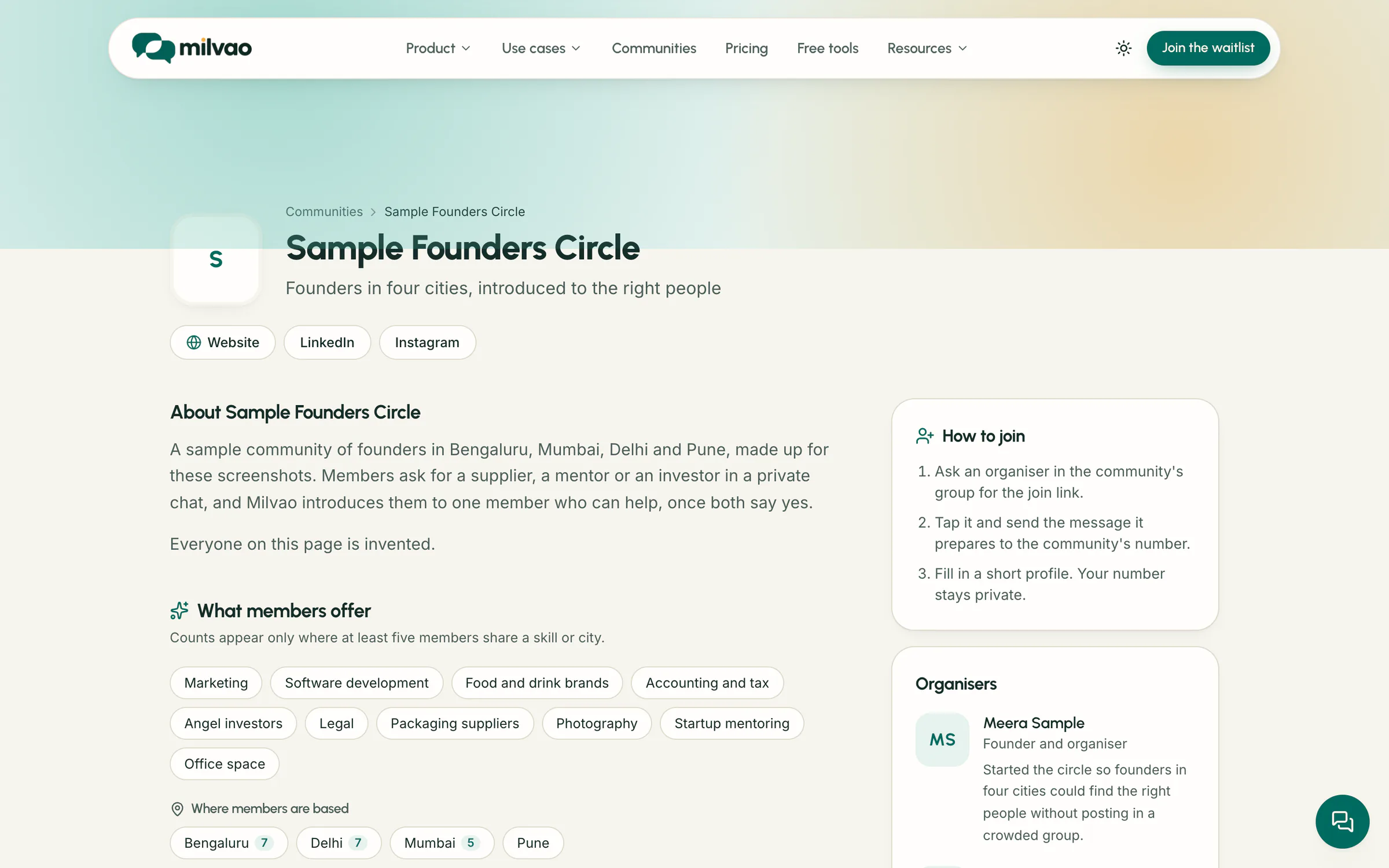
What the community website builder for WhatsApp groups puts on the page
| Section | What visitors see |
|---|---|
| Header | Your logo, cover, name, tagline, website and social links |
| About | Your description, with paragraphs, lists, bold text and links |
| What members offer | Skills and cities of active members. A count appears only when at least five members share it, so no one can be picked out |
| How to join | Steps to join through a group's join link. Codes and links are never shown. With join requests on, a Request to join button |
| Organisers | Team members who chose to be shown, with photo, title, short bio and links |
| Member directory | A link to the public directory, or to the member portal when the directory is for members only |
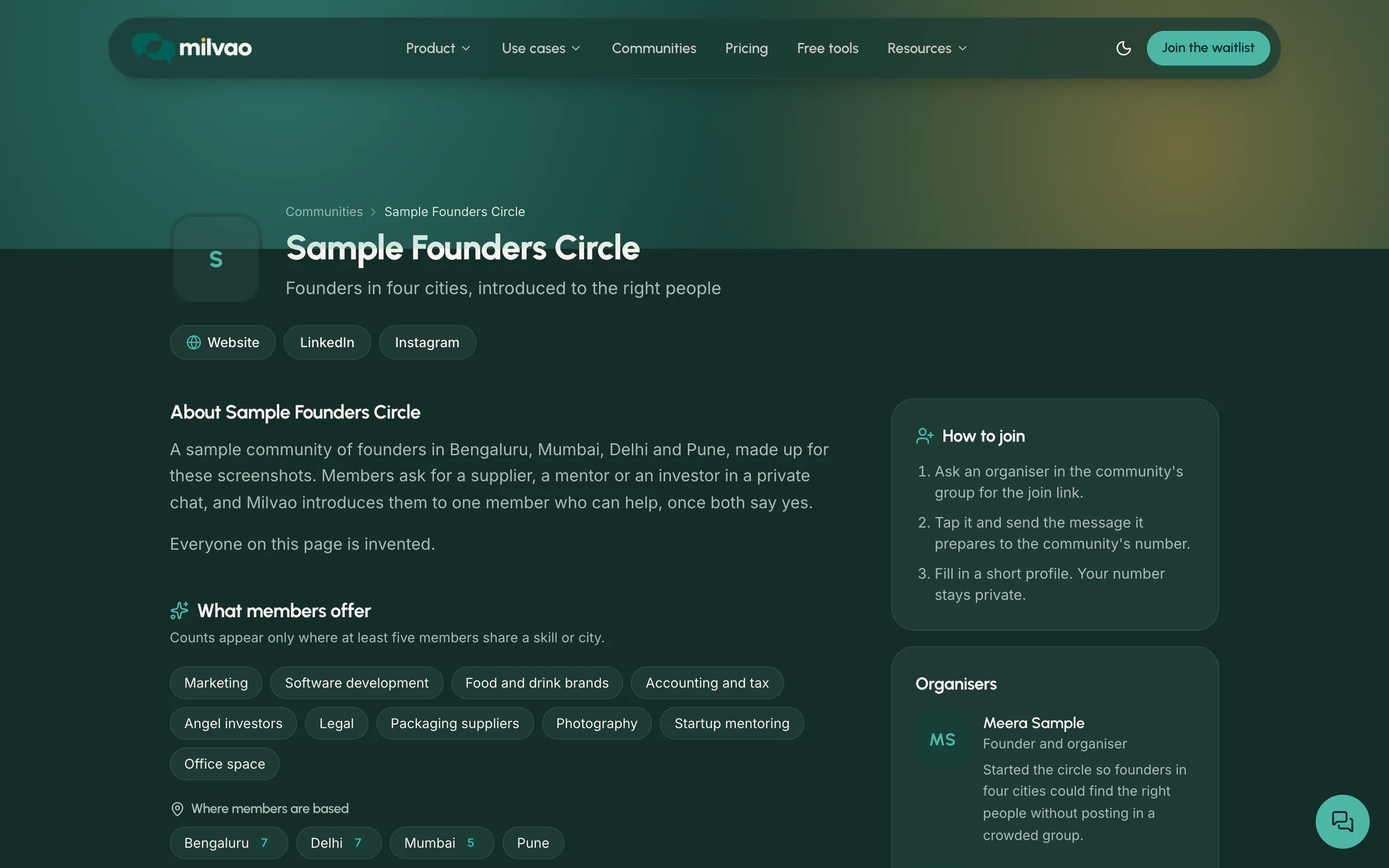
Search engines can index the mini-site while it's on. Turn it off and the page, the public directory and public profiles stop existing. The page lives at an address on milvao.com; a custom domain is not available yet.
Setting up the page
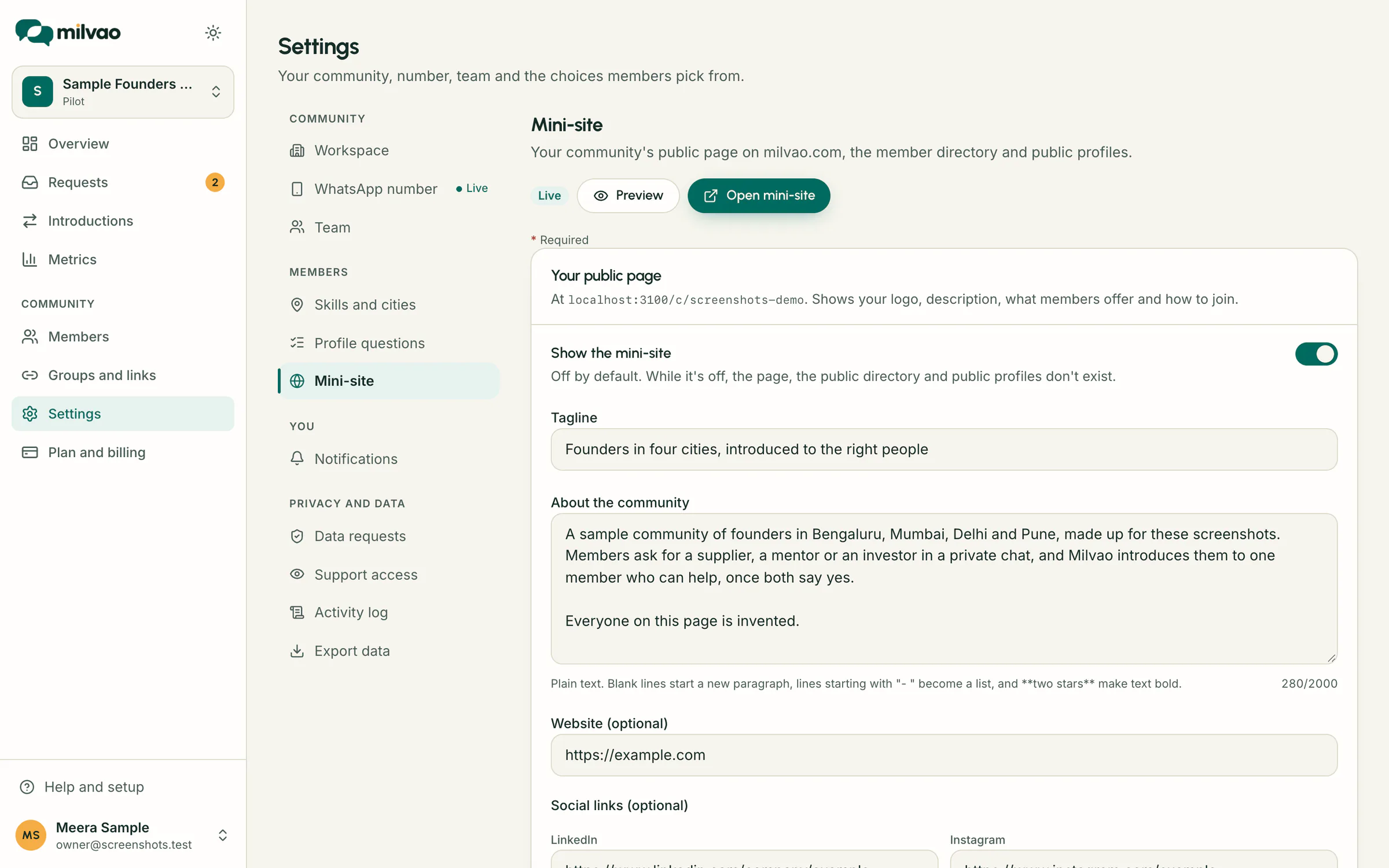
- 1The owner opens Settings, Mini-site and directory, and chooses Set up the mini-site.
- 2Upload a logo and a cover: JPEG, PNG or WebP up to 4 MB. Milvao removes location and camera details and resizes the picture.
- 3Write a tagline of up to 120 characters and an About text of up to 2,000, and add a website and social links if you like.
- 4Click Preview. The preview link works for one hour, even while the page is off, and search engines don't see it.
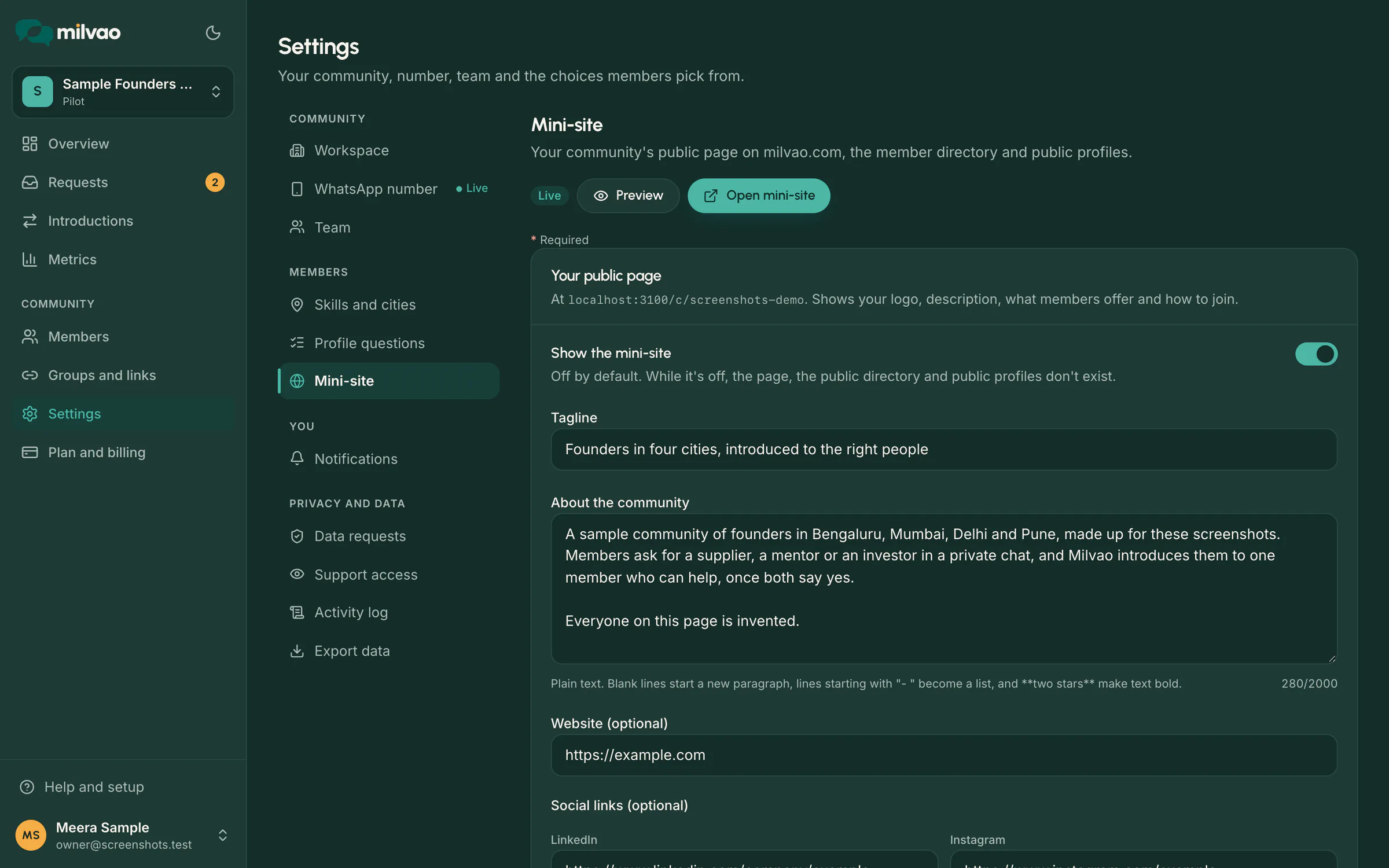
- 5Switch on Show the mini-site and save. Open mini-site takes you to the live page.
Who sees the directory and public profiles
Your settings decide what visitors can see. Each member decides whether they appear at all.
| Choice | Who makes it | Effect |
|---|---|---|
| Who can see the directory | The owner | Hidden, Members only (the default, after sign-in with a code) or Public at milvao.com/c/your-community/members |
| Be listed in the directory | Each member | Name, headline, city, skills and an approved photo. Off until they turn it on |
| Allow public profiles | The owner | Lets members turn on their own page at milvao.com/c/your-community/m/their-name |
| Public profile and search engines | Each member | Their page, and whether search engines may index it. Both off by default |
Nobody on your team can list a member. A phone number is never shown, and email answers never appear on a profile. The public directory shows 24 people at a time, limits how fast anyone can browse and asks search engines not to index it. Every public profile has a Report this profile link.
Organisers, photo review and the Contact button
- Organisers: each person on your team chooses Show on the mini-site in Settings, Team, with a display name, title, short bio, photo, LinkedIn and website. The owner can edit everyone's profile and set the order. Sign-in emails are never shown, and phone numbers in a bio are hidden.
- Photos: a member's photo waits in Members, Profile photos. Approve shows it; Remove deletes it at once, with an optional reason sent on WhatsApp when the member wrote to your number in the last 24 hours.
- Contact: with Allow Contact on, a visitor presses Contact on a listed member, confirms their own WhatsApp number with a one-time code and writes a short brief. Only that member is asked, and numbers are shared only if they accept. See contact requests.
Listing on milvao.com/communities
With the mini-site on, the owner can add a card to the Milvao communities directory: logo, name, tagline, the three home cities most active members share, and a rough member count such as 50+ from 25 active members. Names, numbers and profiles are never on the card. Listing and join requests are separate switches, both off by default.
With join requests on, visitors press Request to join on your card or your mini-site and leave their name, WhatsApp number, an optional email and a short note. Your team approves or declines each one in Members, Join requests. Approve makes a personal join link for the group you pick, valid for 14 days; Decline sends nothing. Details: Communities directory and join requests.
Sources
- Milvao Help Center: Mini-site, member directory and public profiles (checked 5 November 2026)
- Milvao Help Center: Communities directory and join requests (checked 5 November 2026)
- Milvao Help Center: Contact requests (checked 5 November 2026)
Facts about WhatsApp and other services come from the pages listed, on the dates shown, and can change.