

Key takeaways
- It's an owner setting in Settings, Matching. Automatic stays the default until the owner changes it.
- Every confirmed request waits under Requests, Needs you, with the reason Pick a member to ask.
- Suggestions are ranked by the same rules as automatic matching and show why each member fits.
- After a decline or no reply the request returns to you. At most 3 members are asked per request.
How the introduction approval workflow runs
The member's side doesn't change. What changes is that a person on your team makes every choice of who to ask.
- 1A member confirms the brief Milvao wrote from their message and chooses whether their number may be shared for this request.
- 2The request lands under Requests, Needs you, with the reason Pick a member to ask. Operators who turned on the alert hear about it by email or WhatsApp.
- 3An operator opens the request and reads Suggested members: up to five people who can be asked, best match first, each with short reasons.
- 4They click Offer to this member, check the summary in the dialog and click Send offer.
- 5The member gets the brief without anyone's name or number and has 48 hours to accept or decline.
- 6If they accept, both people receive each other's contact. If they decline or the 48 hours pass, the request comes back to Needs you for the next pick.
What the suggestions tell an operator
The list only ever contains members who could be asked right now: an active profile, introduction requests turned on, the right skill and the right city. Nobody else can be offered the request, even by hand.
- Reasons in plain words beside each name, for example Specialises in commercial leasing or Serves Mohali.
- A Refresh button that ranks the list again, useful after a member updates their profile.
- A greyed-out button, with the reason above the list, when an offer is already out, the member hasn't confirmed the brief, 3 members have been asked or the request is closed.
- When nobody fits, the reason, such as Nobody who offers this service serves this city, and two ways forward: broaden the brief or close the request.
Each offer is then marked Chosen by and the operator's name, so the team can see who decided. Members never see whether a person or Milvao picked them.
When approval suits a community better
| Situation | Why approving each match helps |
|---|---|
| A small network where the organisers know every member | They can weigh things the ranking can't see, such as who is travelling this month |
| The first weeks of a pilot | The team sees every request and learns what members ask for before letting Milvao act alone |
| High-stakes asks, such as investor or hiring introductions | A person checks each pairing before a member's time is spent |
| Busy communities with many requests a day | Usually better served by automatic matching, with the team stepping in only when needed |
Switching the mode on or off
- 1The owner opens Settings and finds the Matching card.
- 2They choose Approve each match, or Automatic to switch back.
- 3They click Save change (Save choice the first time).
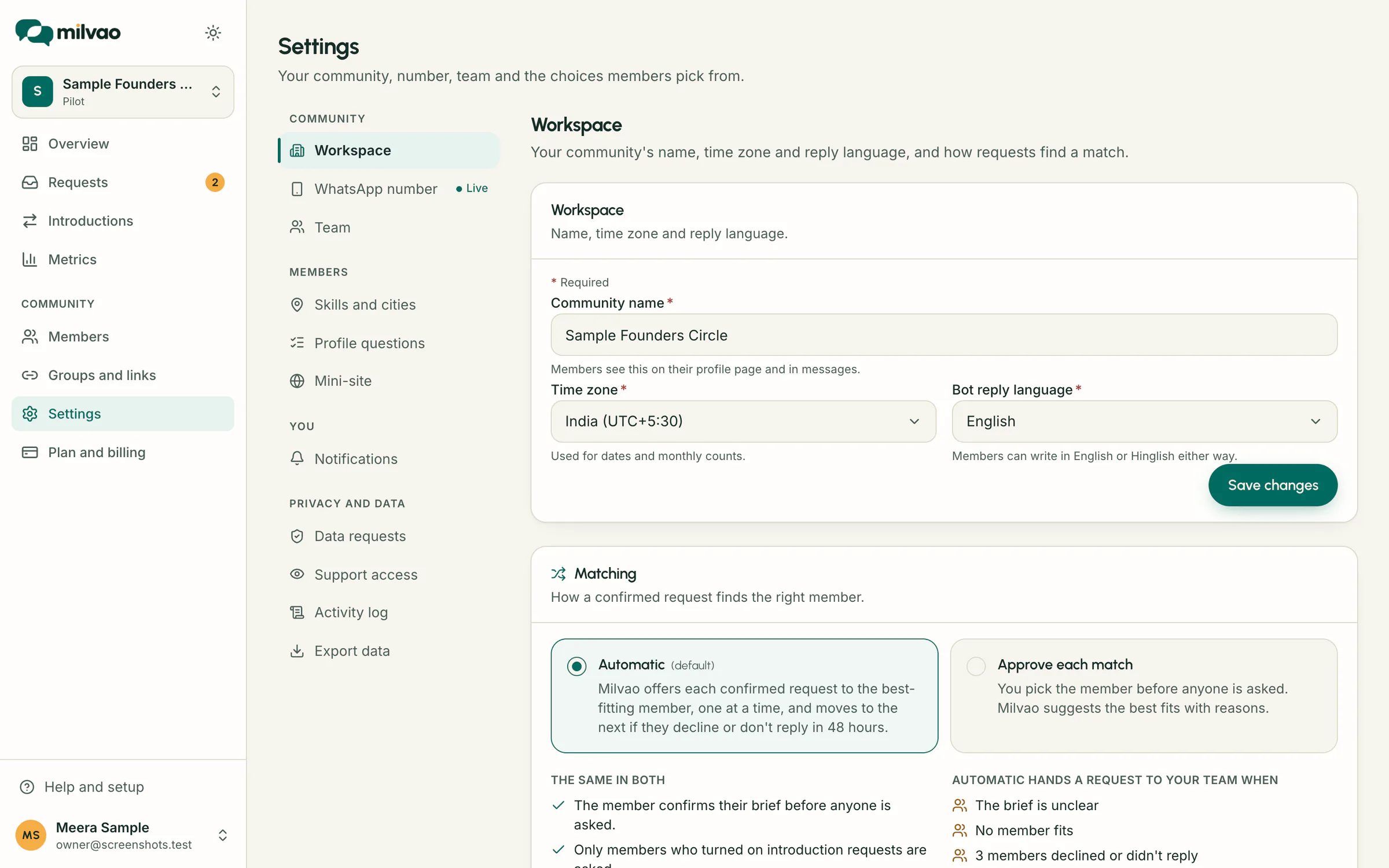
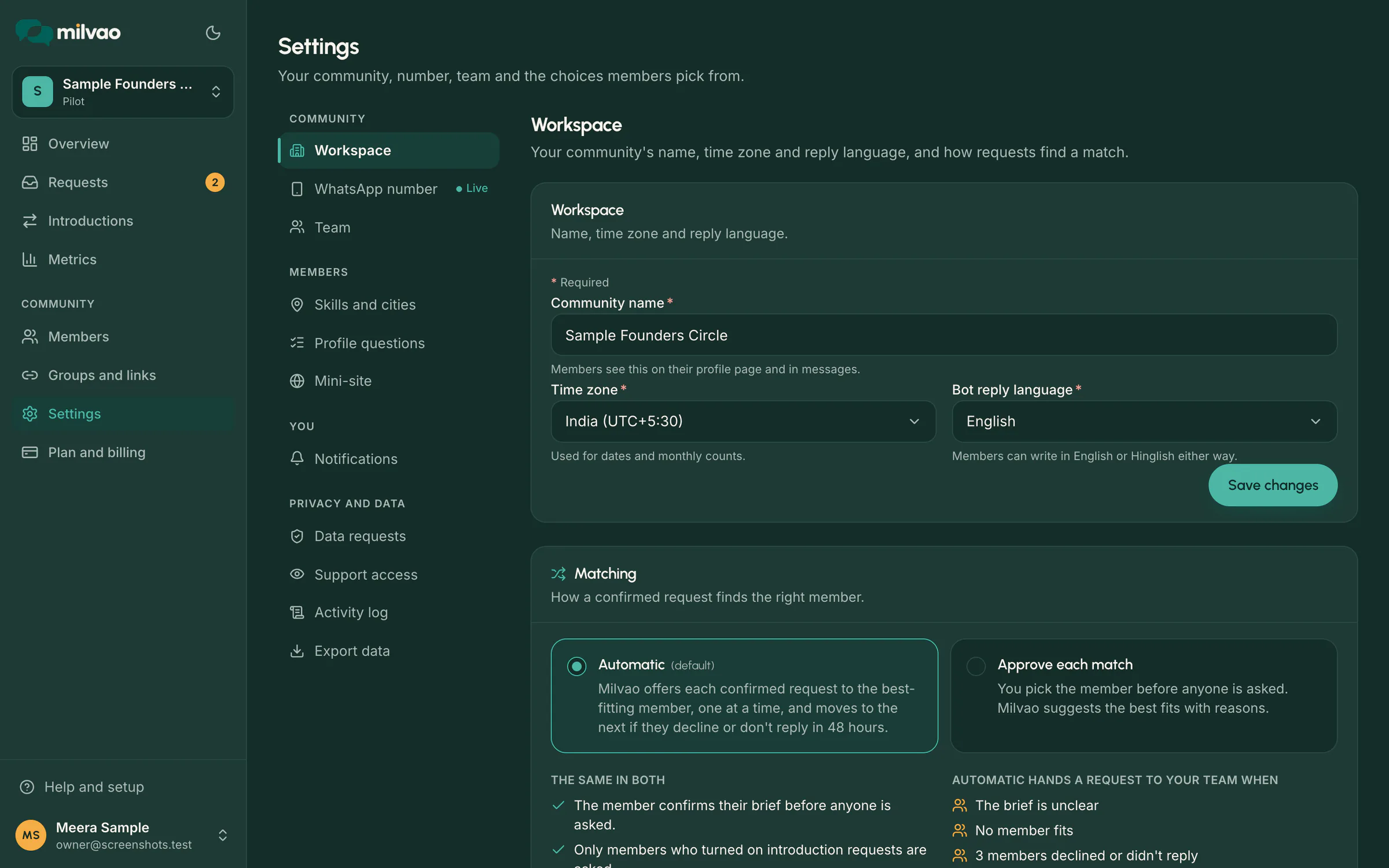
Operators see the card read-only. Requests already in progress carry on as they are, and the change is written to the audit log with the old and new mode. A badge reading You approve matches appears on Overview, Requests and Introductions, so nobody on the team forgets which mode is on.
Rules that stay the same in both modes
- The member confirms their brief before anyone is asked.
- Only members who turned on introduction requests can be asked, and only once per request.
- One member is asked at a time, at most 3 per request, and nobody gets more than 2 requests in 7 days.
- Numbers are shared only after both people say yes, and both choices are checked again just before sending.
Sources
- Milvao Help Center: Automatic matching or approve each match (checked 5 November 2026)
- Milvao Help Center: Review a request and choose who to ask (checked 5 November 2026)
Facts about WhatsApp and other services come from the pages listed, on the dates shown, and can change.